Voice Settings
Use Voice Settings to configure how an AI Voice Agent speaks, listens, handles call timing, and collects lead information. Open AI Voice Agents, select an agent, then go to Settings.
The Voice Settings screen is split into three tabs:
- Agent — main agent identity, language, model, voice, welcome message, and voice behavior controls.
- Advanced — call timing, speech recognition, audio format, terms, and internal voice tools.
- Lead capture — optional lead fields shown before the voice conversation starts.
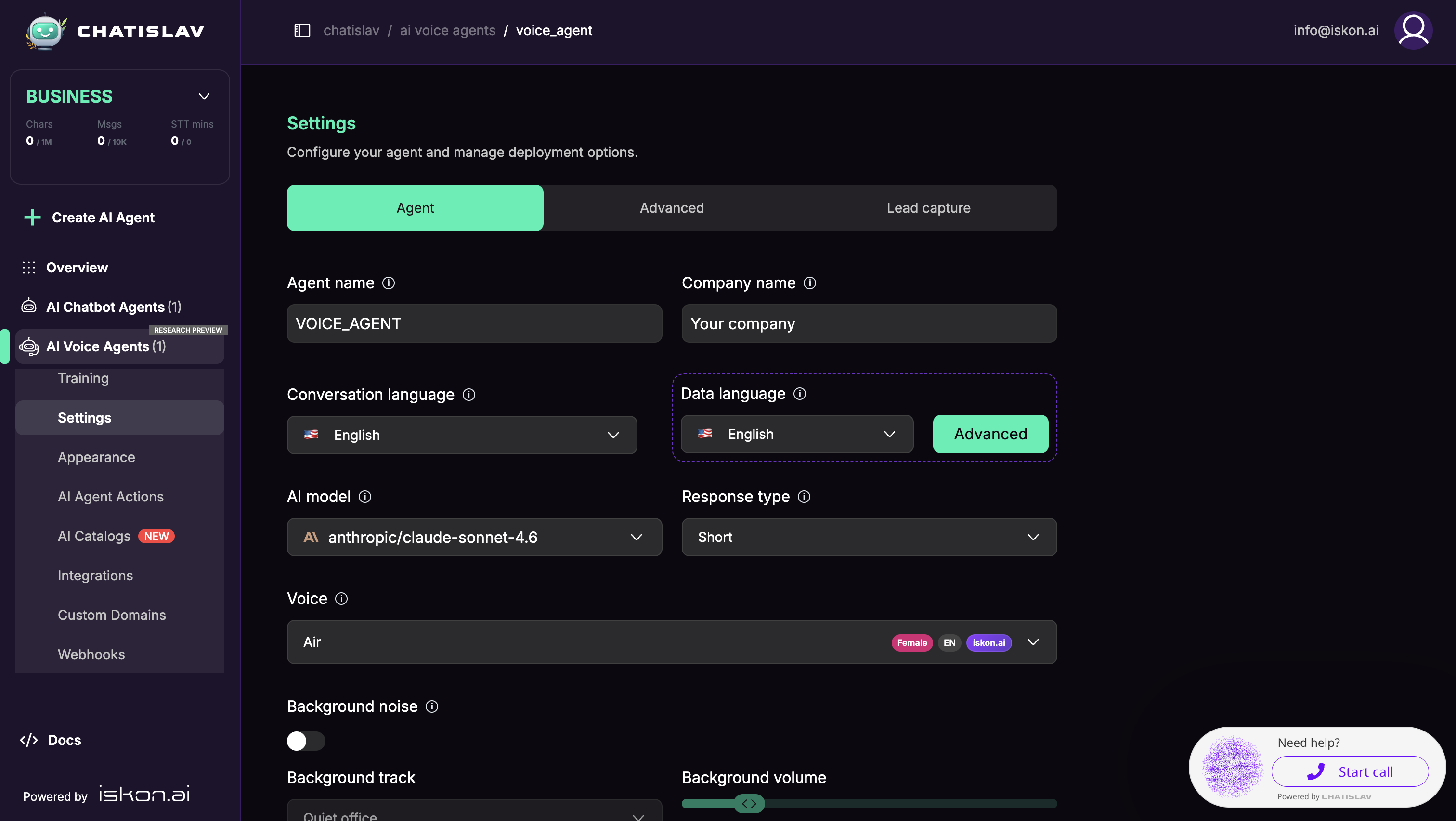
Agent Tab
The Agent tab contains the general agent settings plus voice-specific controls.
Language, Model, and Voice
- Agent name and Company name identify the voice agent.
- Conversation language controls the language used during the call.
- Data language controls the language used for the agent's knowledge and training content.
- AI model controls the model used for responses.
- Response type controls how short or detailed responses should be.
- Voice selects the TTS voice the agent uses.
When Conversation language is set to multilingual, choose a Primary language. Multilingual voice mode is available only for compatible voices, such as Chatislav Omni and ElevenLabs voices. If you change the conversation language, Chatislav may ask whether to reset the welcome message for the selected language.
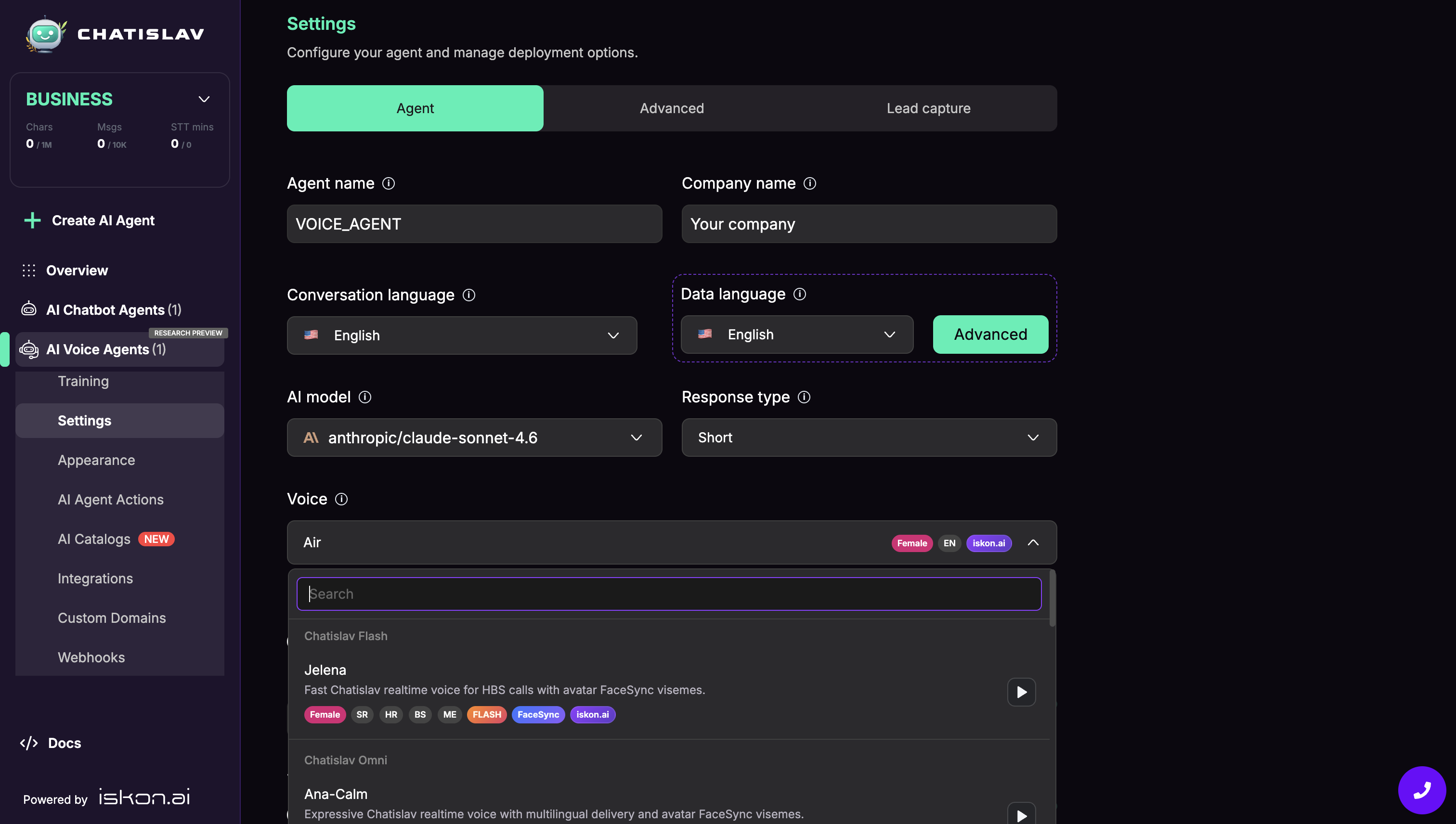
The voice dropdown groups available voices by voice family or provider, such as Chatislav Flash, Chatislav Omni, ElevenLabs, OpenAI, and Iskon. Voice rows can show tags for gender, language, model, provider, Flash/Omni support, FaceSync support, and preview availability.
Use the preview button to listen to a voice before saving it. Some ElevenLabs voices may show an extra voice-pipeline charge in the dropdown.
Voice Vibe Prompt
For OpenAI voices, Chatislav can show a Voice Vibe Prompt field. Use it to describe the voice style, tone, emotion, pacing, and delivery. If the selected OpenAI voice includes a predefined vibe, use Edit voice vibe to start from that preset.
This field is only shown and saved for OpenAI voices. If you switch to a non-OpenAI voice, the vibe prompt is cleared.
Welcome Message
The Welcome Message is what the agent says at the start of the call. Keep it short and aligned with the selected conversation language.
Voice Behavior Controls
The lower part of the Agent tab controls listening behavior and audio effects.
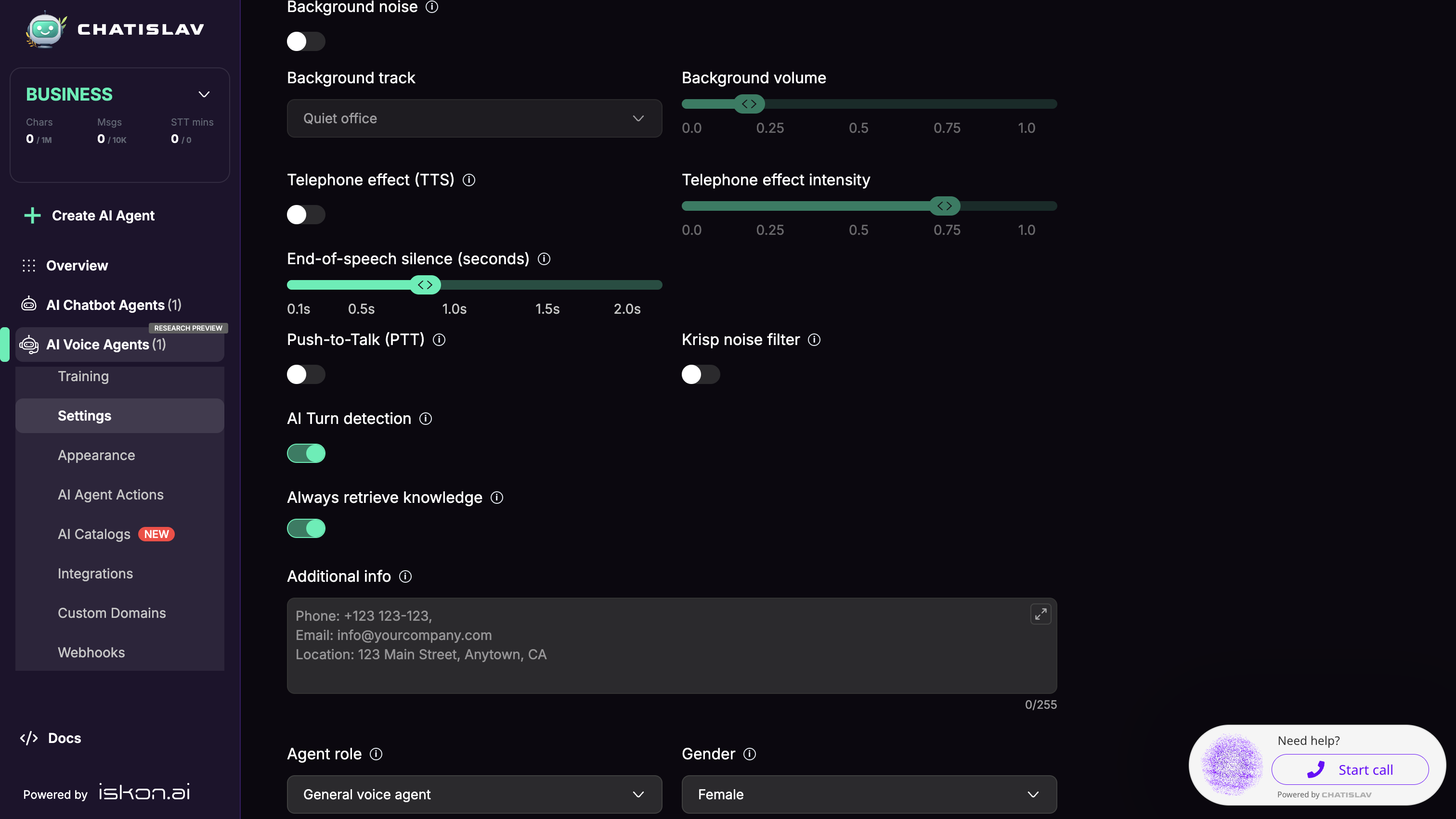
- Background noise — plays ambient background audio under the assistant voice.
- Background track — selects the ambient sound, such as quiet office.
- Background volume — controls how loud the background track is.
- Telephone effect (TTS) — applies a phone-style audio filter to assistant speech.
- Telephone effect intensity — controls the strength of the phone-style filter.
- End-of-speech silence (seconds) — controls how long silence must last before the user turn is considered finished. The supported range is 0.1 to 2.0 seconds.
- Push-to-Talk (PTT) — makes users hold a button to speak instead of using always-on voice detection.
- Krisp noise filter — enables extra microphone noise filtering for web voice calls.
- AI Turn detection — lets the system use AI to decide when the user has finished speaking. This is enabled by default.
- Always retrieve knowledge — forces knowledge retrieval for every response.
Advanced Tab
The Advanced tab contains call timing, audio format, speech recognition, terms, and internal voice tool settings. The Advanced tab is locked on the Free plan.
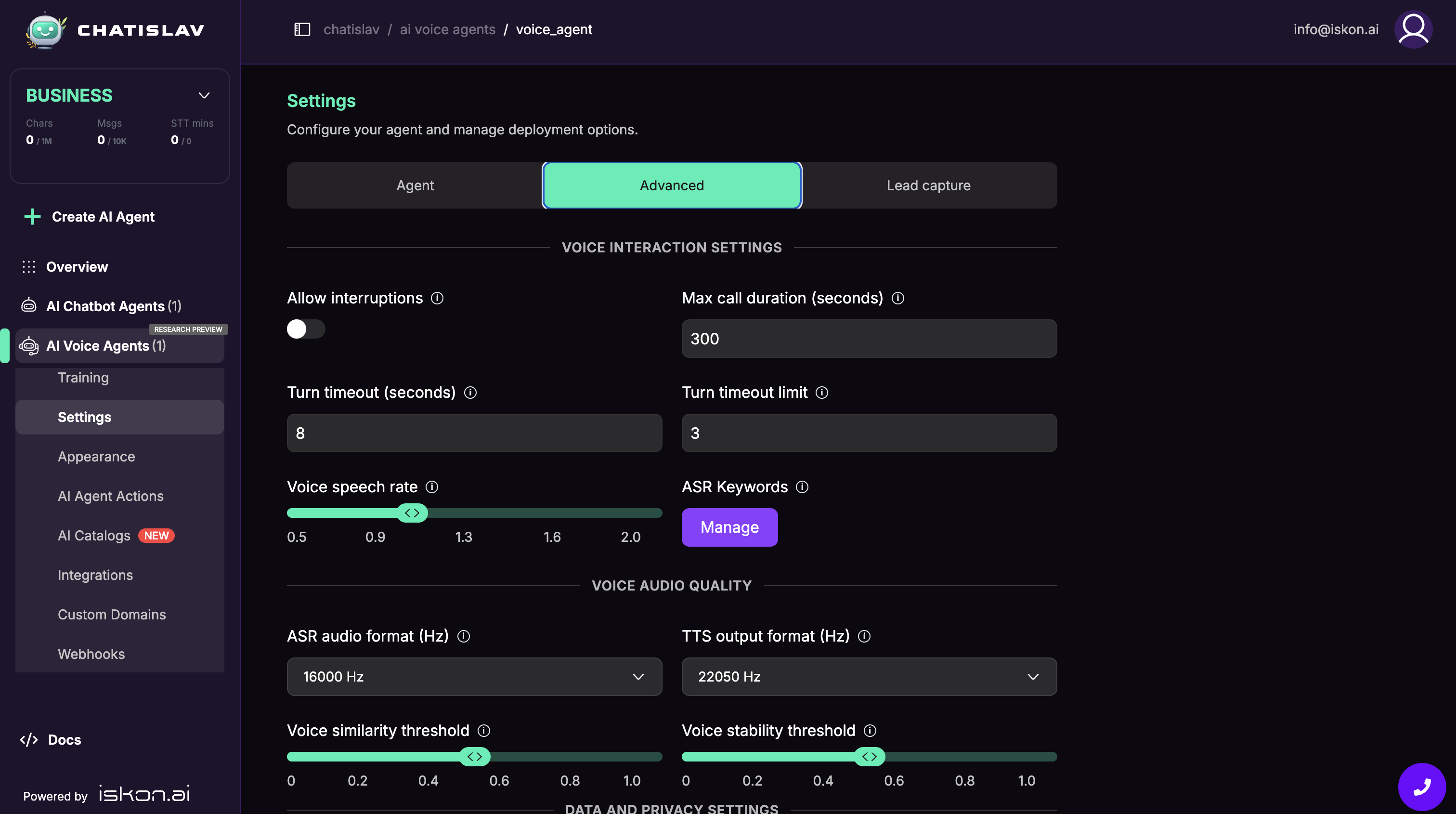
Voice Interaction Settings
- Allow interruptions — allows the caller to interrupt the agent while it is speaking.
- Max call duration (seconds) — maximum call length. The default is 300 seconds.
- Turn timeout (seconds) — how long the system waits before treating the current turn as timed out. The default is 8 seconds.
- Turn timeout limit — how many consecutive turn timeouts are allowed before the call ends. The default is 3.
- Voice speech rate — controls speaking speed from 0.5x to 2.0x.
- ASR Keywords — custom words or phrases that help speech recognition understand important names, products, or terms.
Voice Audio Quality
- ASR audio format (Hz) — input audio sampling rate for speech recognition.
- TTS output format (Hz) — output audio sampling rate for text-to-speech.
- Voice similarity threshold — controls how closely generated speech should match the selected voice.
- Voice stability threshold — controls voice stability and consistency.
Leave audio format and threshold settings at their defaults unless you have a specific voice quality or telephony requirement.
Data and Privacy Settings
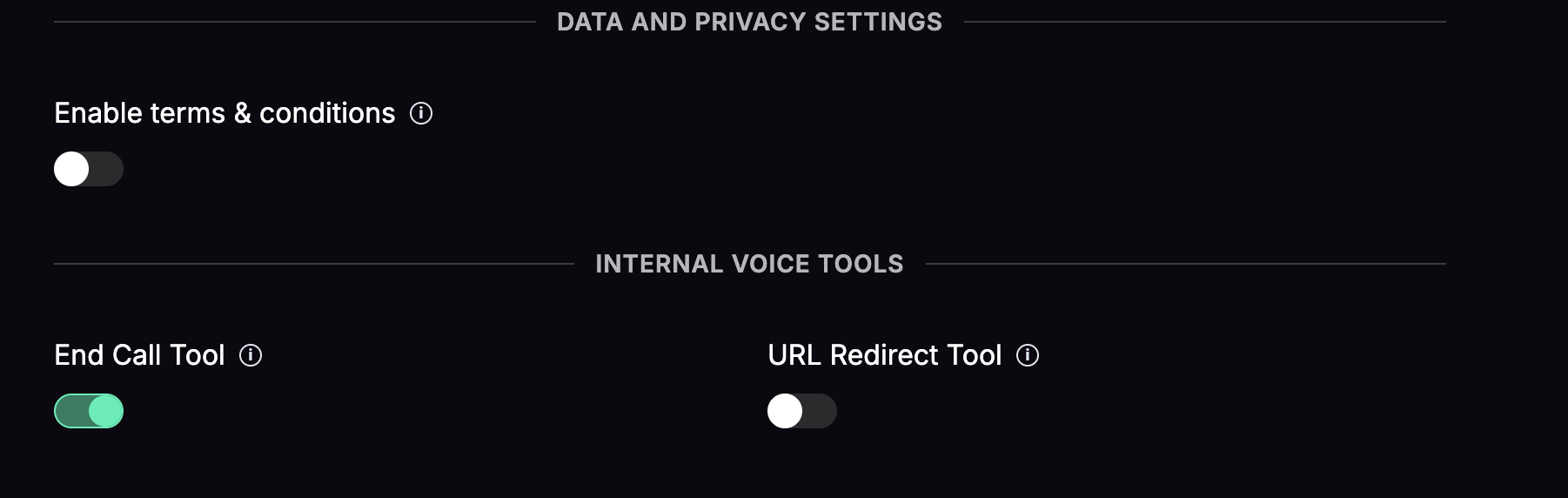
- Enable terms & conditions — require users to accept terms before using the voice agent. When enabled, add the terms content and local storage key.
Internal Voice Tools
- End Call Tool — lets the agent end the call when the conversation is complete.
- URL Redirect Tool — lets the agent redirect the user to a relevant URL during the call.
Lead Capture Tab
Use Lead capture to ask for contact details before the voice conversation starts.
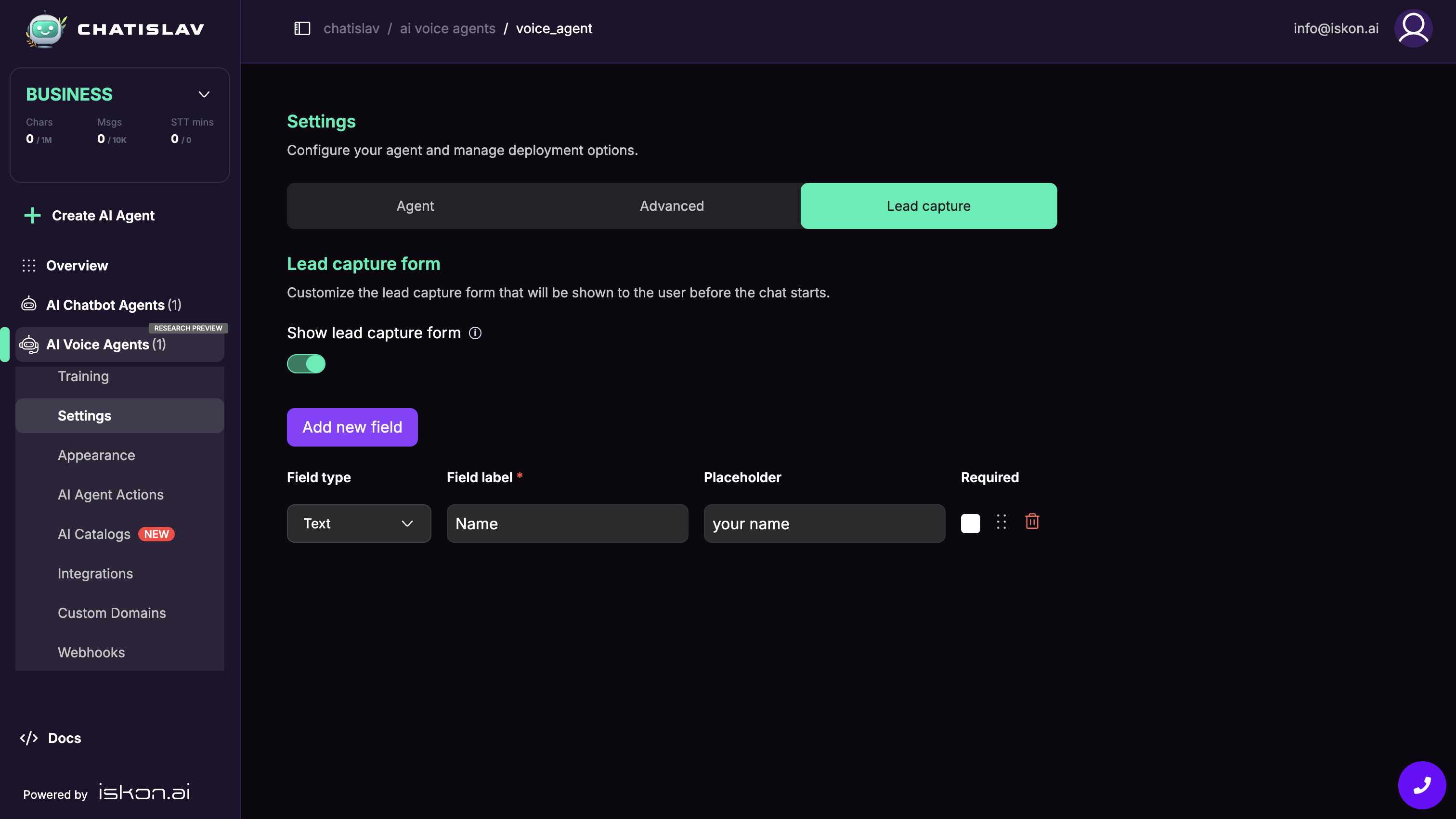
Turn on Show lead capture form, then add fields. Each field has a type, label, placeholder, and required toggle. You can add up to 10 lead fields and reorder them by dragging.
Lead capture is disabled on the Free plan. It is also unavailable when the voice agent is running in compact mode.
For the shared lead capture behavior, see Lead Capture Form.