Chats
The Chats screen (Inbox) is where you review conversations for the selected AI agent, inspect user details, pause AI replies for supported channels, create evaluations, block users, train FAQs, and export conversation data. It is organized into two tabs: Chats and Users.
Accessing Chats
- In the left sidebar, select the AI agent you want to review.
- Open Chats.
The screen opens on the Chats tab with your most recent conversations listed. Chat history is available on plans that include it.
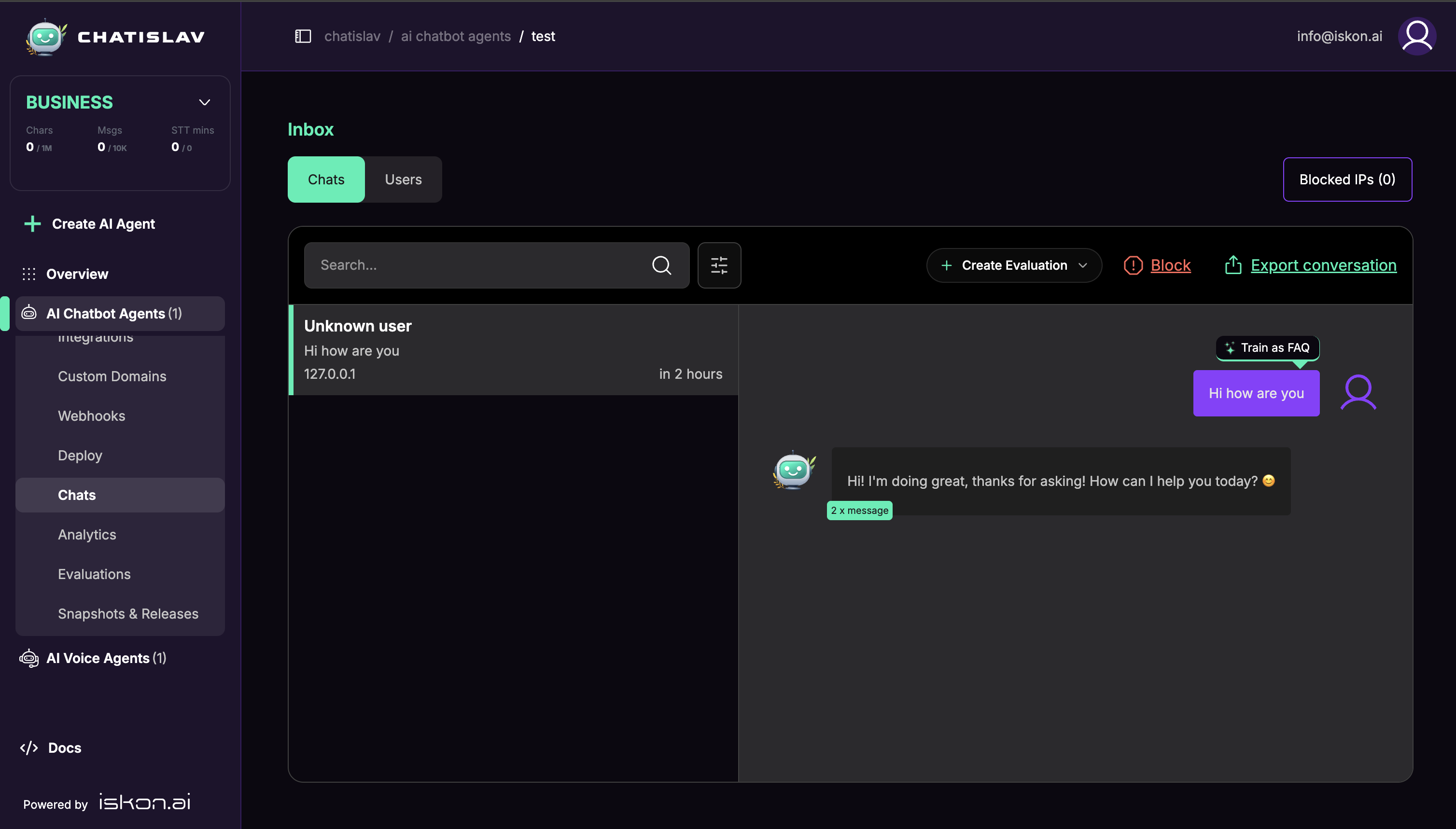
Chats Tab
Finding a conversation
- Search by IP address, the first user message, or collected user details such as name and email.
- Sort conversations by:
- Recent first
- Positive issues
- Negative issues
Filters
Open the filter panel to narrow the list:
- Date range — presets (Today, Yesterday, This week, Last week, This month, Last month) or a custom range.
- Resolution status — All / Resolved / Unresolved.
- Human takeover — show only conversations currently handed off to a human.
- Guardrail flagged — show only conversations flagged by safety guardrails.
- Channel — All, Widget, WhatsApp, Viber, Instagram, Facebook.
- Clear all filters resets the panel.

Reading a conversation
Select a conversation to open the full message thread. For each conversation you can see:
- The message thread with user and agent messages and timestamps.
- Message feedback — any thumbs-up / thumbs-down ratings the user left.
- Guardrail badges when an input was blocked or an output was corrected.
- Sources/citations when the response used source material.
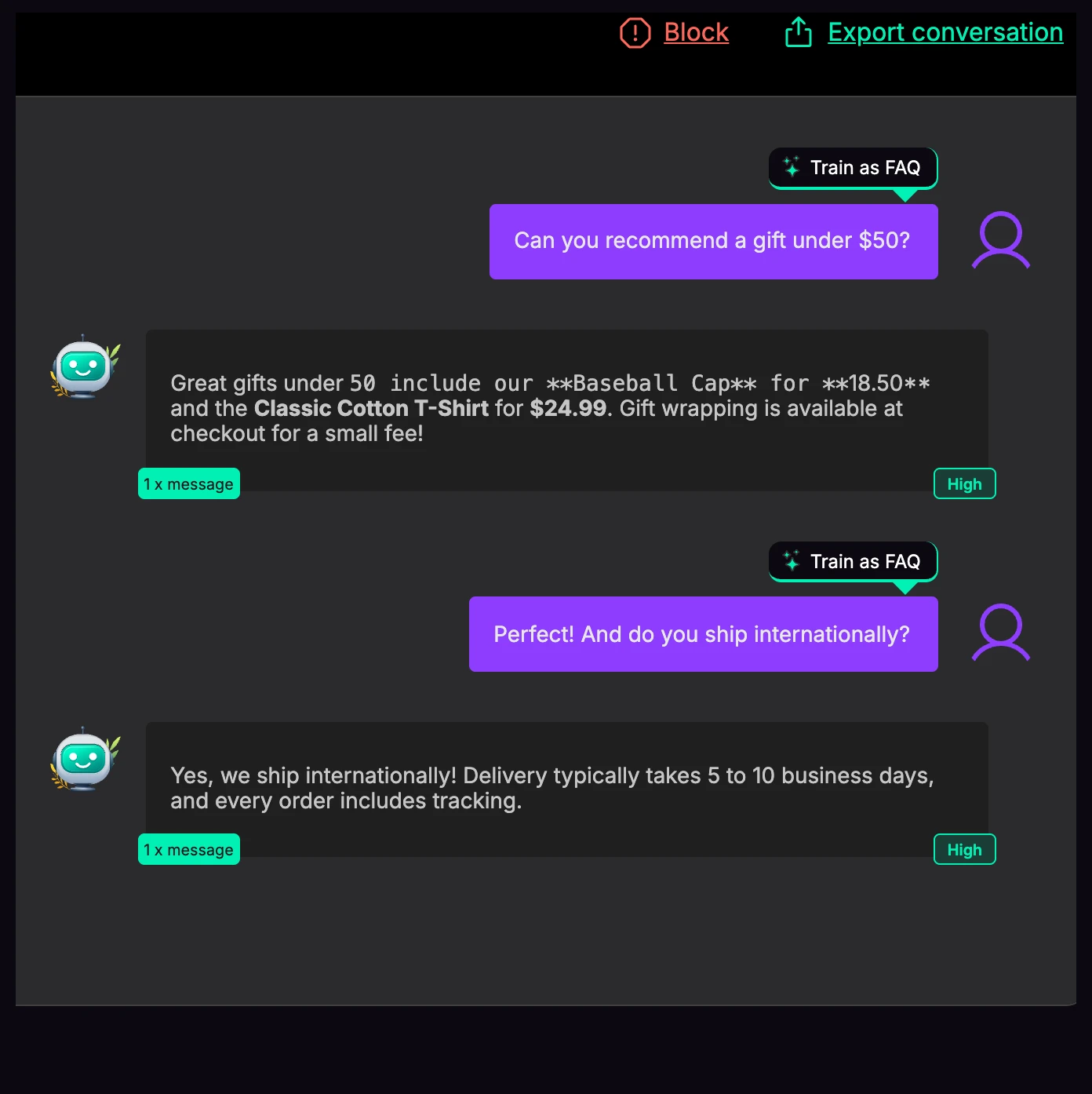
- A training coverage badge (High / Medium / Low) when the response has source context.
Conversation actions
- Create Evaluation — create a session replay or predefined evaluation draft from the selected conversation.
- AI toggle / Human takeover — for supported social-channel conversations, pause or resume AI replies. When a manual reply box is available for the channel, replies are sent and saved as human assistant messages.
- Block / Unblock — block the user from the conversation. Widget chats are blocked by IP address; supported social channels are blocked by channel identity.
- Export conversation — download the conversation (see Export below).
- Train as FAQ — turn a message exchange into an FAQ entry. You provide a Question (up to 500 characters) and Answer (up to 3000 characters), with an option to overwrite existing questions.
Conversation details
Open the conversation's info menu to see metadata such as:
- Chat ID (copyable)
- IP address or phone number (depending on the channel)
- Any feedback comment left by the user
- Created date
- Channel-specific IDs (WhatsApp, Facebook, Instagram, Viber, Telegram)
- User information: user ID, blocked status, created date
AI conversation summary
When AI summaries are enabled and your plan supports them, conversations can show an AI-generated analysis. The visible fields depend on your summary configuration and can include sentiment, resolution status, short and detailed summary, key topics, issue category, actions taken, follow-up required, priority, tags, language, user intent, and customer satisfaction. See AI Conversation Summary for how to configure which fields are generated and how they are delivered.
Blocked IPs
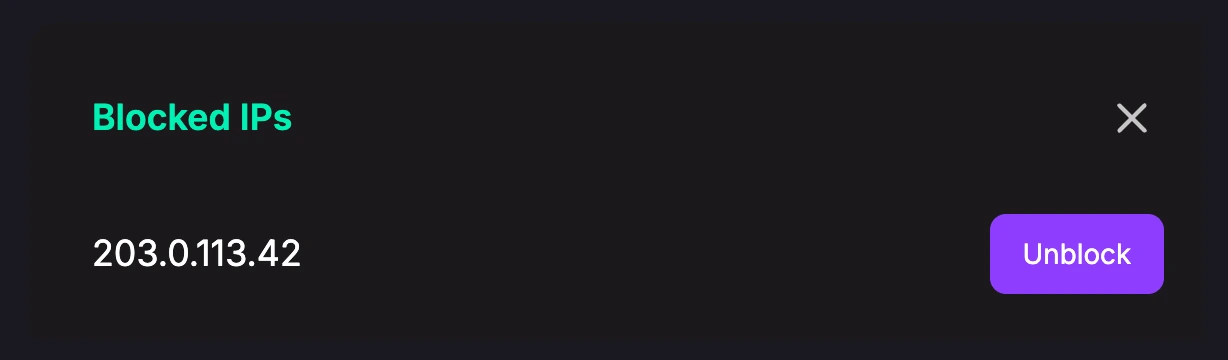
The header shows a Blocked IPs (N) button. Open it to see blocked widget IPs and supported channel identities, then Unblock any entry.
Users Tab
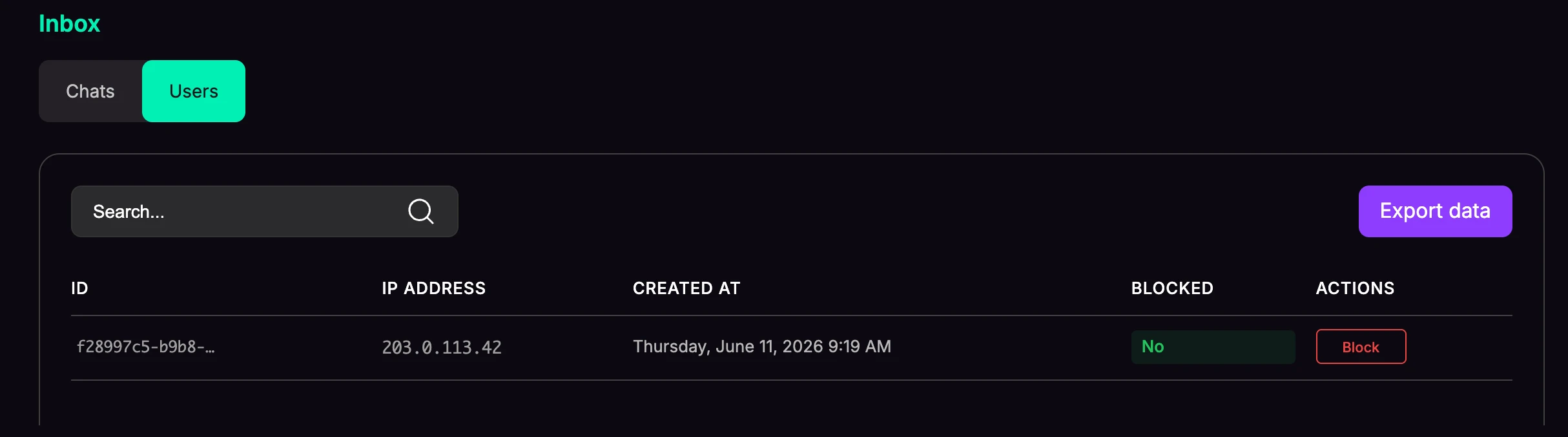
The Users tab lists the people who have interacted with your agent.
- User table columns: ID, any custom form fields you collect, IP address, created date, and blocked status.
- Search by IP address, user ID, or collected user field values.
- Block / Unblock a user from the Actions column.
- Export user data (see Export below).
- Pagination to move through the full list. Chats and users are loaded in pages of 10.
Exporting Data
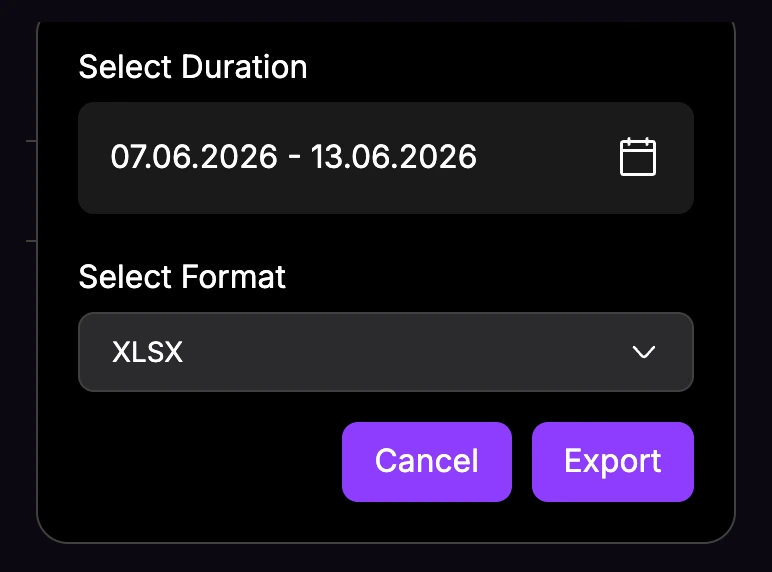
Both tabs offer an export dialog:
- Date range — presets or a custom range.
- Format — XLSX, CSV, or JSON.
Chat export includes date, chat ID, message, sender role, IP address, feedback, citations/sources, and all enabled AI summary fields. User export includes the user ID, custom form fields, IP address, created date, and blocked status.
Tips
- Use the Negative issues sort or Unresolved filter to quickly find conversations that need attention.
- Use Train as FAQ on real questions to continuously improve your knowledge base.
- Use the Human takeover filter to find conversations a teammate is currently handling.