Voice Appearance
Use Voice Appearance to customize the voice widget's avatar, animation, colors, text labels, position, and branding. Open AI Voice Agents, select an agent, then go to Appearance.
Avatar and Audio Animation
The top section controls the visual identity of the voice widget.
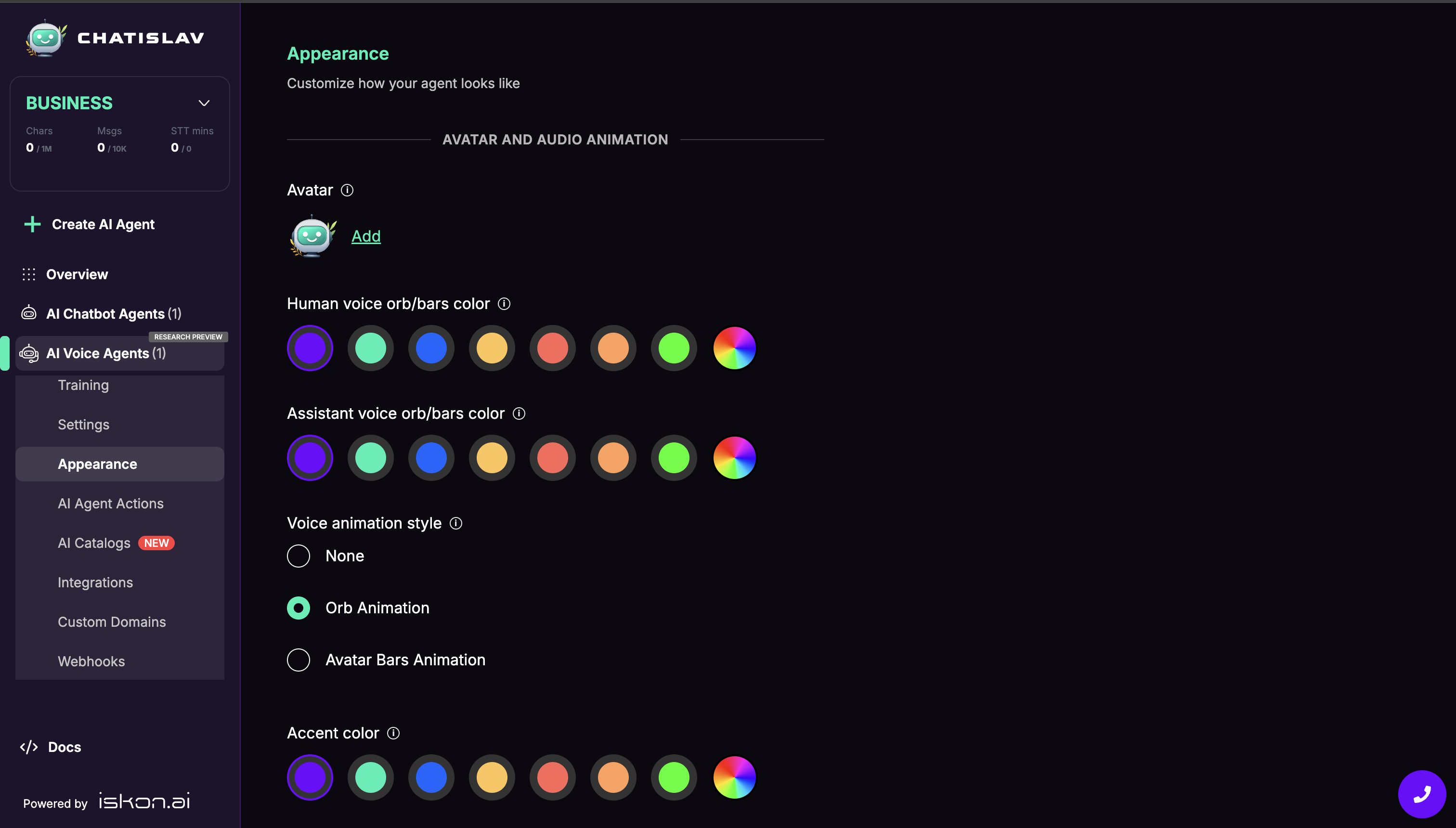
- Avatar - upload the image shown for the voice agent.
- Human voice orb/bars color - color used for the human speaker animation.
- Assistant voice orb/bars color - color used for the assistant speaker animation.
- Voice animation style - choose None, Orb Animation, or Avatar Bars Animation.
- Accent color - main accent used by voice widget controls, buttons, and highlights.
Advanced Colors
Open Advanced settings for theme colors to fine-tune the rest of the widget theme.
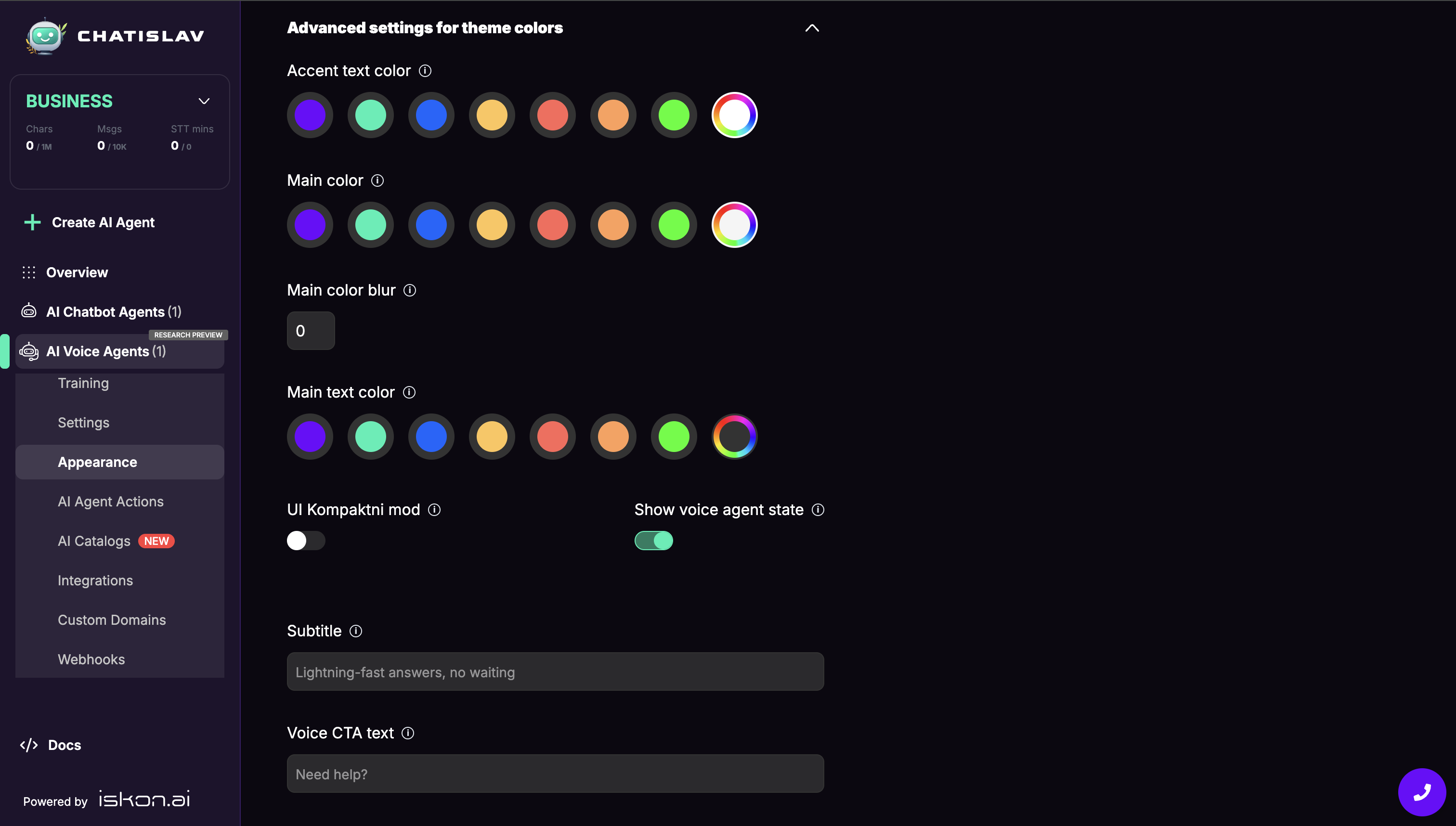
- Accent text color - text color used on accent-colored elements.
- Main color - main widget surface color.
- Main color blur - blur amount applied to the main widget surface.
- Main text color - primary text color inside the widget.
Voice UI and Text Labels
Use the middle section to control compact layout, state visibility, and the labels shown in the voice widget.
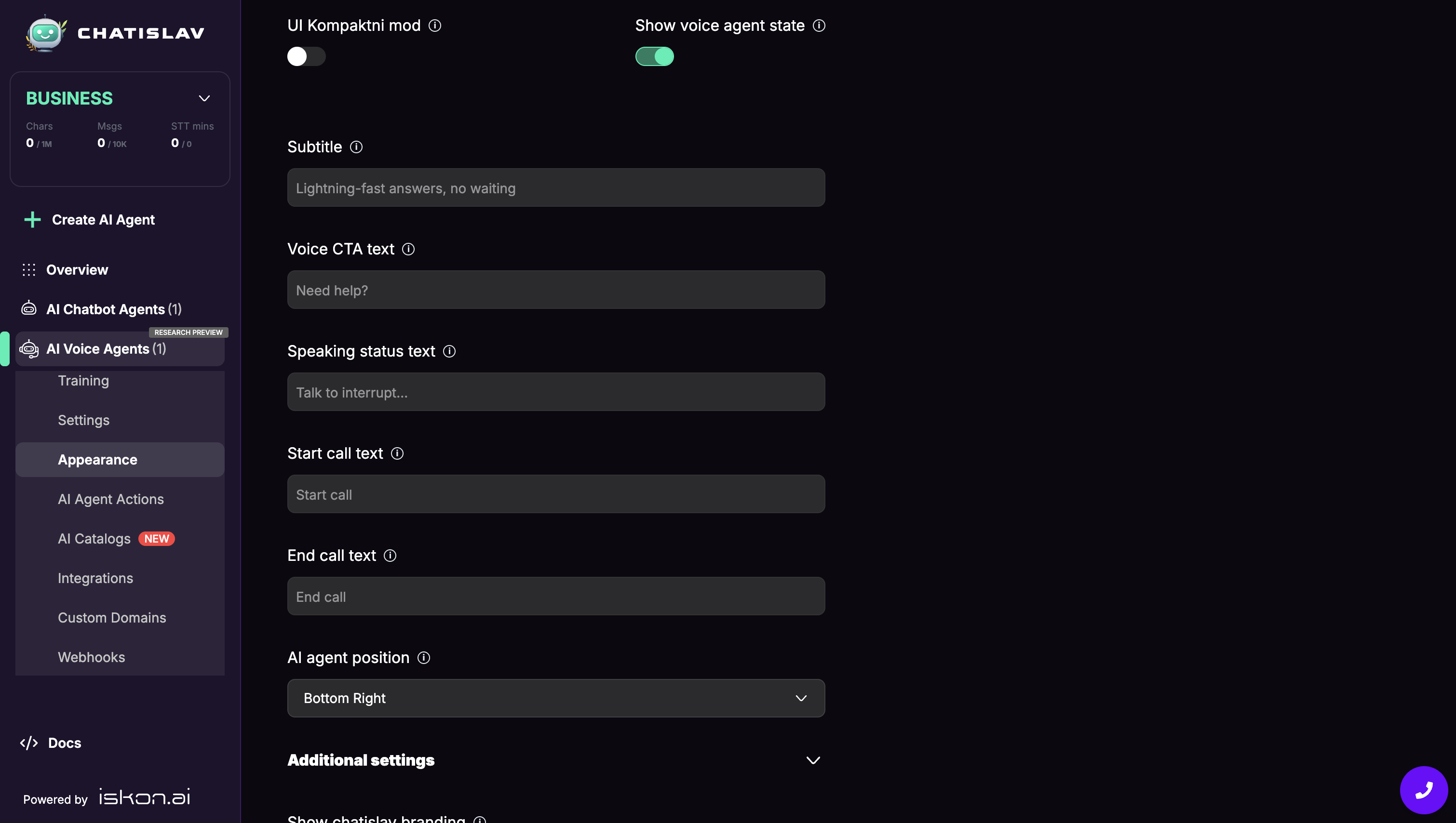
- UI Compact mode - shows the voice widget in a smaller layout.
- Show voice agent state - shows the current voice state, such as listening or speaking.
- Subtitle - supporting text shown in the voice widget.
- Voice CTA text - text shown above or near the start-call button, for example "Need help?"
- Speaking status text - text shown while the assistant is speaking.
- Start call text - label for the button that starts a voice call.
- End call text - label for ending a voice call.
If a text field is left empty, Chatislav uses the default localized text for the agent language.
Position and Additional Settings
The AI agent position selector controls where the voice widget appears. In the current voice UI, the visible choices are Bottom Left and Bottom Right.
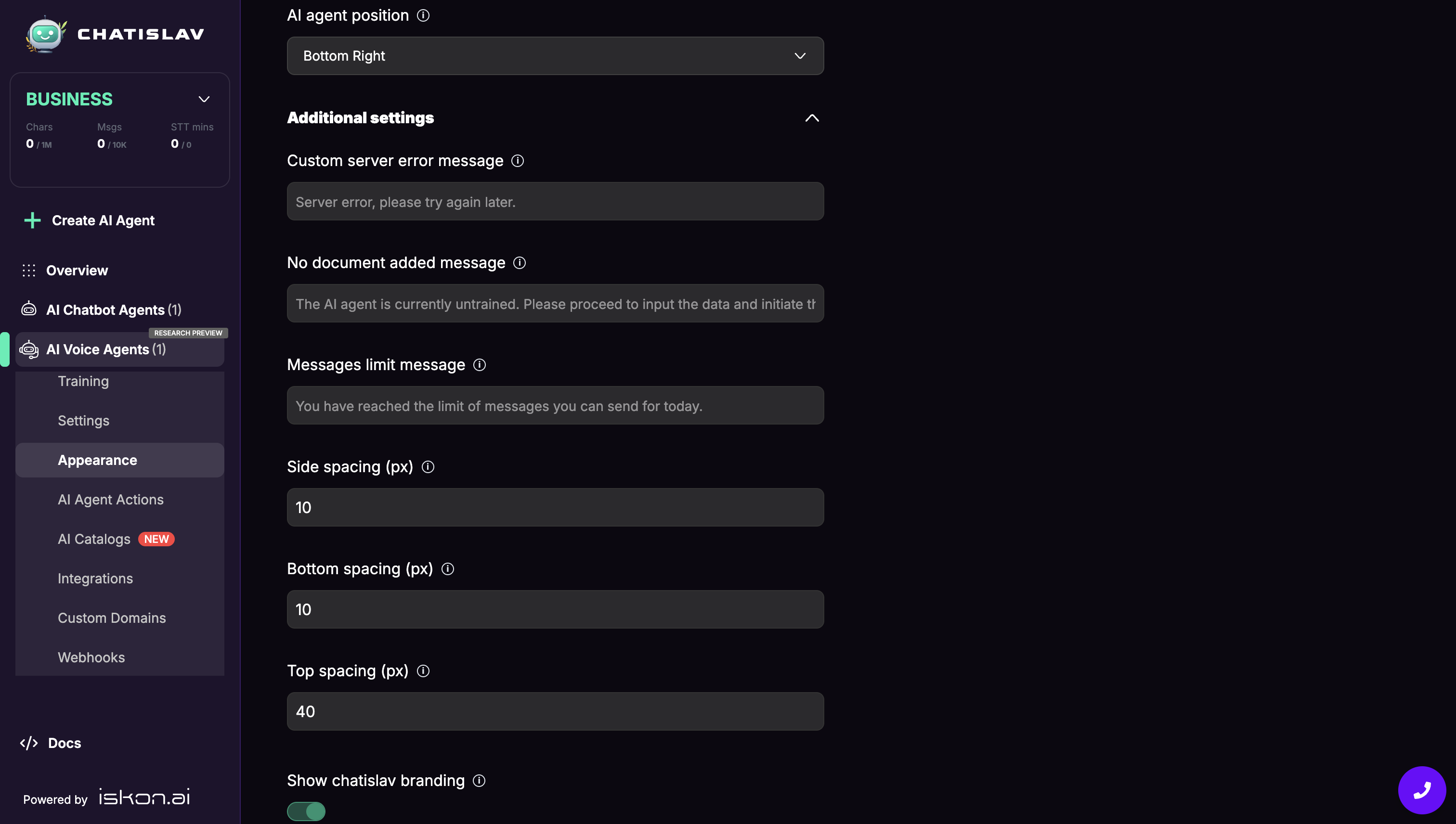
Open Additional settings for fallback messages and widget spacing:
- Custom server error message - message shown when the server cannot respond.
- No document added message - message shown when the agent has no usable training data.
- Messages limit message - message shown when a user reaches the configured message limit.
- Side spacing (px) - horizontal distance from the screen edge.
- Bottom spacing (px) - distance from the bottom edge for bottom placements.
- Top spacing (px) - distance from the top edge for layouts that use a top placement. In the current voice position selector, Side spacing and Bottom spacing are the practical controls for the visible bottom placements.
Spacing values accept 0 to 200 pixels.
Branding
Use Show chatislav branding to show or hide Chatislav branding in the voice widget.

Branding can only be hidden on plans or add-ons that allow branding removal. On plans that do not include this option, the control may be locked.