Snapshots & Releases
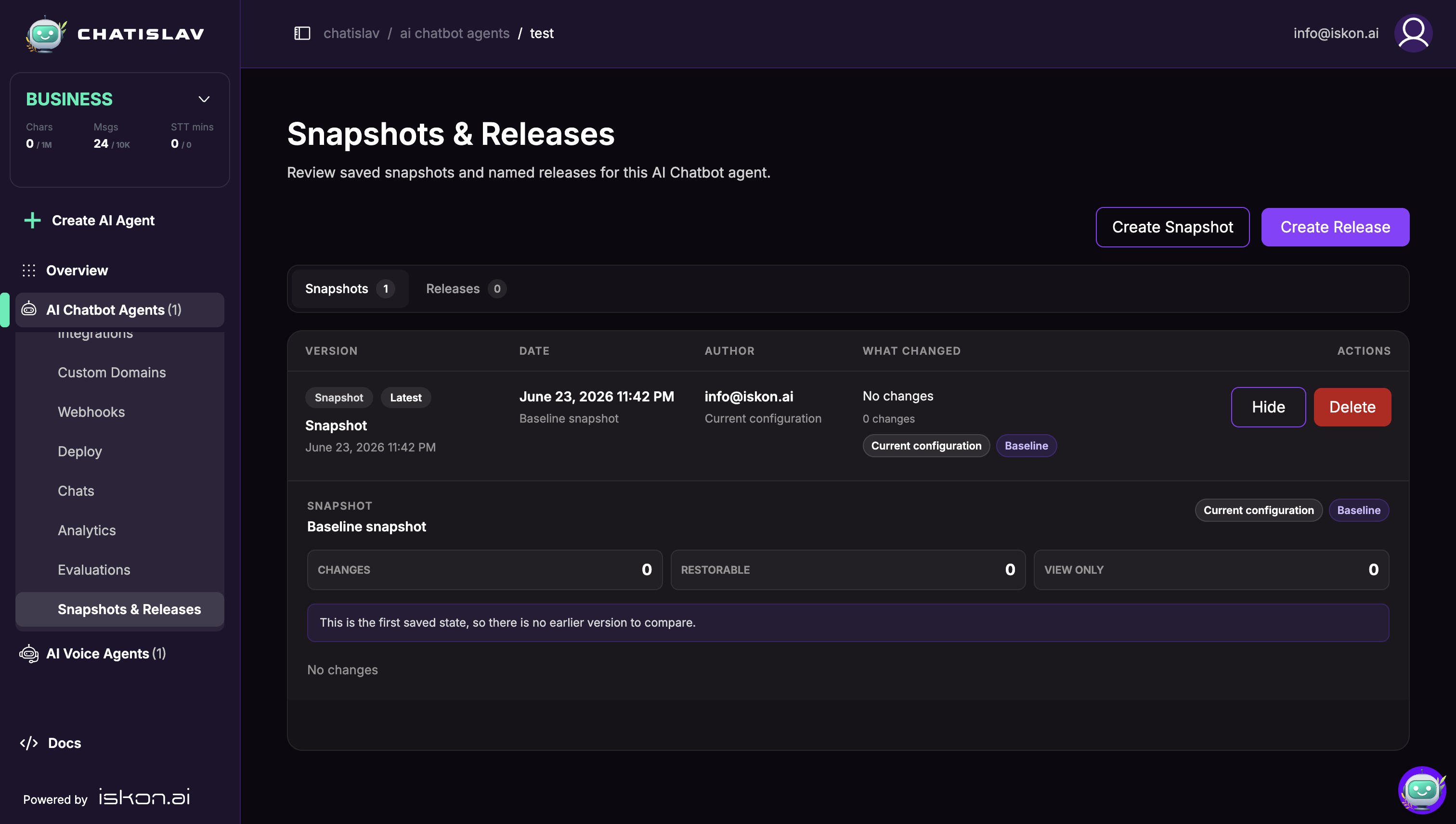
Snapshots & Releases lets you review saved configuration history for an AI chatbot agent, compare what changed, and restore supported configuration areas from an earlier version.
Accessing Snapshots & Releases
- In the left sidebar, select the AI chatbot agent you want to review.
- Open Snapshots & Releases.
The page has two tabs:
- Snapshots — point-in-time saves of the agent configuration.
- Releases — named milestones with release notes.
Snapshots & Releases is available on plans/workspaces where version history is enabled.
Snapshots vs Releases
| Type | Use It For | How It Is Created |
|---|---|---|
| Snapshot | Saving a rollback point before or after normal agent changes. | Click Create Snapshot, or choose Save with snapshot when saving supported agent settings. |
| Release | Marking a meaningful milestone, such as a tested production version. | Click Create Release and enter release notes. |
Both snapshots and releases appear in version history and can show changed sections, author, date, comparison target, restore status, and available actions.
Reading the History Table
Each row shows:
- Version — Snapshot or Release, plus labels such as Latest, Current configuration, Baseline, Can restore, or View only.
- Date — when the version was saved and what it is compared against.
- Author — the member who created it when available.
- What changed — a short summary of changed sections and change counts.
- Actions — view/hide details, restore when available, or delete the history row.
Open a row with View to inspect details. Expanded details show total changes, restorable changes, view-only changes, section groups, previous values, and new values.
Creating a Snapshot
Use Create Snapshot when you want to save the current agent configuration manually.
- Open Snapshots & Releases.
- Click Create Snapshot.
- Chatislav saves the current configuration as a new snapshot.
Snapshots are useful before changing prompts, actions, appearance, deployment settings, or other agent behavior that you may want to compare or restore later.
Saving a Snapshot While Editing
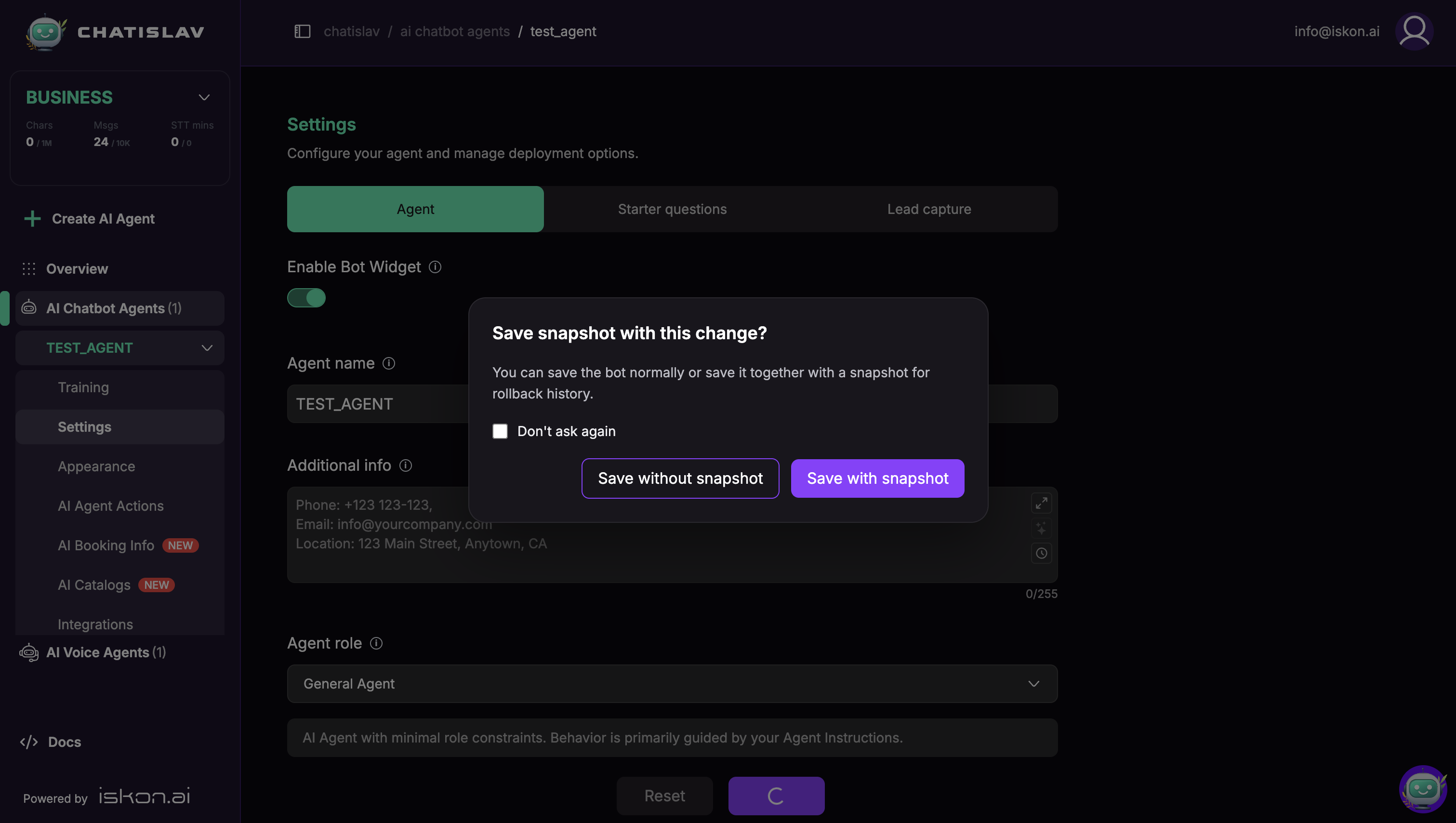
When version history is enabled, Chatislav can ask whether to save a snapshot during normal agent setting updates.
Choose:
- Save without snapshot — saves the change normally without adding a history entry.
- Save with snapshot — saves the change and adds a snapshot for rollback history.
- Don't ask again — remembers your choice for future saves in this browser.
Creating a Release
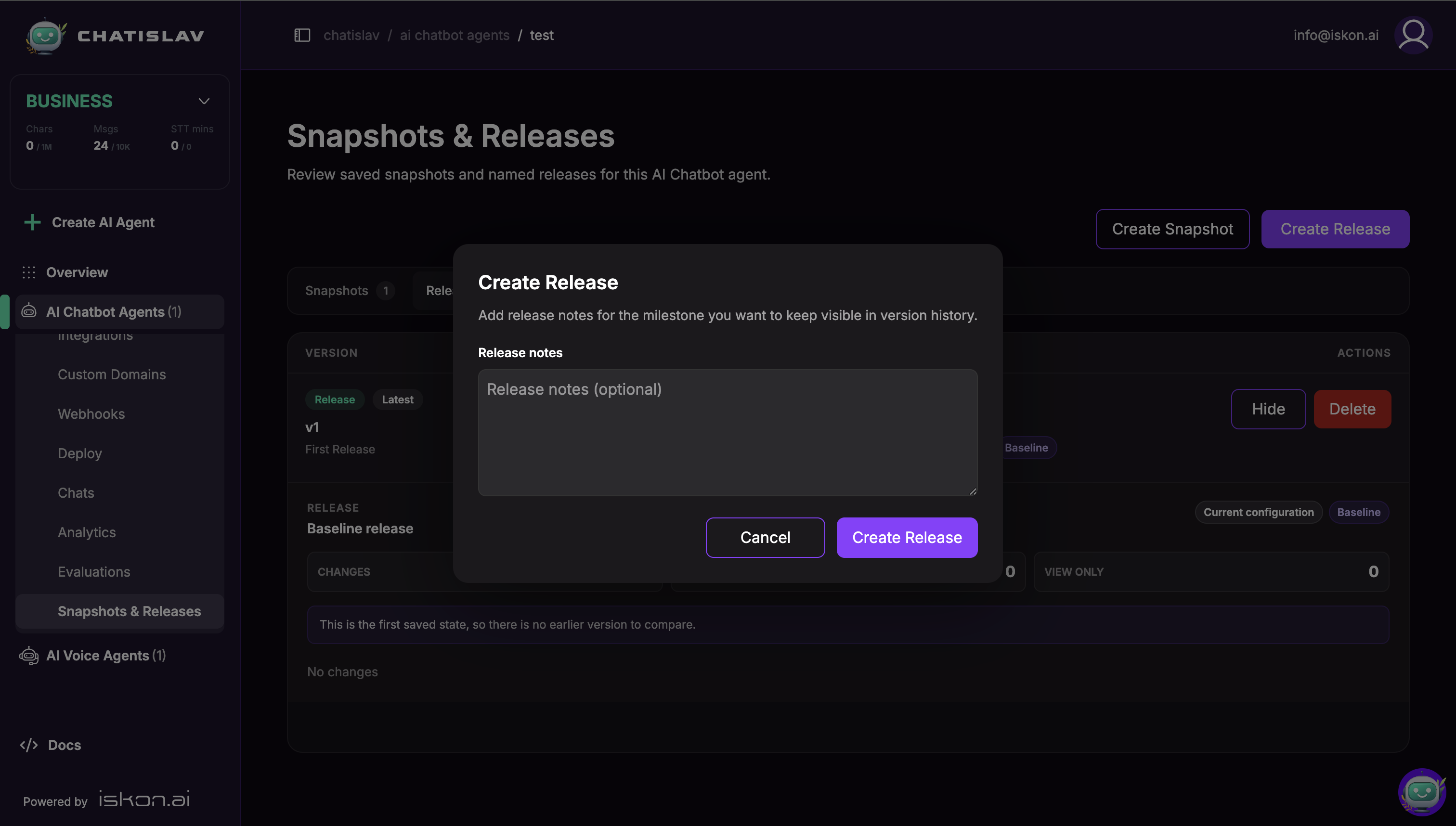
Use releases for milestones you want to keep clearly named in version history, such as a tested production setup.
- Open Snapshots & Releases.
- Click Create Release.
- Enter Release notes describing the milestone.
- Click Create Release.
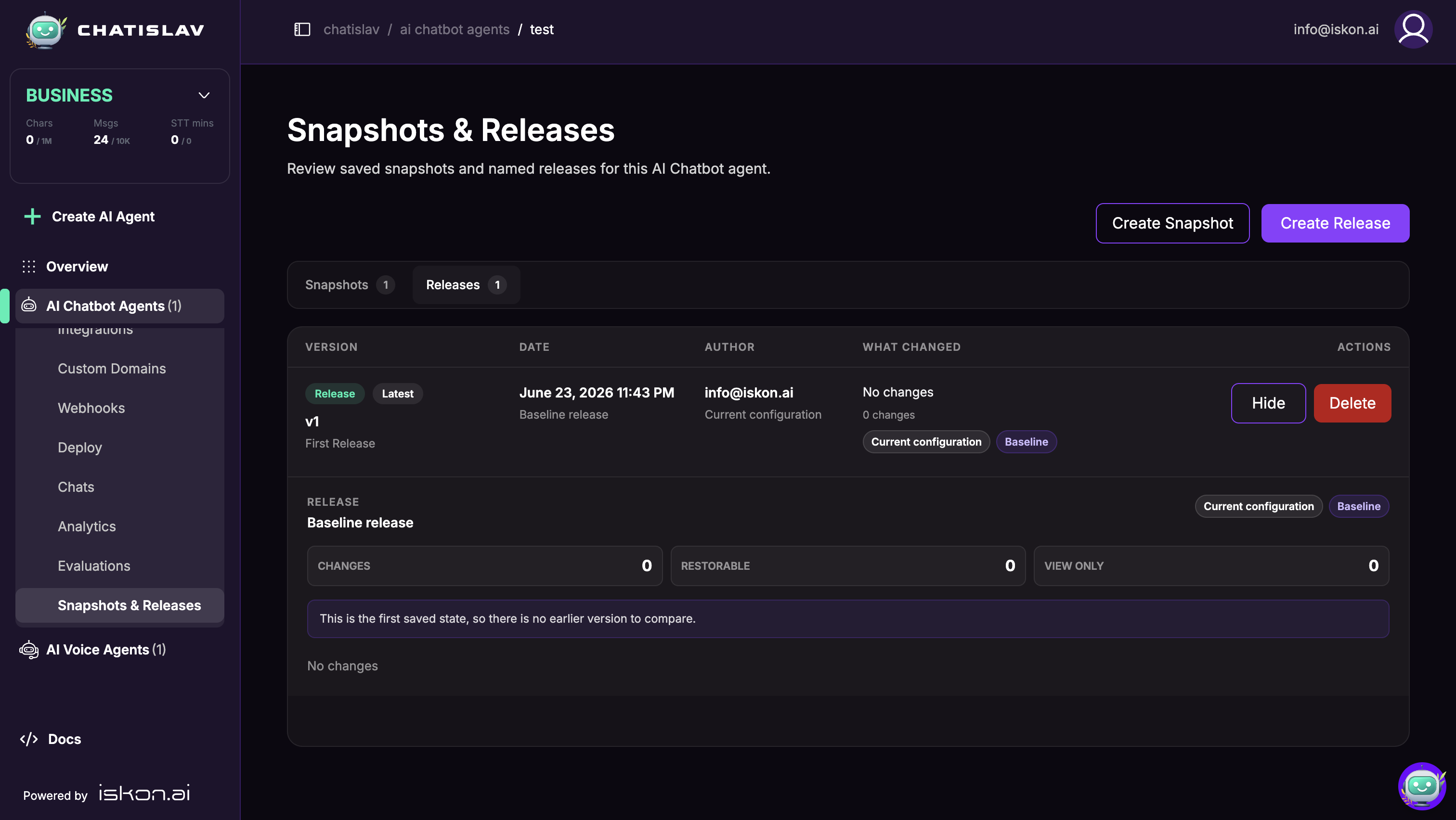
After the release is created, it appears in the Releases tab with a release label such as v1.
Restoring a Version
If a version can be restored, its row shows Restore.
Restore can bring back supported agent configuration areas such as:
- Agent settings.
- Appearance.
- AI Agent Actions.
- Workflows.
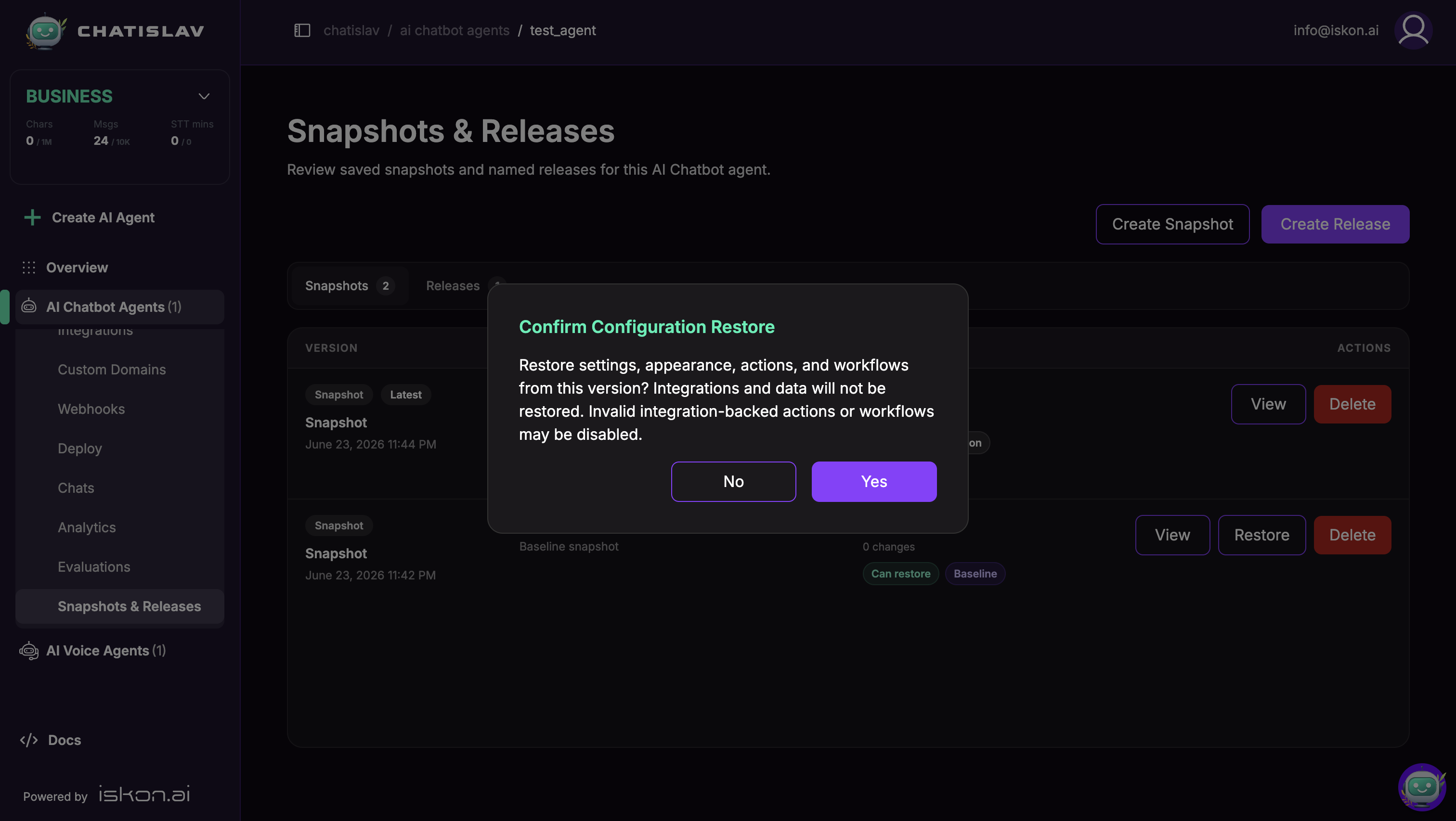
Restore does not restore integrations or data. Some changes may be shown only for review. If an action or workflow depends on an integration that is no longer valid, Chatislav may disable that integration-backed action or workflow during restore.
Chatislav asks for confirmation before restoring a version.
Deleting a Version
Use Delete to remove a saved snapshot or release from version history.
Deleting a version only removes that saved history entry. It does not change the live agent configuration.
Best Practices
- Create a snapshot before major prompt, action, appearance, deployment, or workflow changes.
- Create a release after testing a setup you consider production-ready.
- Use expanded details to compare changed sections before restoring.
- Treat view-only sections as audit information; they can help explain what changed, but they are not restored from this screen.
- Keep release notes short and specific so teammates can recognize why a release matters.