Transfer to Number
The Transfer to Number action lets a voice agent hand off a live phone/SIP call to a human by transferring it to a phone number or SIP address. Use it when a caller needs a person instead of the AI agent.
This action applies to voice agents with phone/SIP calling enabled. See Phone & SIP Calling.
Before You Use It
- The action is available only for voice agents. A bot can have one Transfer to Number action.
- The current transfer flow uses SIP REFER, so the live call must come through a phone/SIP provider that supports REFER transfers.
- Web voice widget or WebRTC-only calls cannot be transferred by this action because there is no SIP participant to transfer.
Add the Action
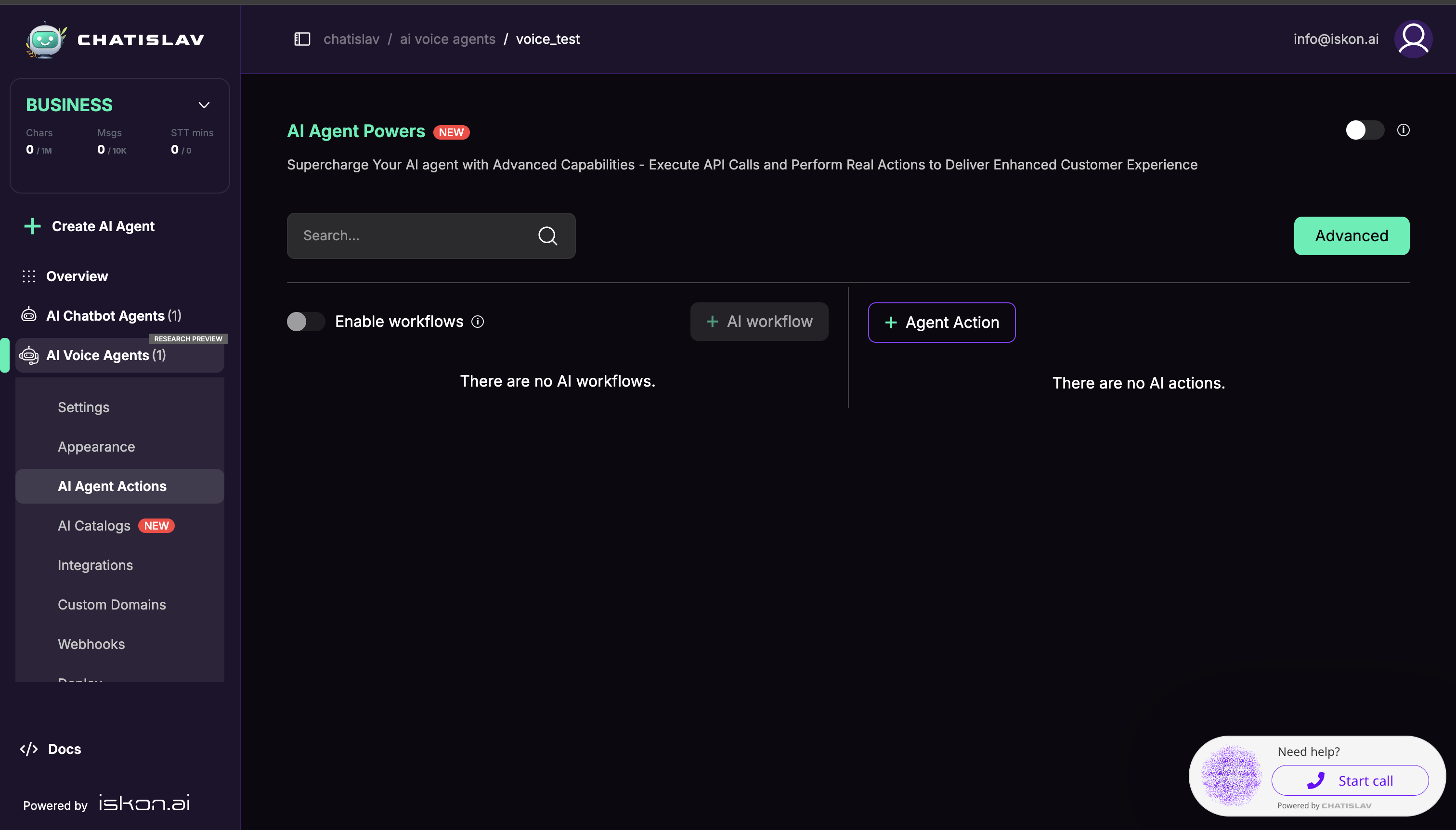
- Open your voice agent and go to AI Agent Actions.
- Click + Agent Action.
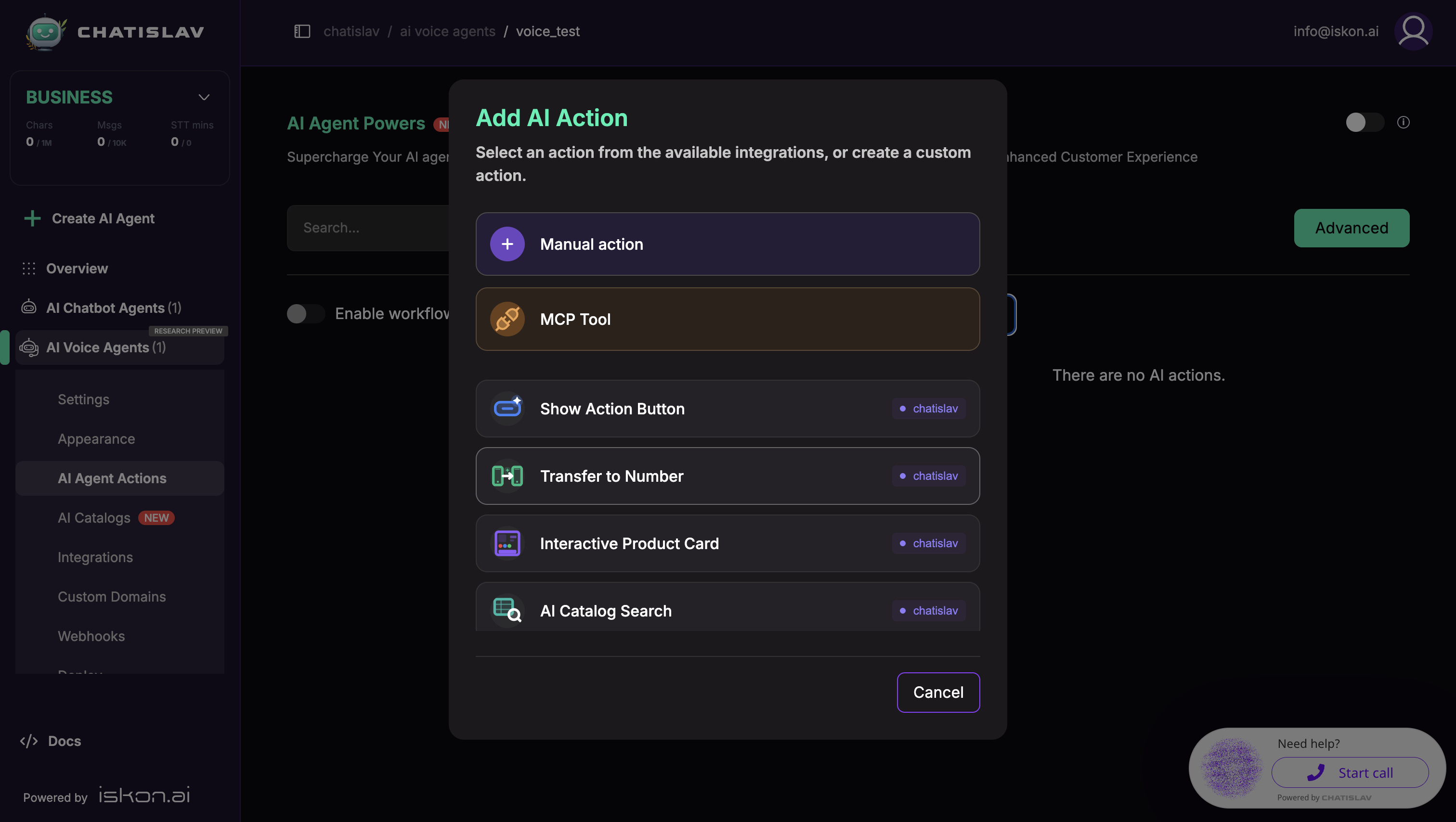
- Select Transfer to Number from the available system actions.
- Enable the action after you configure the transfer messages and transfer rules.
Messages
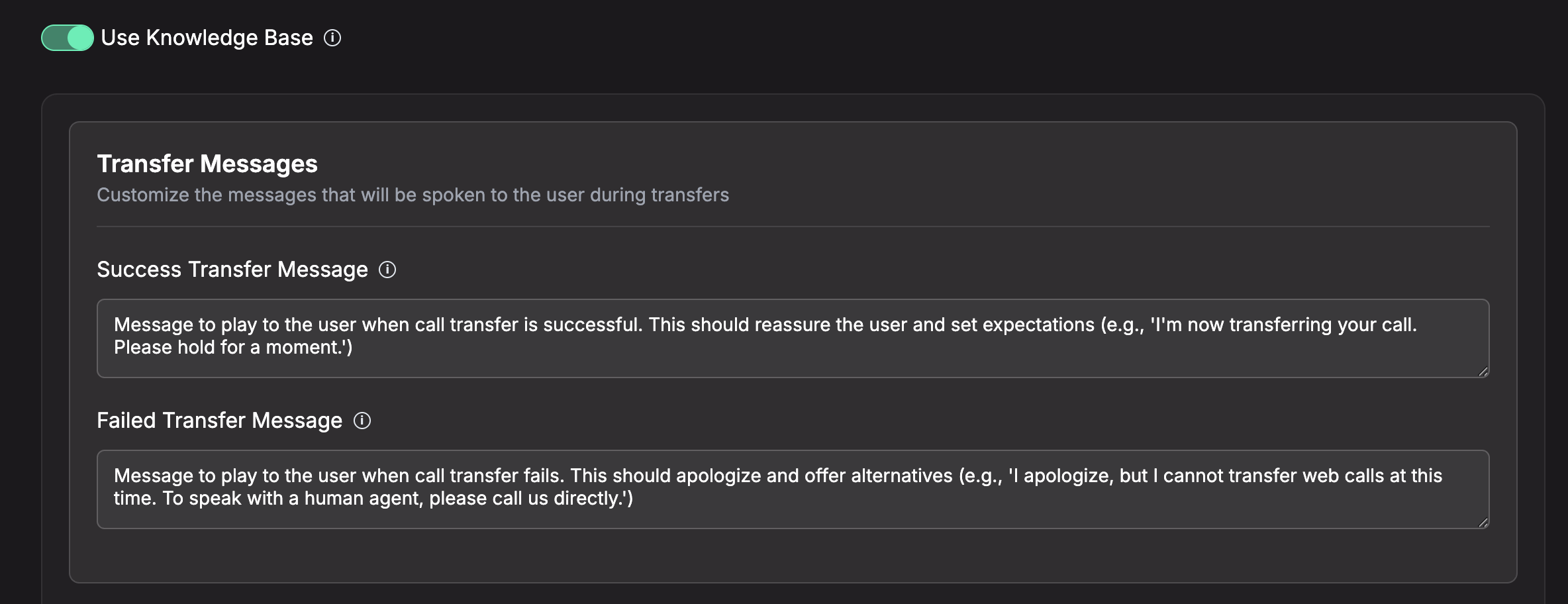
These fields describe what the AI should say during the handoff:
- Success Transfer Message — instructions for the message the AI should play before attempting the transfer.
- Fail Transfer Message — instructions for the message the AI should use if the transfer cannot be completed.
Transfer Rules
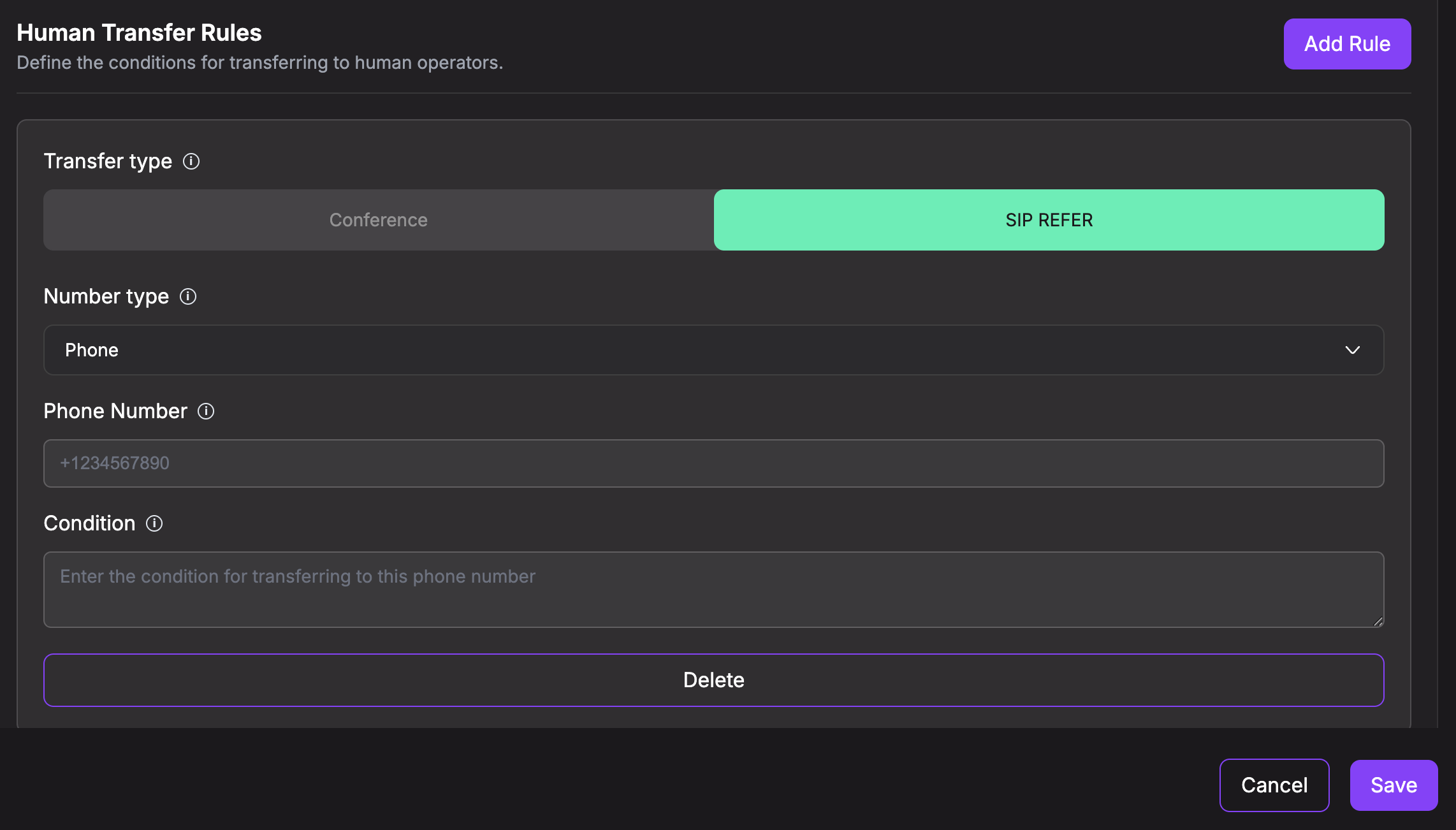
Add one or more rules that define where and when to transfer. Each rule must include a phone number or SIP URI and a condition.
- Transfer Type:
- SIP REFER — transfers the current SIP call directly to the configured phone number or SIP URI.
- Conference — planned for outbound trunk/conference transfer support and currently disabled in the UI.
- Number Type (for SIP REFER) — Phone (for example
+1234567890) or SIP URI (for examplesip:1234567890@example.com). - Phone Number or SIP URI — the exact phone number or SIP address to transfer to. The AI is instructed to use the exact configured value, and Chatislav matches that exact value to the rule before transferring.
- Condition — required logic that decides when this rule applies (for example, route to different numbers by topic, language, urgency, or opening hours).
How It Works During a Call
- The AI checks the configured transfer rules and chooses the matching phone number or SIP URI.
- It calls the action with the exact phone number or SIP URI from that rule.
- Chatislav finds the matching rule and sends a SIP REFER transfer request through the active phone/SIP call.
- If the phone number or SIP URI does not match a configured rule, the call has no SIP participant, or the provider rejects the transfer, the transfer fails and the AI uses the failure message.
Tips
- Use phone numbers in international format, for example
+1234567890, or a full SIP URI such assip:support@example.com. - Make each condition specific enough that the AI can choose the right rule.
- Confirm your phone/SIP provider allows SIP REFER transfers before enabling the action.
- Test transfer with a real inbound phone/SIP call, not only the web voice widget.
- Make sure a human is available on the configured phone number during your advertised hours.