Instagram Integration
Connect your Chatislav AI agent to Instagram Direct Messages so customers can chat with your assistant directly from your Instagram profile. The integration uses Meta's official Instagram API and OAuth flow (through Facebook), and also supports human handoff from bot to human.
Prerequisites
Before you start, make sure you have:
- Instagram Professional Account: Business or Creator account (personal accounts are not supported)
- Facebook Page linked to that Instagram account
- Admin access to the connected Facebook Page
- Chatislav account with at least one AI agent created
- Plan access: Instagram integration must be included in your Chatislav plan. It is available from the Standard plan and higher.
Important notes:
- Your Instagram account must be converted to a Professional Account.
- Your Instagram must be linked to a Facebook Page in Meta settings.
- You do not need to create a Meta Developer app or set up webhooks manually. Chatislav handles this automatically via OAuth.
Step 1: Enable Message Access on Instagram
First, make sure Instagram allows API access to your messages:
- Open the Instagram app for your Professional Account.
- Go to Settings → Privacy → Messages (or Messages and story replies, depending on the version).
- Find Allow access to messages and enable it.
If this option is disabled, Chatislav will not be able to receive or send Instagram DMs.
Step 2: Open Integrations in Chatislav
- Log in to your Chatislav dashboard.
- Select the AI agent you want to connect to Instagram.
- In the left sidebar, click "Integrations".
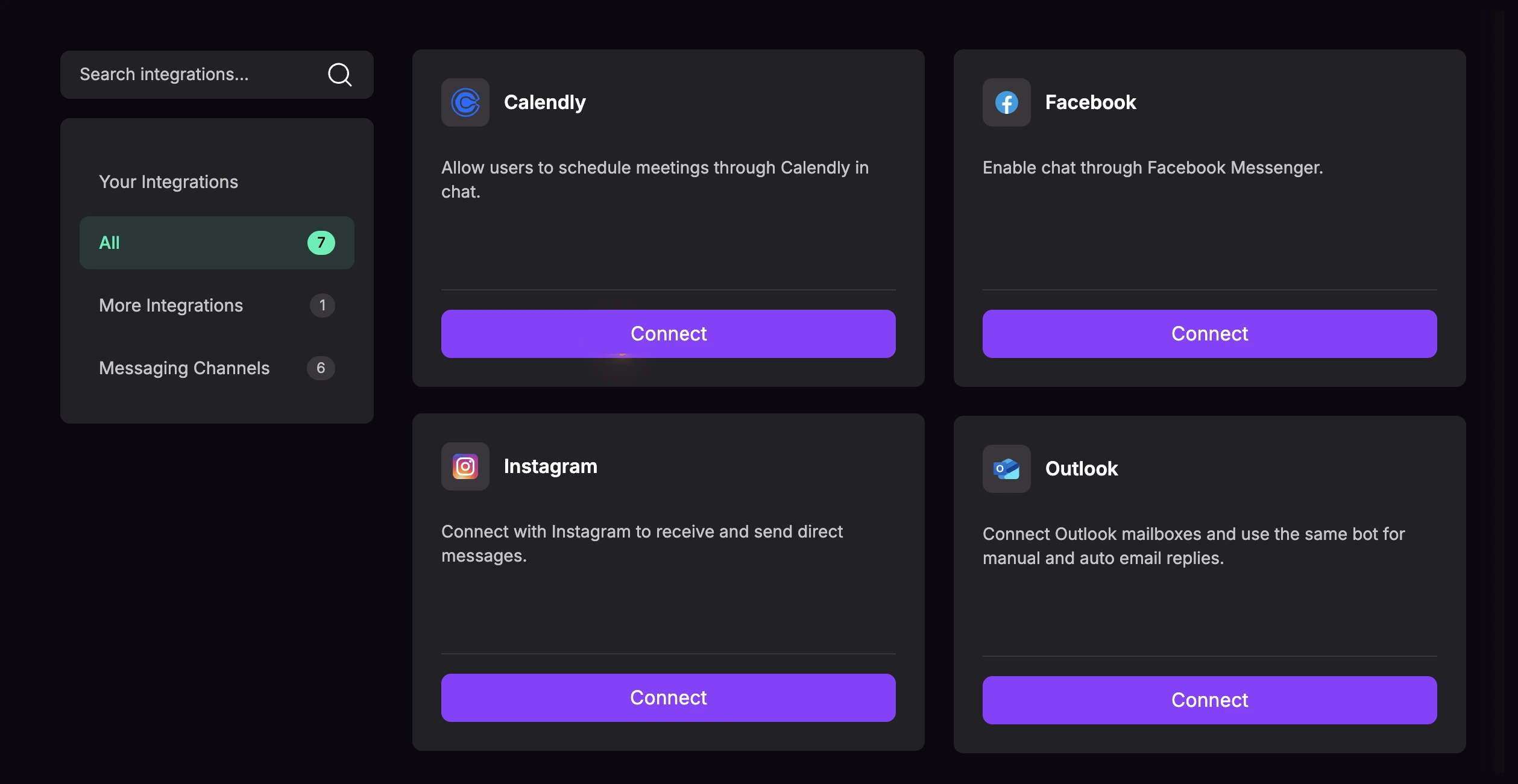
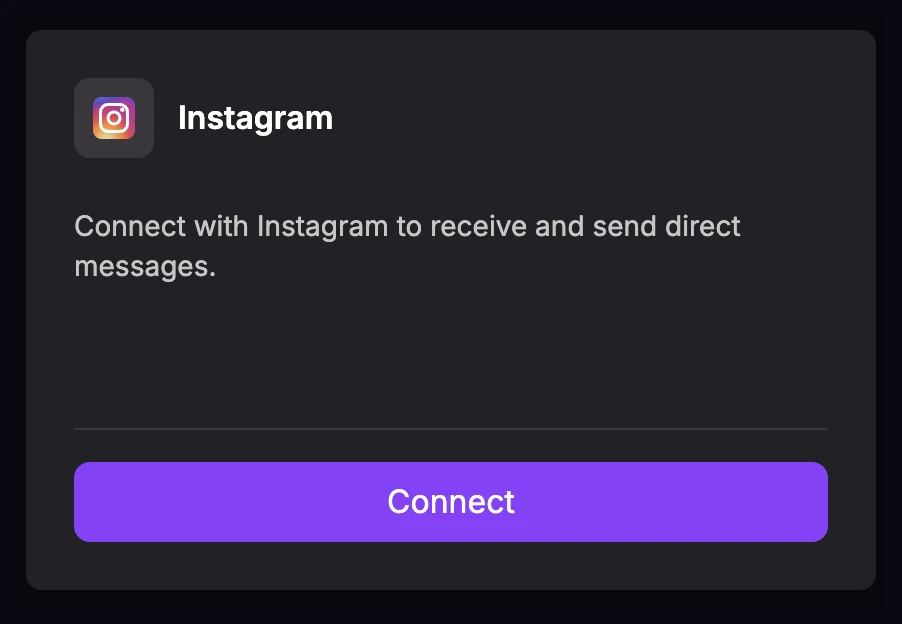
- In the Integrations list, find the "Instagram" card.
Step 3: Connect Instagram via Meta OAuth
- On the Instagram card, click "Connect".
- The Instagram Business Setup modal will open. Review the setup steps and confirm that you have a Facebook Page connected to an Instagram Professional account.
- Click "Connect" in the setup modal.
- You will be redirected to Meta's OAuth flow through Facebook.
- Log in with the Facebook account that has admin access to the linked Page.
- Follow Meta's prompts to select the business, Facebook Page, and Instagram Professional account you want to connect.
- Review the requested permissions and click "Save" / "Continue" to complete the connection.
- After a few seconds, you will be redirected back to Chatislav. The Instagram integration card will show a "Connected" status.
Step 4: Manage Connected Instagram Accounts
Once connected, the Instagram card shows as "Connected" with a Manage Instagram Accounts option.
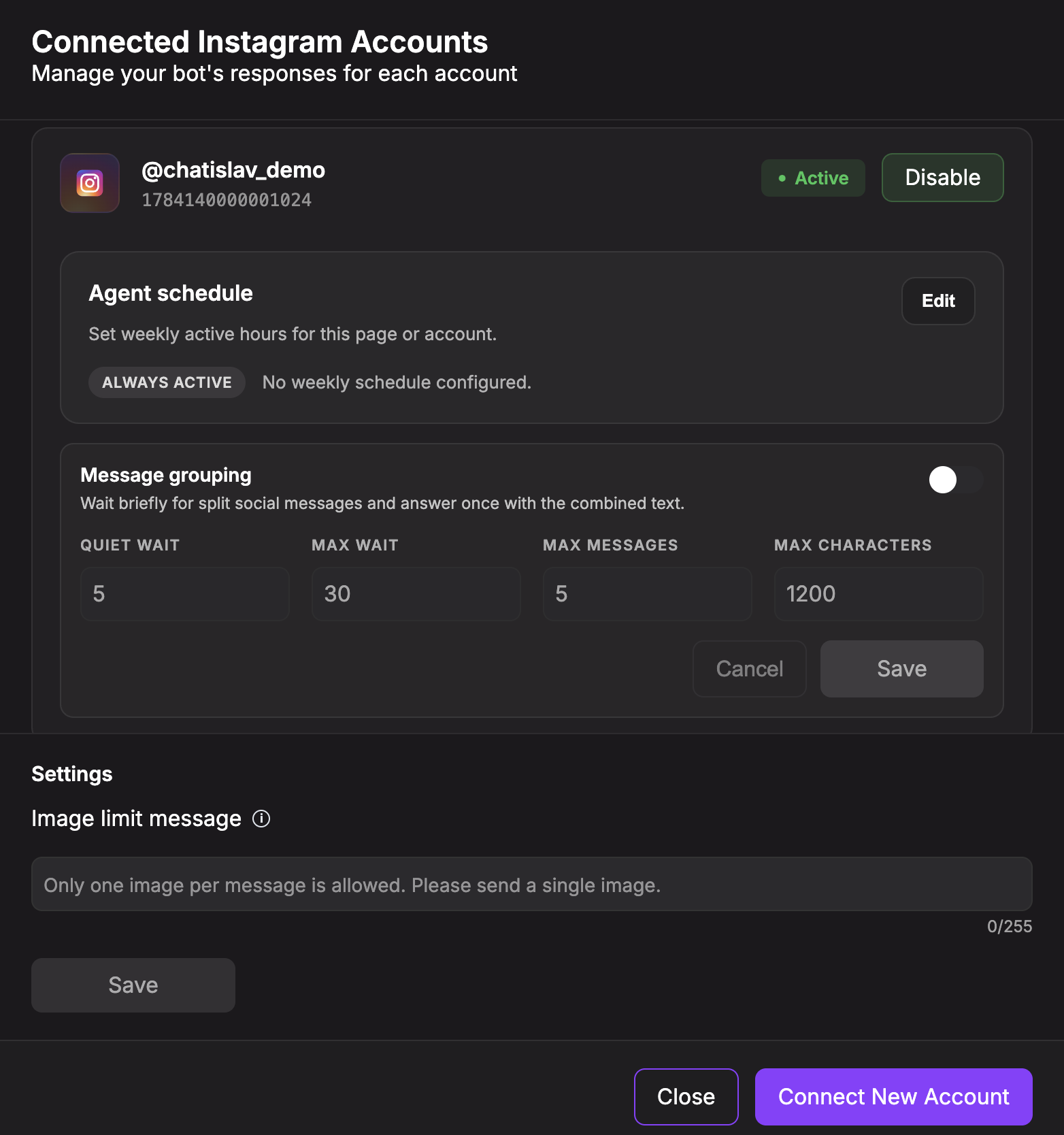
- Click "Manage Instagram Accounts" on the Instagram card.
- A modal opens with a list of connected Instagram accounts.
-
For each account you will see:
- Instagram handle (e.g.
@yourbrand) - Account ID
- Status: Active / Inactive
- Enable / Disable button
- Agent schedule
- Message grouping
- Instagram handle (e.g.
-
To enable an account for this AI agent, click "Enable". The status changes to Active and new DMs are routed to your agent.
-
To disable temporarily, click "Disable". The status changes to Inactive and new DMs are no longer processed.
The Manage modal may refresh details for accounts already connected to this agent, such as username or profile metadata. It does not automatically add newly available Instagram accounts. Use "Connect New Account" when you want to add another account.
Step 5: Configure Account Settings
The Manage Instagram Accounts modal also includes account-level settings:
- Agent schedule — set weekly active hours for an Instagram account. Outside scheduled hours, the AI agent stays silent for that account.
- Message grouping — wait briefly for customers who send several short messages in a row, then answer once using the combined message.
- Image limit message — customize the reply shown when a user sends more than one image in a single message.
Use these settings when you want Instagram DM behavior to match your team's working hours, response style, or image-handling policy.
Step 6: Add More Instagram Accounts Later
- Open the Instagram integration card and click "Manage Instagram Accounts".
- Click "Connect New Account" at the bottom.
- You will be redirected to the Meta OAuth flow again.
- Select any new Instagram accounts / businesses you want to add.
- Complete the flow and return to Chatislav. The new accounts appear in the Manage list and can be enabled/disabled per agent.
Step 7: Relationship with the Facebook Integration
Instagram messaging is technically linked to Facebook Pages in Meta:
- Each Instagram Professional account is connected to a Facebook Page.
- Removing a Facebook Page used by Instagram can affect Instagram messaging.
- Removing Instagram accounts can also affect linked Facebook Pages because they share the same Meta connection.
- Chatislav shows a warning when a removal may affect the other integration.
Important: If the same Facebook Page is active in the Facebook integration, disabling the Instagram account does not disable the Facebook Page. Keep both integrations consistent so you know which channel is currently handled by the AI agent.
Step 8: Test the Integration
- From another account or test account, open your Instagram profile and tap "Message" to send a DM.
- Send a simple message like "Hi" or a common support question.
- Your Chatislav AI agent should respond automatically within a few seconds.
- Verify that:
- Messages are received correctly
- Responses are sent back to the Instagram DM
- The conversation flows naturally
- Your agent is using the correct knowledge base and language
Human Handoff (Take Over Instagram Conversations)
As with Facebook, you can pause the AI and respond manually to Instagram DMs from the Chatislav dashboard.
- In the left sidebar, go to "Chats".
- Filter by Source: Instagram.
- Open the conversation you want to take over.
- At the top of the conversation, enable the "Hand off to human" toggle. The AI stops replying, and your replies are delivered as human messages.
- When you are done, click the same toggle again to return control to the AI.
Note: If you remove the Instagram (or related Facebook) integration, you will still see old conversations in Chats, but human handoff may no longer be available for those threads.
Troubleshooting
No Instagram DMs are received
Check that:
- The Instagram account is Professional (Business/Creator), not personal.
- Instagram is linked to a Facebook Page.
- The Instagram integration card shows "Connected".
- In Manage, the account status is Active.
- In Instagram settings, Allow access to messages is enabled.
Agent not responding
Check that:
- The correct agent is selected for this integration.
- The agent responds normally in the Chatislav web chat.
- The knowledge base is trained and enabled.
- Human handoff is not currently active for that conversation (AI paused).
Instagram account not showing in the Manage modal
Check that:
- The Instagram account is properly linked to a Facebook Page in Meta settings.
- You selected the correct business, Page and Instagram account during OAuth.
- Try Connect New Account again and review the selection steps carefully.
OAuth / redirect issues
- Disable pop-up blockers for the Chatislav domain.
- Try another browser or clear cache/cookies.
- Make sure you are logged into the correct Facebook account that owns the Page/Instagram.
Best Practices
- Prepare your profile: make sure your Instagram bio explains that a smart assistant can help with FAQs.
- Train on real questions: use real DM questions to train the agent's knowledge base.
- Use handoff for VIPs: switch to human handoff for high-value conversations, then back to AI when appropriate.
- Monitor analytics: review Chats & Analytics to compare Instagram with other channels.
- Keep integrations clean: remove unused Instagram accounts and keep only those you actively use.
Security & Permissions
- Chatislav uses Meta OAuth; you never copy tokens manually.
- During setup, Chatislav exchanges the OAuth authorization for the access needed to manage the selected Instagram account through its linked Facebook Page.
- Chatislav requests permissions needed for Instagram messaging, linked Page access, and account discovery.
- Only users with the right permissions in Chatislav can manage integrations.
Your Instagram integration is now ready. Users can message your brand on Instagram and get instant, AI-powered replies from your Chatislav agent, with the option for your team to step in at any time.