Properties & Room Types
Adding a Property
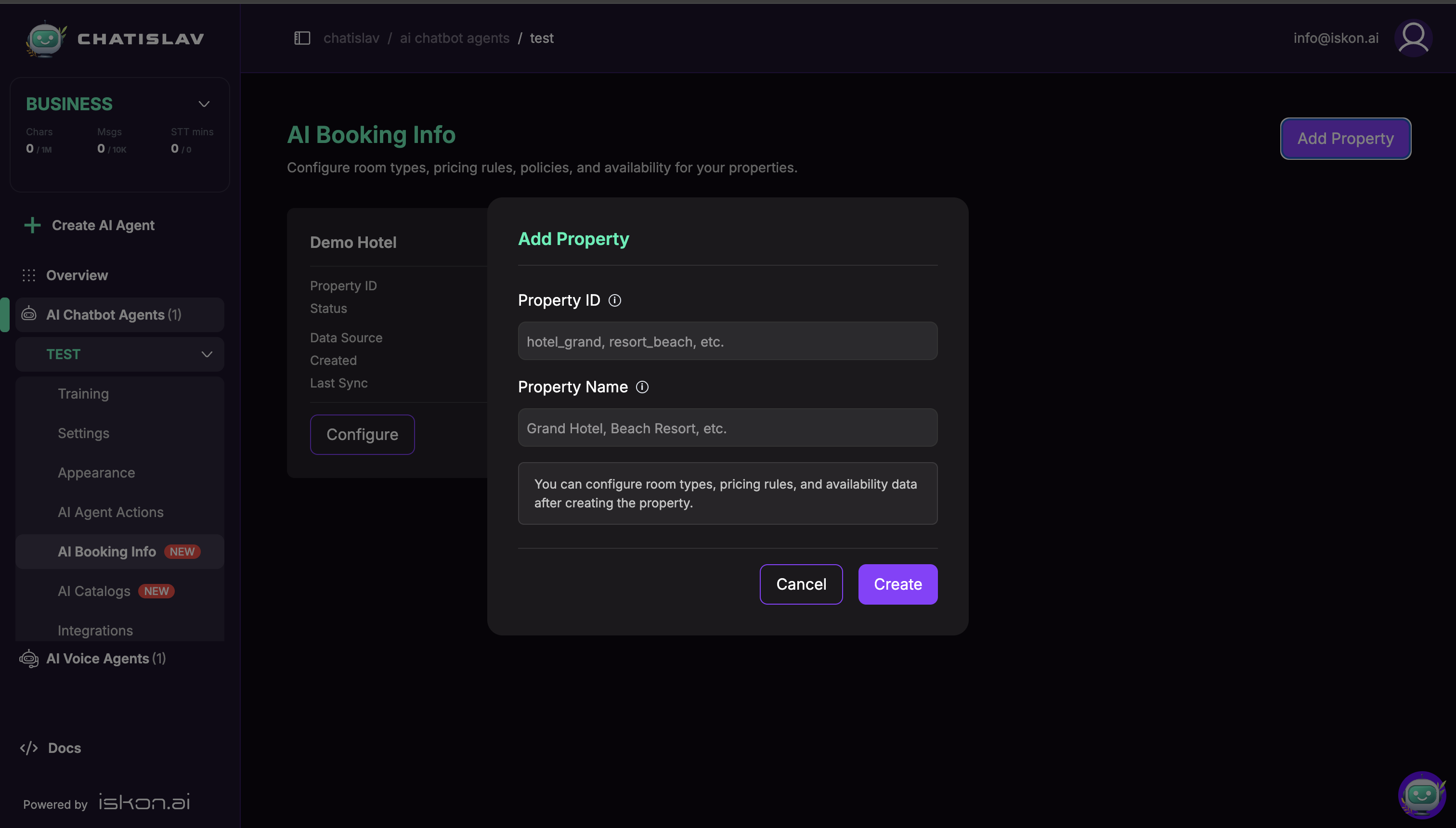
- On the AI Booking Info screen, click Add Property.
- Enter a Property ID (a unique machine-readable identifier) and a Property Name.
- Open the property to configure its tabs.
Use lowercase letters, numbers, underscores, or hyphens for the Property ID. Do not use spaces.
Room Types
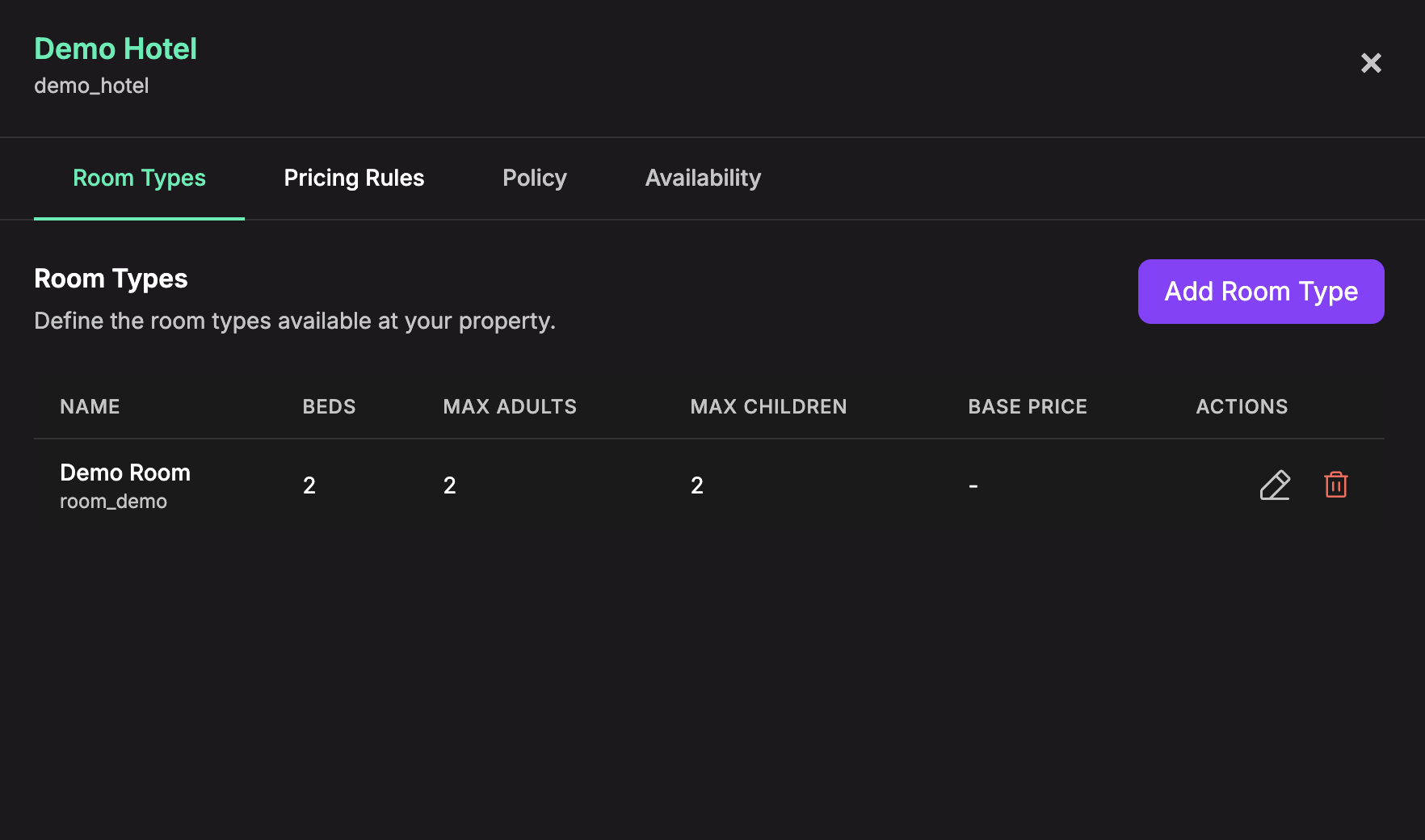
Open a property and use the Room Types tab to define each room the booking action can search.
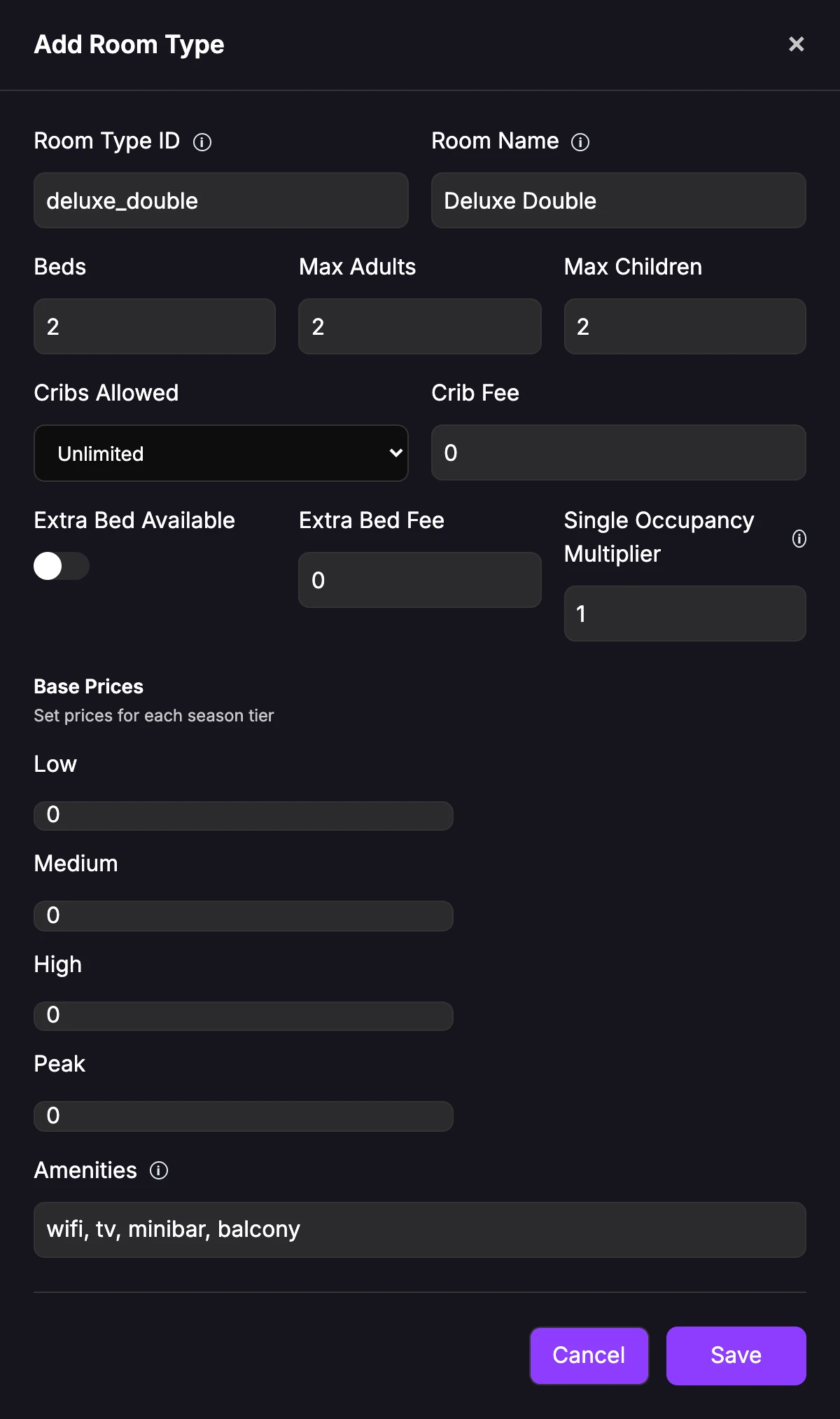
For every room type you can set:
- Room Type ID — unique identifier (cannot be changed after creation). Use the same value in your availability data.
- Room Name — the display name.
- Beds (1–20), Max Adults (1–10), Max Children (0–10).
- Cribs Allowed — Unlimited, None, 1, or 2 — and a Crib Fee.
- Extra Bed Available and Extra Bed Fee.
- Single Occupancy Multiplier — a price multiplier when only one adult stays (for example
0.75for a 25% discount). - Base Prices — a price per price tier. Price tiers are defined on the Policy tab; default tiers are low, medium, high, and peak.
- Amenities — a comma-separated list (for example
wifi, tv, minibar).
The room types table shows the room name and ID, beds, max adults/children, a summary base price, and edit/delete actions.
Tips
- Define your price tiers on the Policy tab first, then set each room type's base price per tier.
- Keep Room Type ID values stable. Availability rows and booking-action filters depend on these IDs.
- Use the Single Occupancy Multiplier and Extra Bed Fee to model common pricing without complex rules.