Data Search (AI Catalog)
The Data Search action lets your agent search an AI Catalog during conversations — finding, filtering, sorting, and recommending records — so it can answer product and inventory questions accurately and instantly.
Before You Use It
- Create or select an AI Catalog.
- Configure the catalog schema so the right columns are searchable, filterable, sortable, and returned in results.
- For image search, enable image upload and semantic image search in the agent settings, and use a catalog with image-searchable image columns.
- For recommendations or grouping, configure the required catalog/action mappings before relying on those modes.
Add the Action
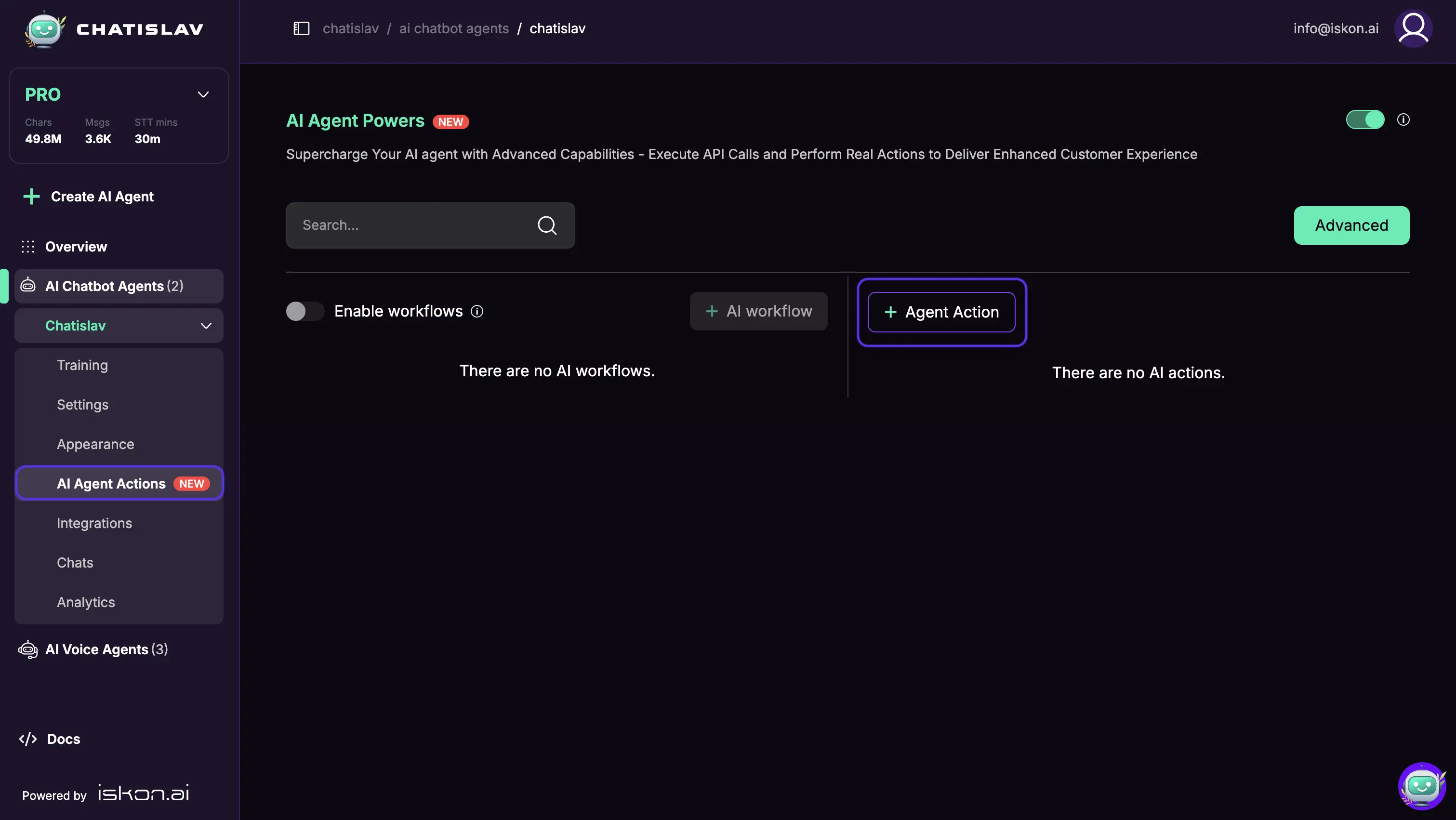
- Open your agent and go to AI Agent Actions.
- Click + Agent Action.
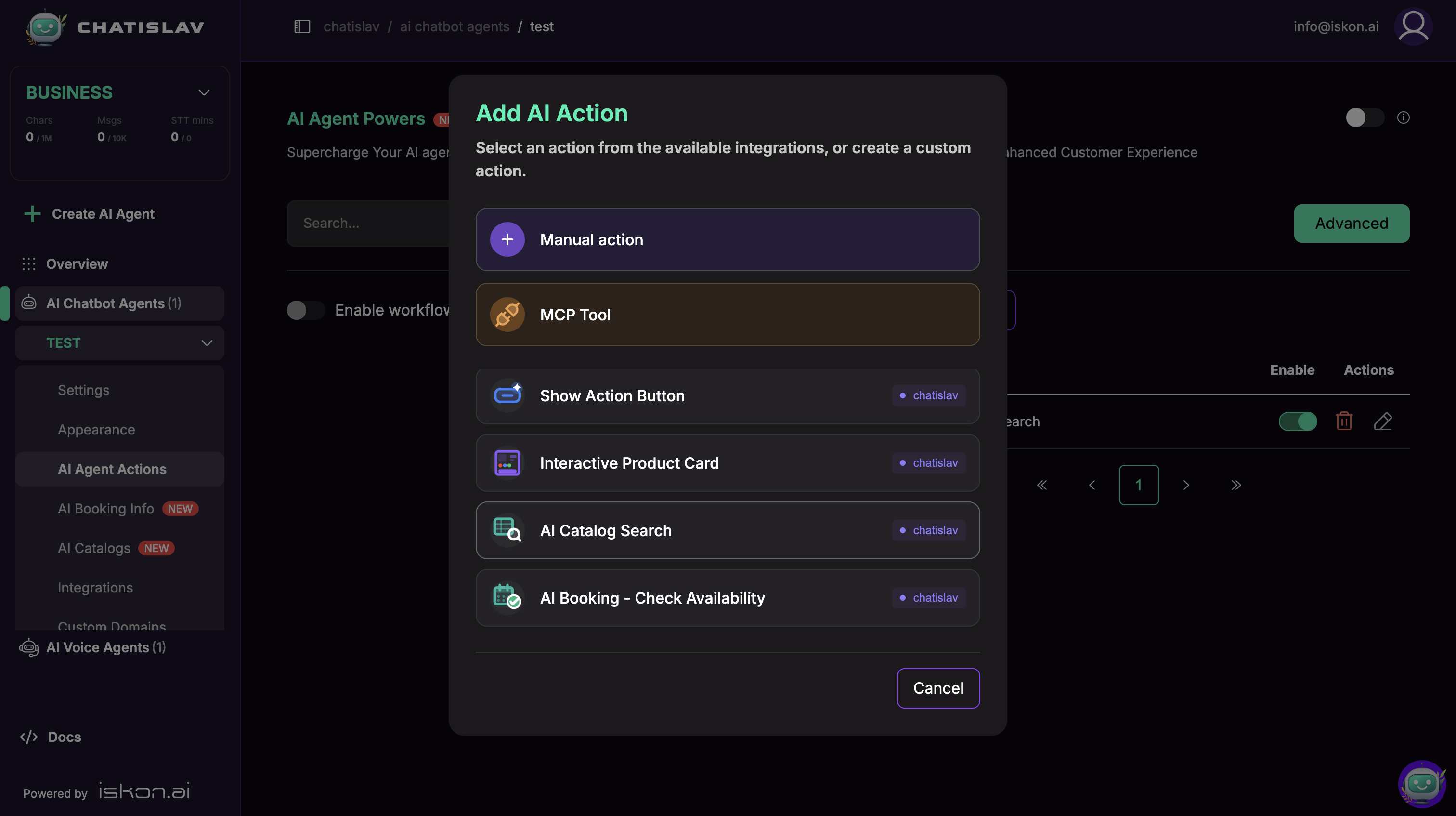
- Select AI Catalog Search from the available system actions.
- Enable the action after you choose the catalog and configure its parameters.
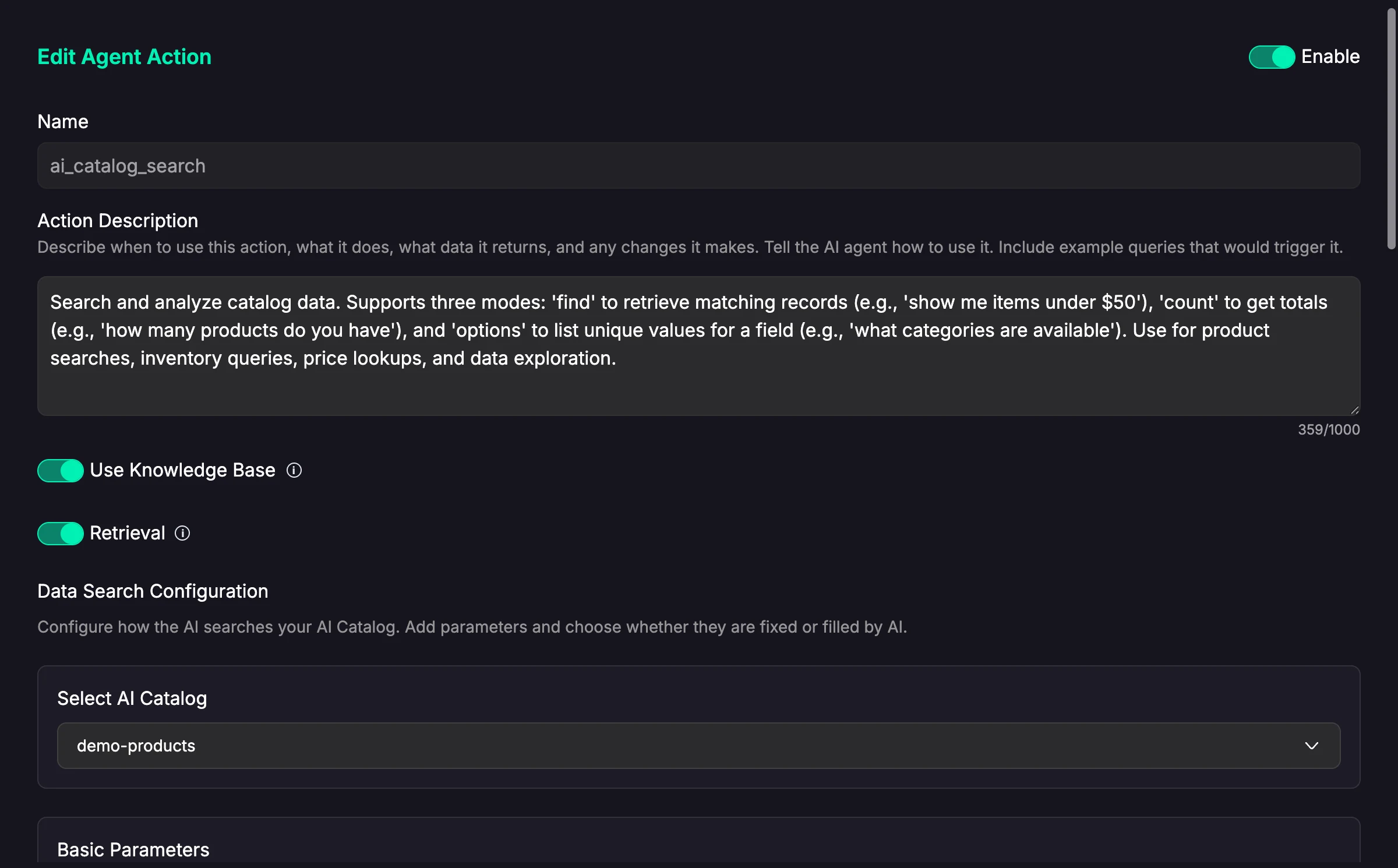
Choosing the Catalog
Select which dataset / catalog this action searches.
Search Parameters
When you select a catalog, Chatislav adds the common search parameters automatically. Each parameter can be fixed in the action configuration or filled by the AI during the conversation. AI-filled parameters also have a description so the agent knows when and how to use them.
- query — the keyword search (usually filled by the AI from the conversation).
- limit — maximum results to return (default 10).
- offset — skip results, for pagination.
- fields — which columns to return.
- mode — the search behavior: find, count, options (unique values of a column), or, when recommendations are enabled, similar / upsell / budget / cross-sell.
- field — the column to read unique values from when
modeisoptions.

Per-Column Filters & Sorting
For each filterable or sortable column you can enable:
- Filter — with an operator and value that is either filled by the AI or fixed.
- Sort — ascending or descending.
Available filter operators depend on the column type:
- Text/category fields:
=,!=,in,not_in,contains,is_empty,is_not_empty. - Number/date fields:
=,!=,>,>=,<,<=,between. - Number fields also support dynamic ranges:
low,medium,high. - Boolean fields:
=,!=.
Use query for partial or fuzzy text search. Filters are best for exact values, ranges, and fixed choices.
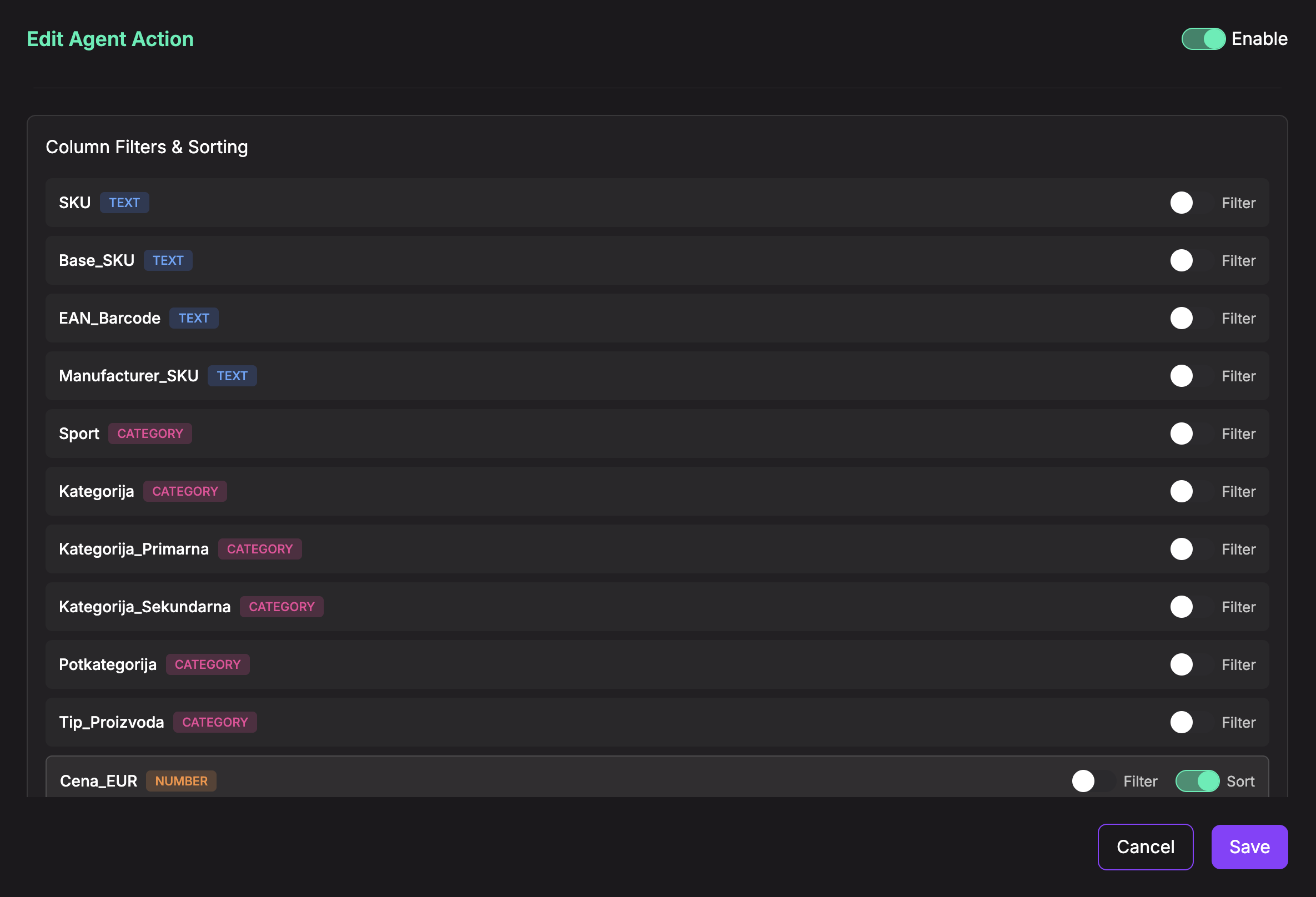
Image Search
If the catalog supports it, enable Use uploaded chat images and set an image similarity threshold so the action can match by an uploaded image. See Image Search.
Image search requires:
- Image upload enabled in the agent settings.
- Semantic image search enabled in the agent settings.
- A selected catalog with image-searchable image columns.
- This action's image search toggle enabled.
When image search is enabled and available, and the action runs in find mode, Chatislav can use the uploaded image automatically. The AI does not need to pass image bytes or image URLs. On later turns, Chatislav can expose temporary image controls to the agent only when a previous uploaded image is available to reuse.
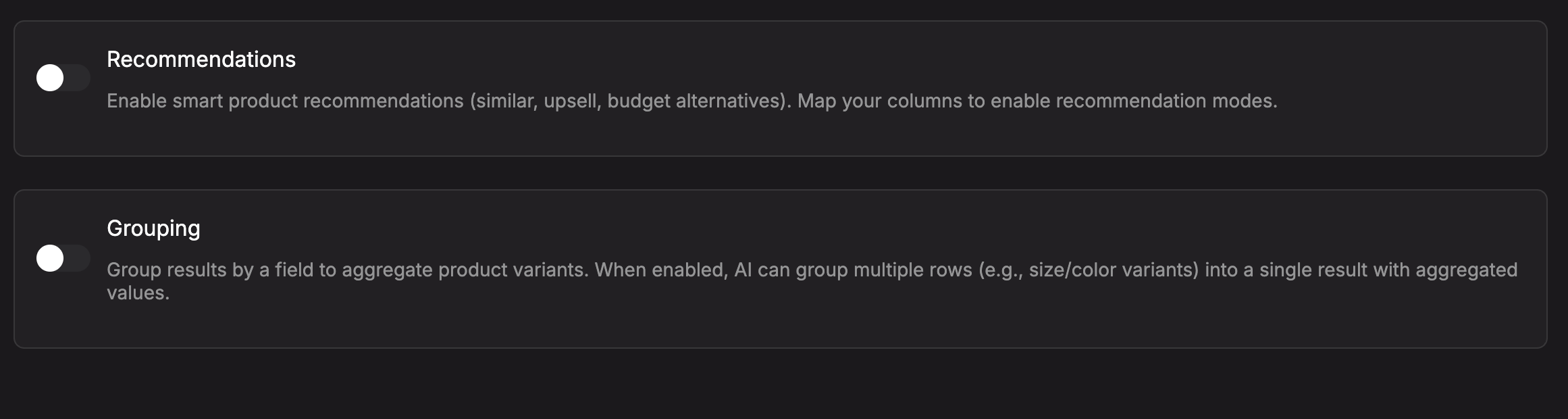
Recommendations & Grouping
- Recommendations — map your category, price, and product-ID columns to enable recommendation modes. Optionally map a name column for clearer results. Recommendation modes use
source_product_idas the product to base recommendations on. - Similar finds products in the same category.
- Upsell finds higher-priced alternatives. You can optionally map a column with explicit upsell product IDs; otherwise Chatislav uses category and price.
- Budget finds lower-priced alternatives. You can optionally map a column with explicit budget product IDs; otherwise Chatislav uses category and price.
- Cross-Sell finds complementary products from mapped cross-sell categories, mapped cross-sell product IDs, or both. When both are mapped, choose whether to combine them or prioritize one source.
- Auto-Include Recommendations can add selected recommendation types to normal
findresults. - Grouping — group results by a field to combine multiple rows into one result, useful when variants are stored as separate rows.
- Variant Sub-Grouping — optionally group variants inside each product group, for example by color.
- Aggregation — choose how each column is combined inside grouped results: first, list, min/max, sum, average, or count.
Tips
- Mark the right columns as searchable / filterable / sortable in the catalog schema so this action can use them.
- Keep limit reasonable so responses stay concise.
- Pair this action with the Interactive Product Card to present results visually.