AI Voice Agents
AI Voice Agents let users talk with your Chatislav agent in real time through a web voice widget or, when phone access is configured, by calling a phone number. A voice agent has its own training data, settings, voice behavior, actions, and deployment options.
Voice agents use the same Training Data system as chatbot agents, but they are separate agents. Add the documents, URLs, audio, YouTube transcripts, or other supported sources you want that voice agent to use.
Your plan must include at least one AI Voice Agent seat or an additional voice-agent add-on before you can create a voice agent.
Creating a Voice Agent
You can create a voice agent from the general Create AI Agent button or from the AI Voice Agents section.
- Click Create AI Agent.
- Select AI Voice Agent.
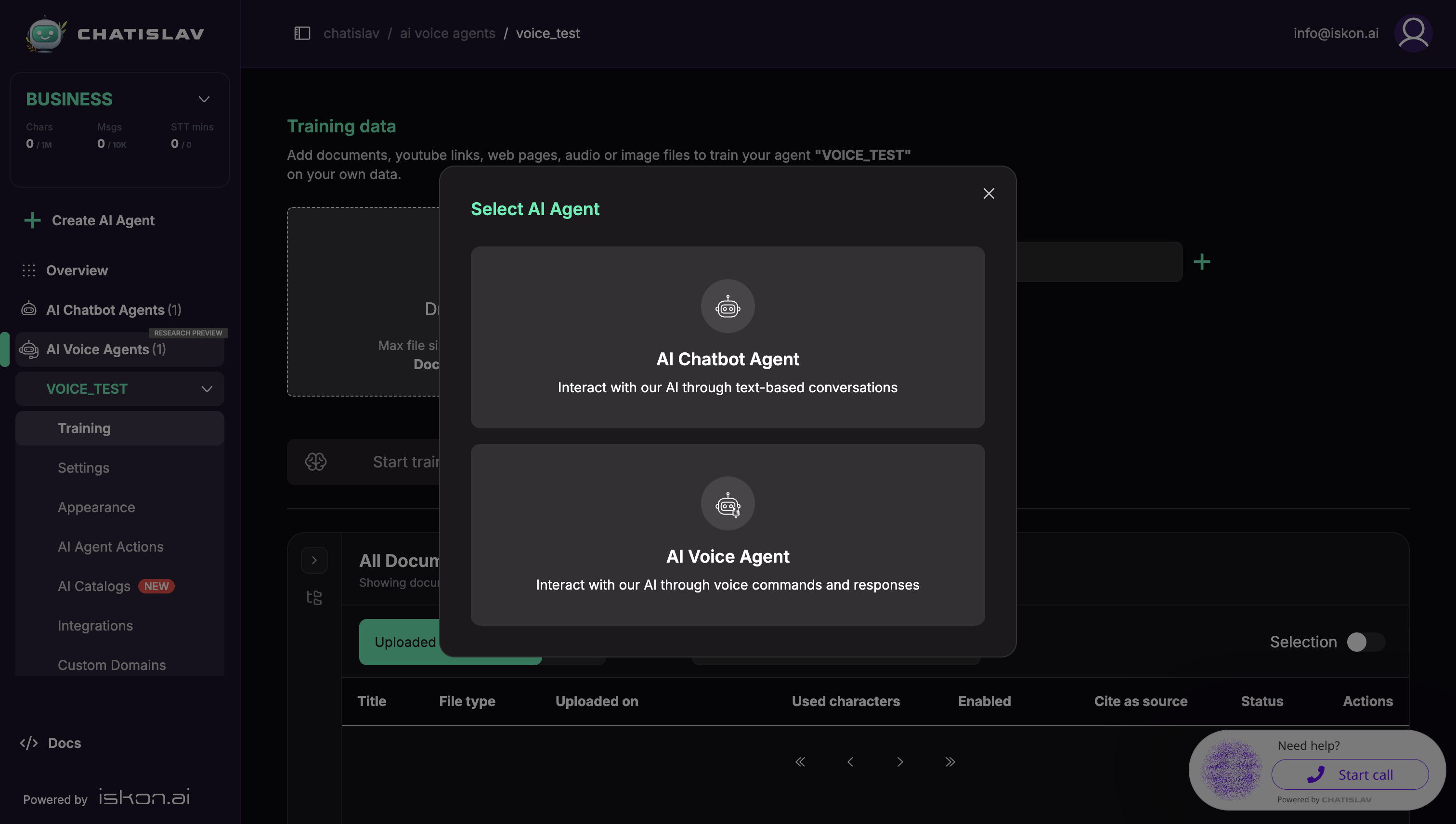
- Enter the agent name.
- Choose a voice-agent template, such as General voice agent.
- Click Create AI Agent.
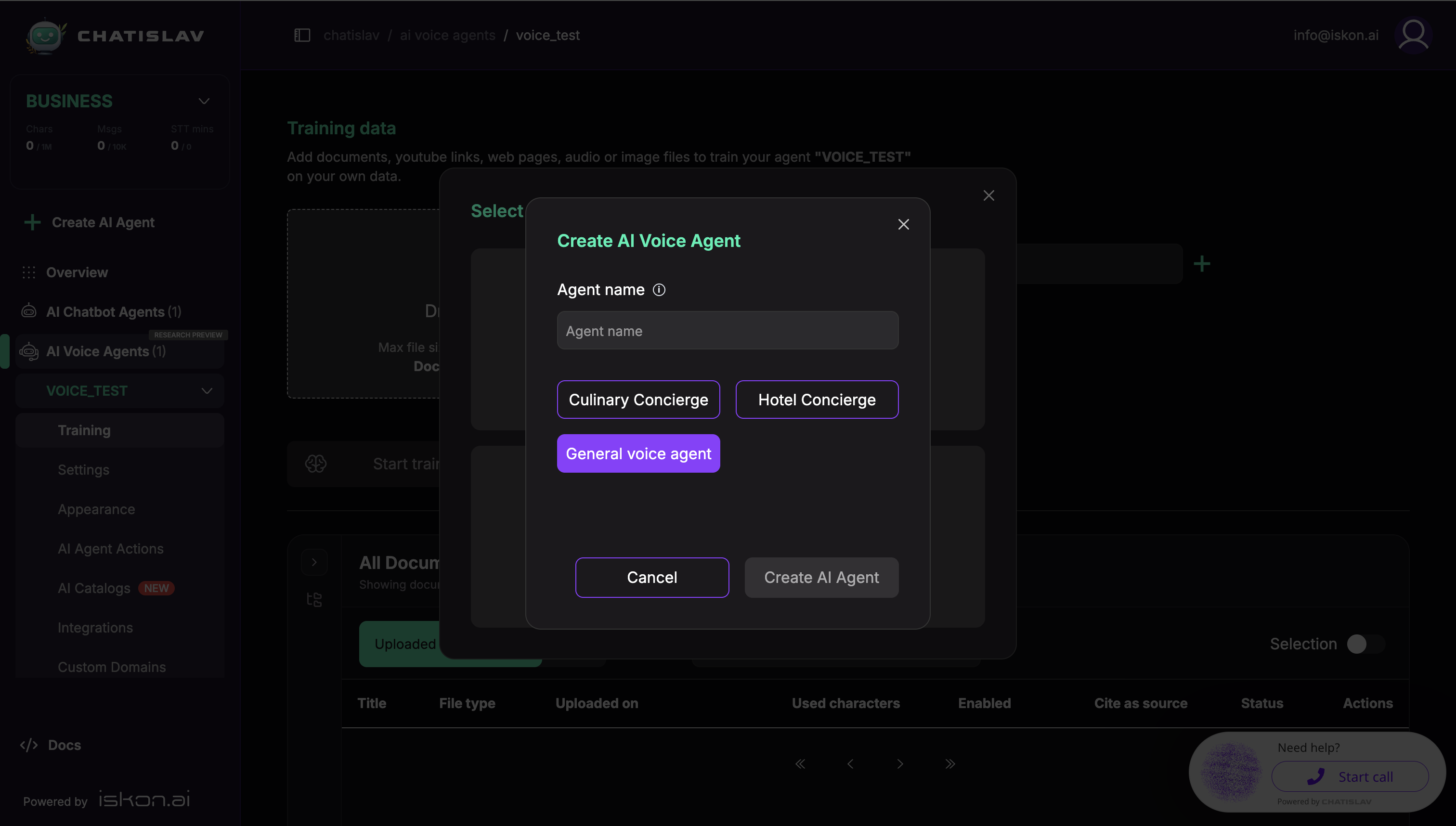
After creation, Chatislav opens the voice agent's Training Data page. Add the knowledge sources the voice agent should use, then configure its settings, appearance, actions, and deployment.
What a Voice Agent Can Do
- Real-time voice conversations in the web voice widget.
- Natural turn-taking with AI turn detection, interruptions, and configurable end-of-speech silence.
- A choice of voices (see Voice Settings).
- Phone calls via SIP/Twilio, so customers can call a phone number and talk to the agent (see Phone & SIP Calling).
- A customizable voice UI with orb/avatar animations and your own text and colors (see Voice Appearance).
- Voice-compatible actions and integrations, such as transfer-to-number and supported external tools. Some chatbot-only actions or integrations may not appear for voice agents.
- Chats, analytics, evaluations, and snapshots for reviewing and improving the voice agent.
Voice Agent Pages
After you open a voice agent, the left sidebar shows the pages available for that agent:
| Page | Use it for |
|---|---|
| Training | Upload and manage the knowledge sources the voice agent can use. |
| Settings | Configure the voice agent's name, model, voice, welcome message, turn-taking, advanced voice behavior, and lead capture. |
| Appearance | Customize the voice widget UI, voice animation, colors, and labels. |
| AI Agent Actions | Add actions the voice agent can call during conversations. |
| AI Catalogs | Connect catalog data for search and product-style workflows. |
| Integrations | Connect supported external apps and channels. |
| Custom Domains | Serve the voice widget from your own custom domain when enabled for your workspace. |
| Webhooks | Send conversation-summary or lead-collection events to your own endpoint. Voice call start/end webhooks are configured in voice Advanced Settings. |
| Deploy | Copy the voice widget embed code, open preview links, and configure phone access. |
| Chats, Analytics, Evaluations, Snapshots & Releases | Review conversations, measure performance, test behavior, and manage versions. |
Settings Tabs
The Settings page has three tabs:
- Agent — name, company, language, AI model, response length, voice, welcome message, and core turn-taking options.
- Advanced Settings — interruptions, max call duration, speech rate, audio formats, internal voice tools, terms & conditions, and voice call start/end webhooks.
- Lead Collection — collect contact details during a call.
Phone access and the embed snippet are configured from the Deploy page.
See the following pages for details: