Availability Data
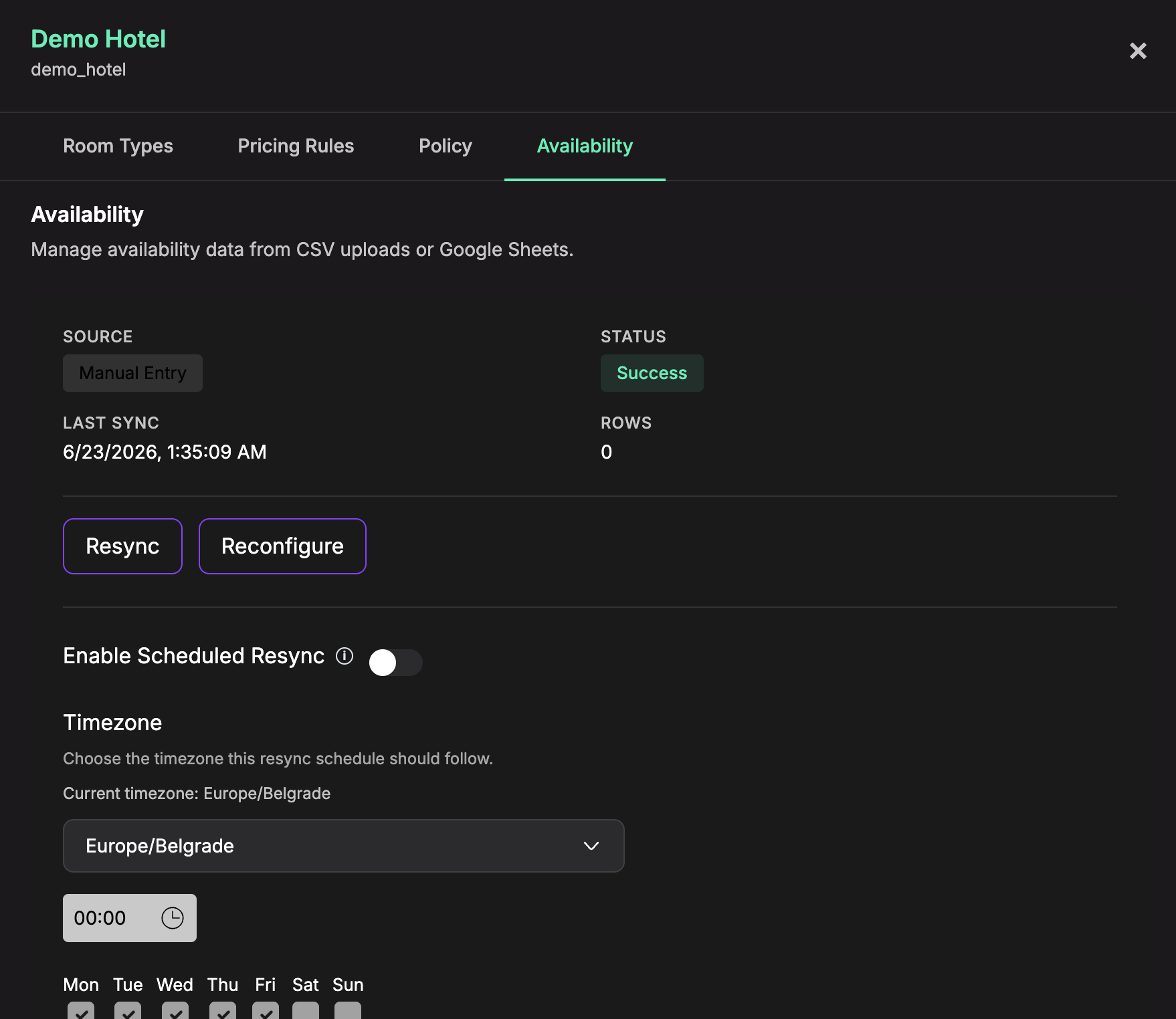
The Availability tab is where you load day-by-day room availability for a property from a CSV/Excel file or a Google Sheet.
Availability data tells the AI Booking action whether a room type can be offered for selected dates. Pricing is calculated from your room prices, policy, and active pricing rules.
Adding a Data Source
- Open the property and go to the Availability tab.
- Click Upload File (or Reconfigure to change an existing source).
- In the Configure Availability Data dialog, choose either:
- A file - upload a
.csv,.xlsx, or.xlsfile. - A Google Sheet - paste the Google Sheets URL. If the sheet is private, connect your Google account.
- A file - upload a
- Click Load Preview before saving. Chatislav reads the source columns and shows sample rows for mapping.
Mapping Columns
After preview loads, map your source columns to Chatislav availability fields.
Required fields:
- Room Type ID - must match a Room Type ID configured for the property.
- Date - the calendar date for the availability row.
Optional fields:
- Status - use
available,blocked,booked, ormaintenance. - Available Units - how many units can be sold for that room type and date.
- Booked Units - how many units are already booked.
- Price Override - stored with the availability row for that date.
- Min Stay - minimum number of nights required for that date.
- Notes - internal notes or comments.
Choose the Date Format that matches your source data:
YYYY-MM-DDDD.MM.YYYYDD/MM/YYYYMM/DD/YYYY
Review the preview rows, then click Save.
Keeping Availability in Sync
For file or Google Sheet sources you can:
- Resync manually at any time.
- Enable Scheduled Resync - set a timezone, time, and days of the week for automatic resyncs, then Save Schedule.
The Availability tab shows the source type, status, last sync time, and row count.
How Availability Is Used
For availability searches, the AI Booking action checks the configured date range against your availability rows.
A room can be marked unavailable when:
- the row status is
blocked,booked, ormaintenance; - Booked Units is greater than or equal to Available Units;
- Min Stay is higher than the requested number of nights.
If the action is configured for Price Only, it ignores availability and returns pricing. If it is configured for Availability Only, it returns availability status without pricing fields.
Tips
- Make sure your Room Type IDs in the availability data match the room types defined on the property.
- Keep one row per room type and date.
- Schedule resyncs to match how often your source data changes (for example daily).