Interactive Product Card
The Interactive Product Card action displays rich, interactive product cards in the chat, complete with variants, options, pricing, ratings, stock, and an action button. It is designed to work with your AI Catalog: the agent chooses which products to show, and Chatislav builds the cards from your catalog data.
Before You Use It
- Create and configure your AI Catalog first if you want cards to be built from catalog search results.
- Add the Data Search (AI Catalog) action to the same agent when the card should display search results.
- Use a stable product ID or SKU column as the card Selection ID Field. The agent uses those exact values to choose which products become cards.
Add the Action
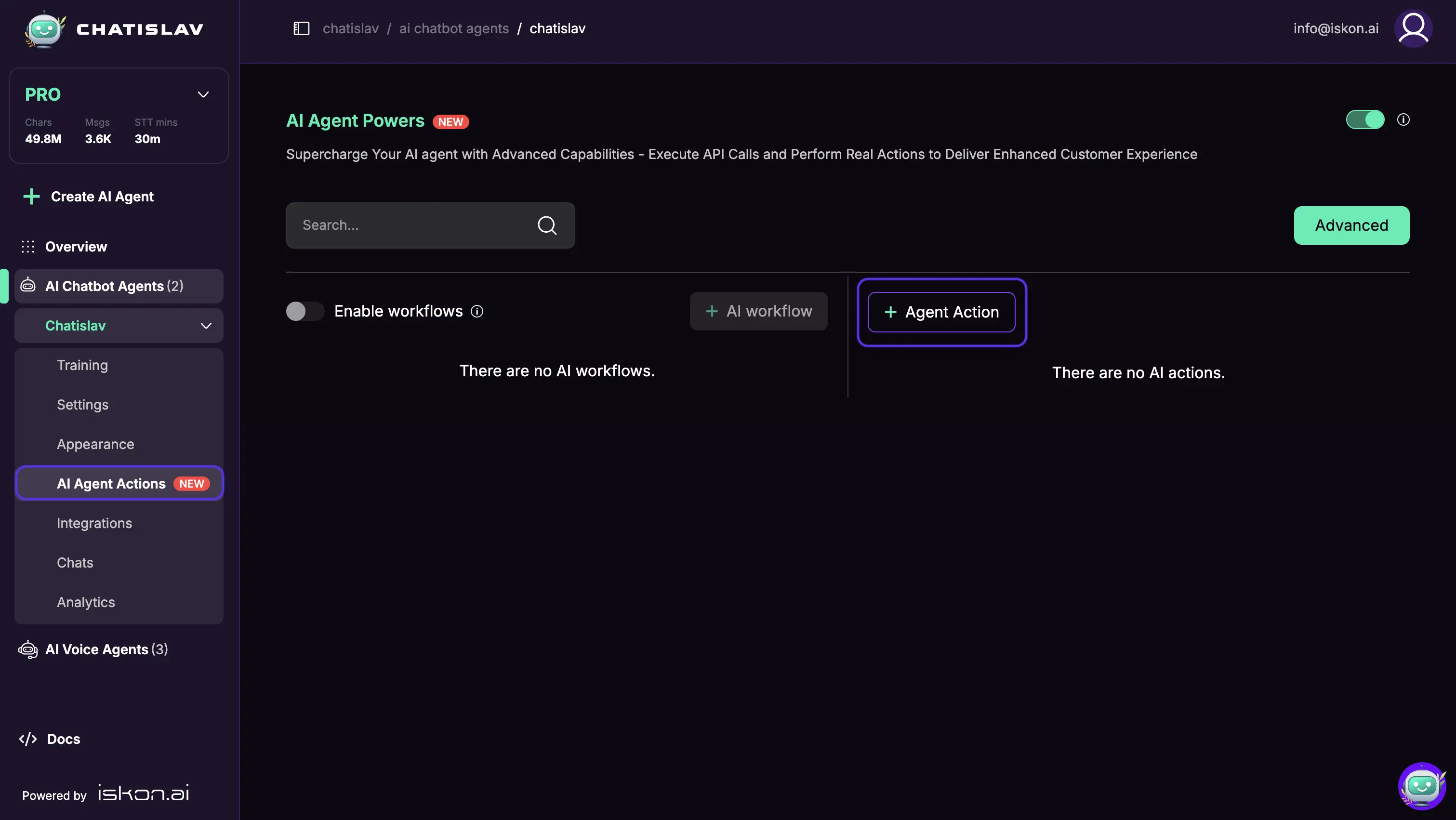
Open your AI chatbot agent and go to AI Agent Actions. Click + Agent Action to add a new action.
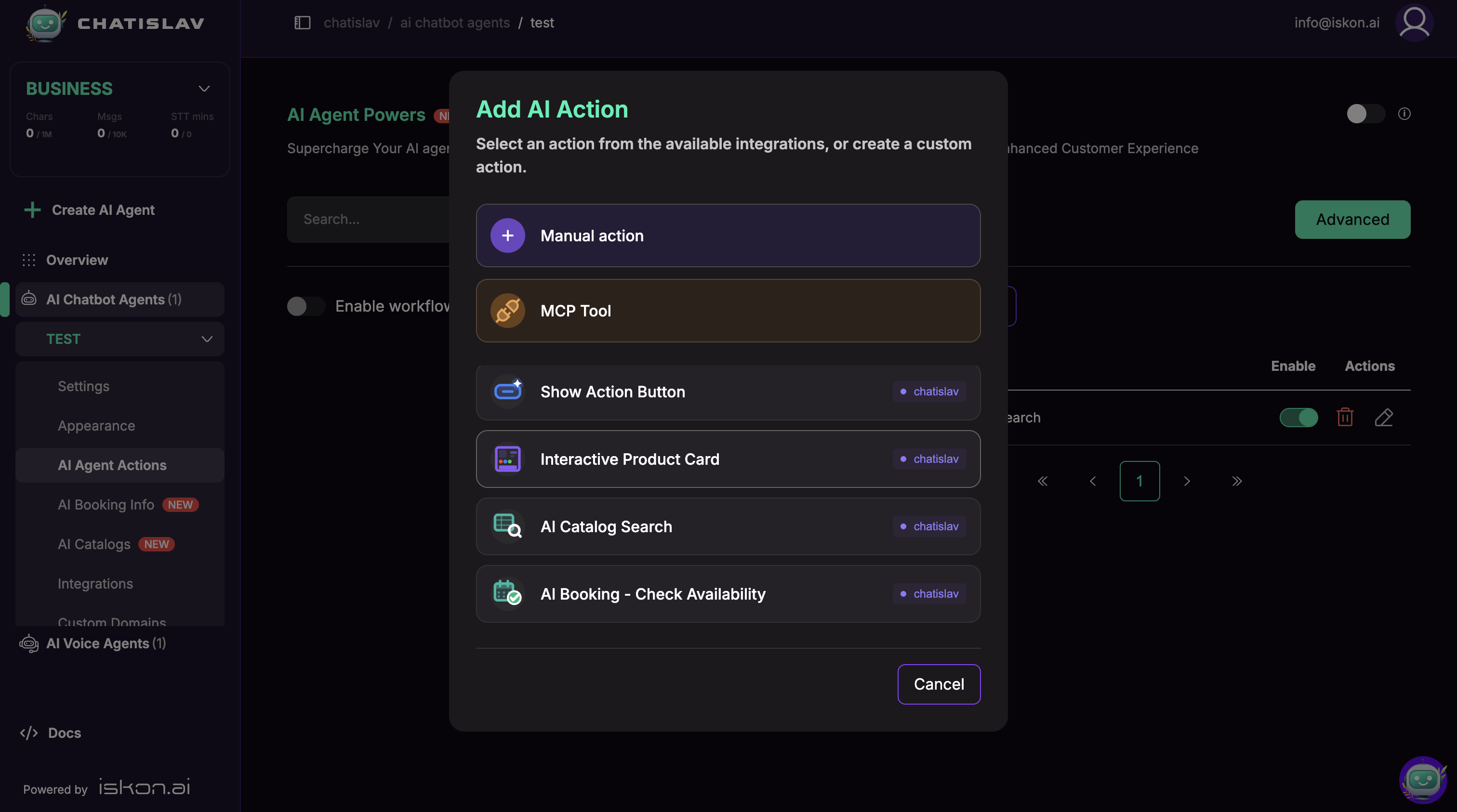
Select Interactive Product Card from the action list.
Best Paired with AI Catalog Search
The Interactive Product Card is at its best when combined with the Data Search (AI Catalog) action and Automatic Card Mapping:
- The agent calls AI Catalog Search to find the relevant products in your catalog.
- The product card action renders those results as rich, interactive cards — built automatically from your catalog data.
This keeps the agent's job tiny (pick products, write a short intro) while Chatislav does the heavy lifting of building the cards.
Automatic Card Mapping
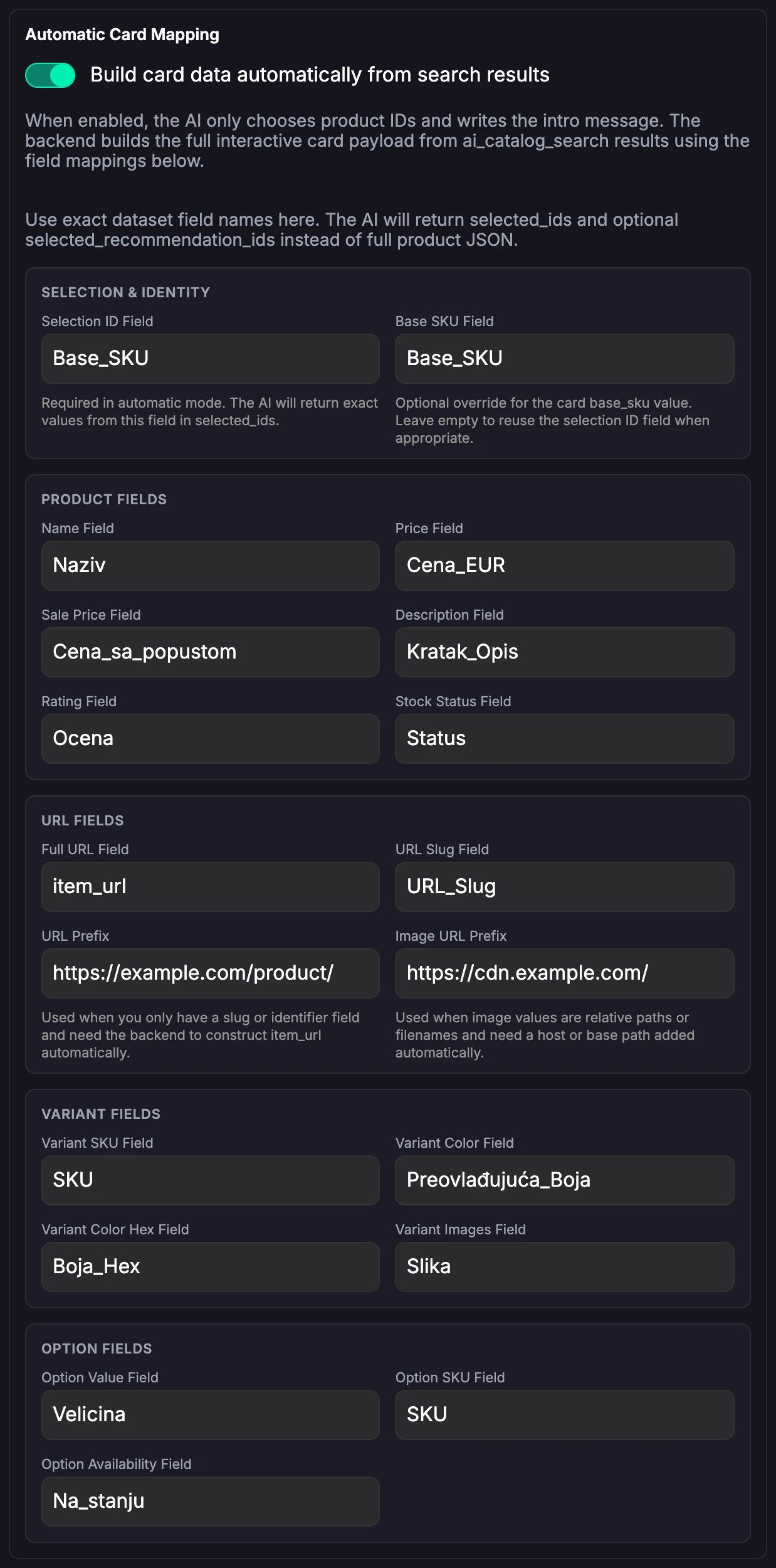
Turn on "Build card data automatically from search results" and the agent only returns the matching product IDs (selected_ids, plus optional selected_recommendation_ids) and a short intro message — it never generates the full product JSON. Chatislav's backend then builds the complete card payload from the ai_catalog_search results using your field mappings.
Because the model produces just a short list of IDs instead of large structured card data, responses are faster and cheaper, and card data comes from your catalog instead of being re-generated by the model.
You map your catalog columns to card fields once, in these groups:
- Selection & Identity — selection ID, base SKU. The Selection ID Field is required in automatic mode.
- Product Fields — name, price, sale price, description, rating, stock status.
- URL Fields — item URL, URL slug, URL prefix, image URL prefix.
- Variant Fields — variant SKU, color, color hex, images.
- Option Fields — option value, option SKU, option availability.
Use the exact dataset field names from your AI Catalog. In automatic mode, the agent must copy exact values from the configured Selection ID Field in previous Data Search results into selected_ids. If the selected IDs do not exist in the search results, Chatislav cannot build the card.
Automatic mapping works best when the same workflow step first runs Data Search (AI Catalog) and then runs Interactive Product Card. The product card can use results already available in that execution.
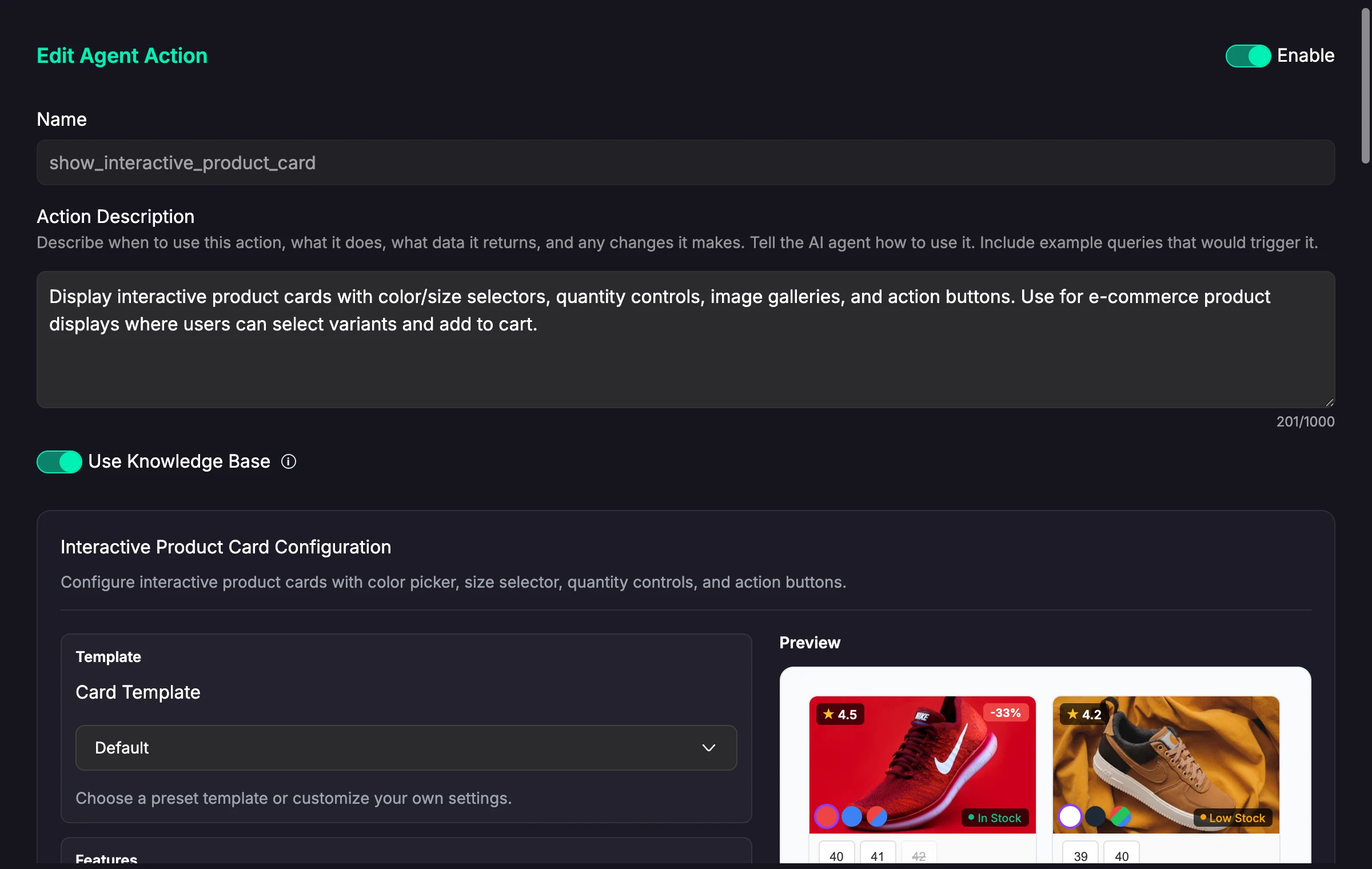
The configuration screen also gives you a live preview of the cards as you adjust the template, features, and styling:
Card Features
Choose which elements appear on the card:
- Show rating, stock, variant selector, quantity selector, sale price, description, SKU.
- Link the product name or show a read-more link when product URLs are available.
- Currency symbol and position, number locale, price/rating decimals.
- Text labels for in stock / low stock / out of stock and the option selector.
- Optional prefix text before the cards and footer text after the cards.
Action Button
Configure what happens when the user clicks the card's button:
- Action type — open a URL, trigger an SDK callback, or send a chat message.
- Target —
_blankor_self(for URLs). - Button text, SDK event name, or chat message template, depending on the action type.
Appearance & Layout
- Template preset — default, compact, elegant, bold, or minimal.
- Styling — orientation, width, colors, border radius, image height, shadows, fonts, sale-badge color, and more.
- Layout — columns, gap, max products, scroll direction, visible rows, scroll dots/arrows.
- Placeholder image for products without an image.
- Recommendations — optionally show a recommendations row with its own title, layout, name-link behavior, and action behavior.
In automatic mapping mode, recommendations can be selected with selected_recommendation_ids. If recommendation data is nested under a custom path in the Data Search result, set Recommendation Data Path(s) so Chatislav knows where to read it.
Manual Product JSON Mode
When Build card data automatically from search results is off, the agent must provide a products array instead of selected_ids. Use this mode when you are not building cards from AI Catalog search results, or when the product card data comes from another source.
If the variant selector is enabled, product objects should include variants and options. If the variant selector is disabled, products should omit variants, sizes, colors, and options. If recommendations are enabled, the agent can also provide a recommendations array.
Tips
- Set up your AI Catalog schema first, including the product ID/SKU, image columns, variant columns, option columns, and product URL fields you want to display.
- Add the Data Search (AI Catalog) action alongside this one and keep Automatic Card Mapping on — this is the recommended setup for catalog-backed product cards.
- Keep the Selection ID Field stable. Changing that field can break existing card mappings until the action is updated.
- Use the live preview to fine-tune styling before going live.