Upload Knowledge Documents
Use document training to give an AI chatbot agent your own knowledge base. Chatislav can train on uploaded files and then use the processed content when answering user questions.
This page focuses on document upload. The same Training page also supports website URLs, YouTube links, audio files, and image files where available.
Open the Training Page
In the left sidebar, open AI Chatbot Agents, select the agent, then click Training.
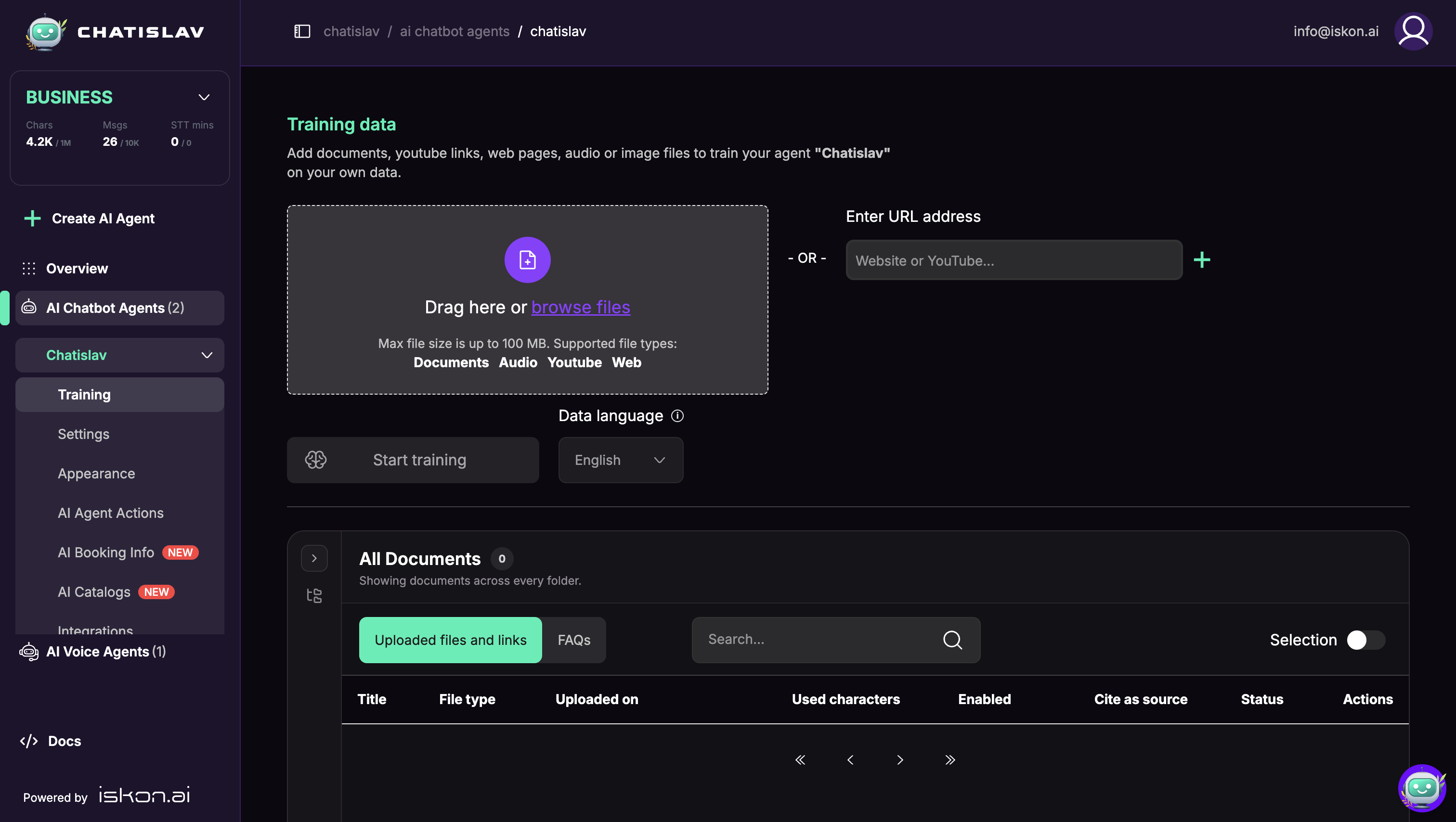
The Training page includes:
- A file upload area.
- A URL field for website or YouTube training.
- A Data language selector.
- A document table for uploaded files, links, and FAQs.
Upload a Document
Drag a document into the upload area or click browse files to select it from your computer.
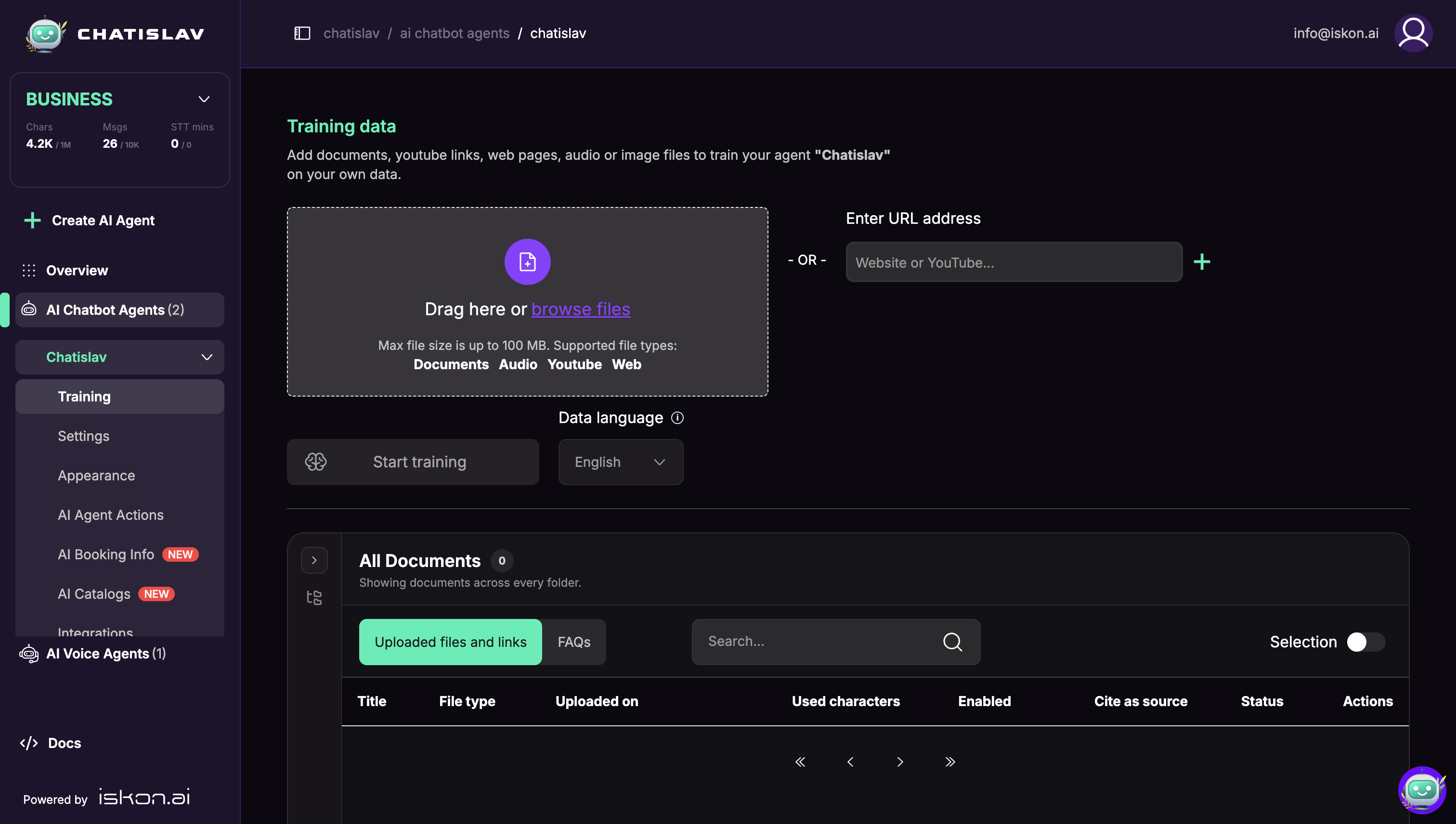
After the document is selected, confirm the data language. English is selected by default unless you choose another language.
Optional: Configure Document Processing
Before starting training, use the document options menu to open the Documents training modal. These settings control how Chatislav formats and splits the document before training.
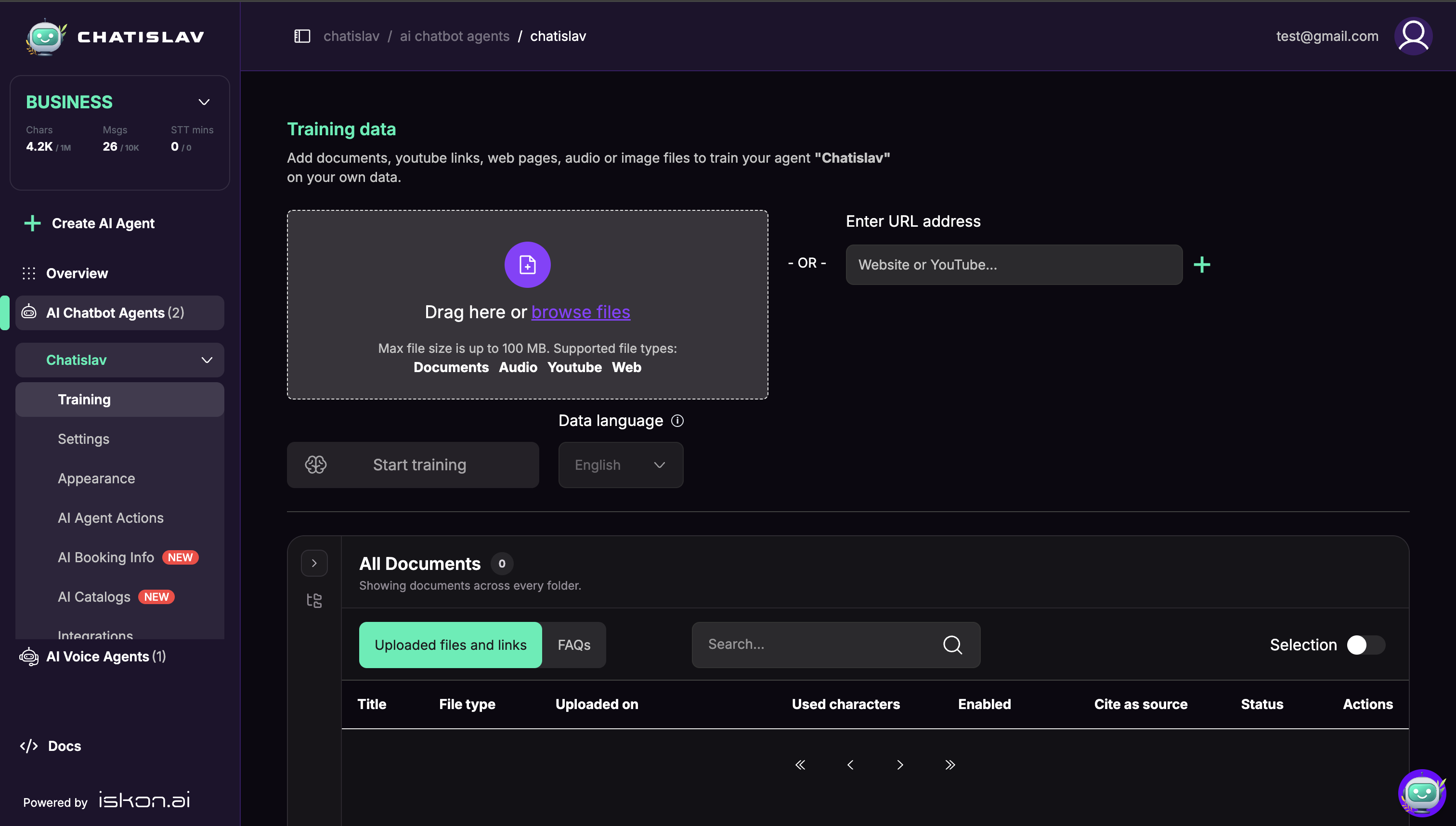
Common options include:
- Formatting type: choose the parsing style for the document.
- Title and Description: add metadata for the document.
- Separator and Keep separator: control how text is split.
- Chunk size and Chunk overlap: control how large each searchable chunk should be and how much context overlaps between chunks.
The same preprocessing modal applies to the selected file before training starts.
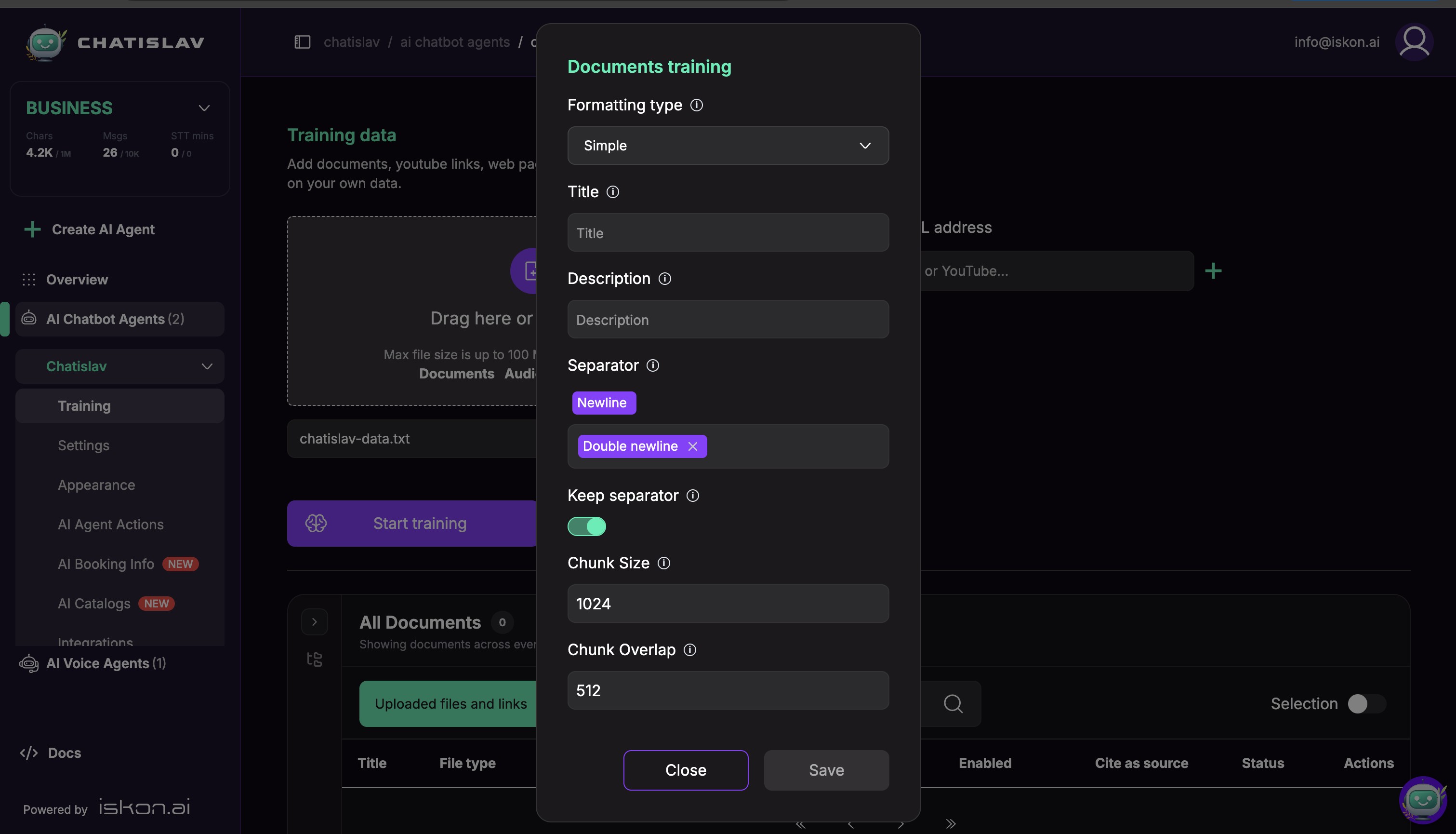
For a full explanation of preprocessing options, see Document preprocessing.
Start Training
Click Start training after the document is selected and the settings are ready.
The uploaded document appears in the document table.
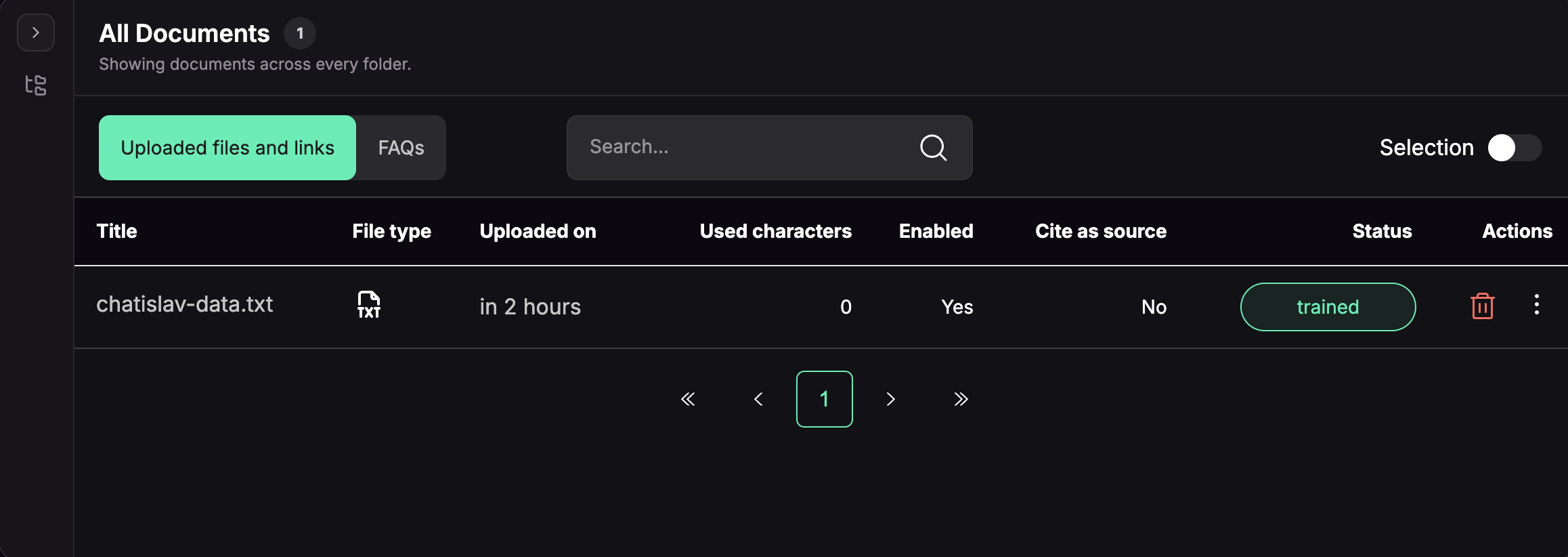
While the document is being processed, its status is in progress.
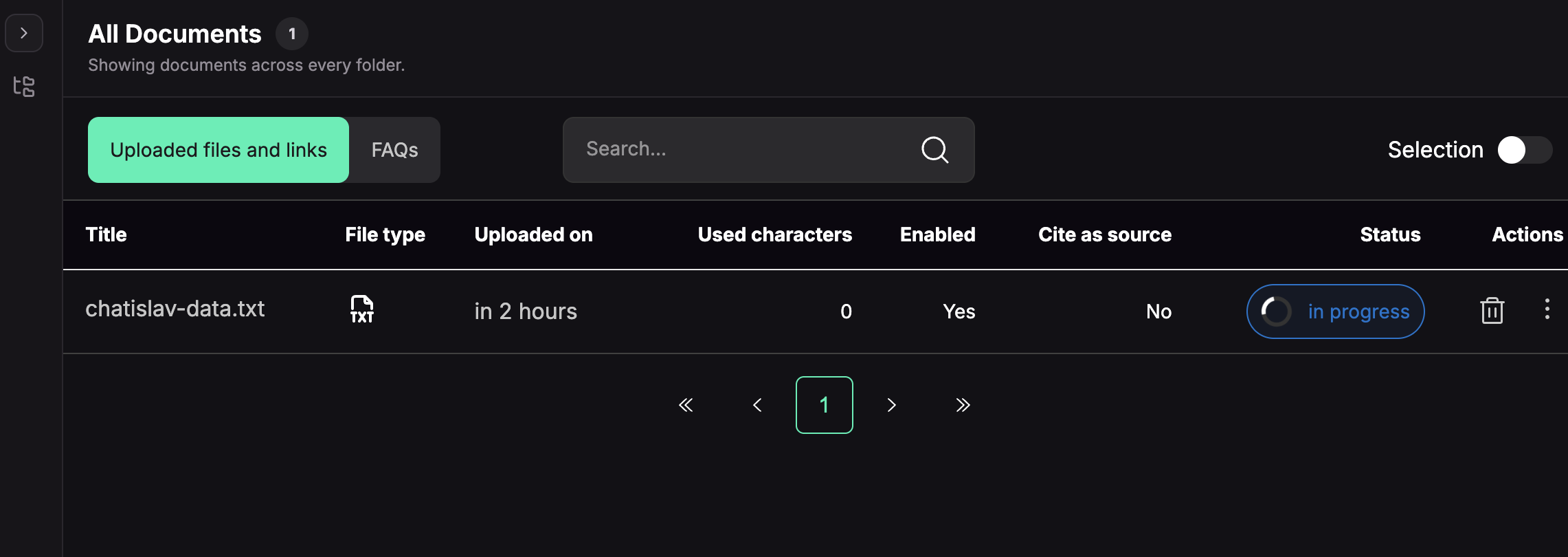
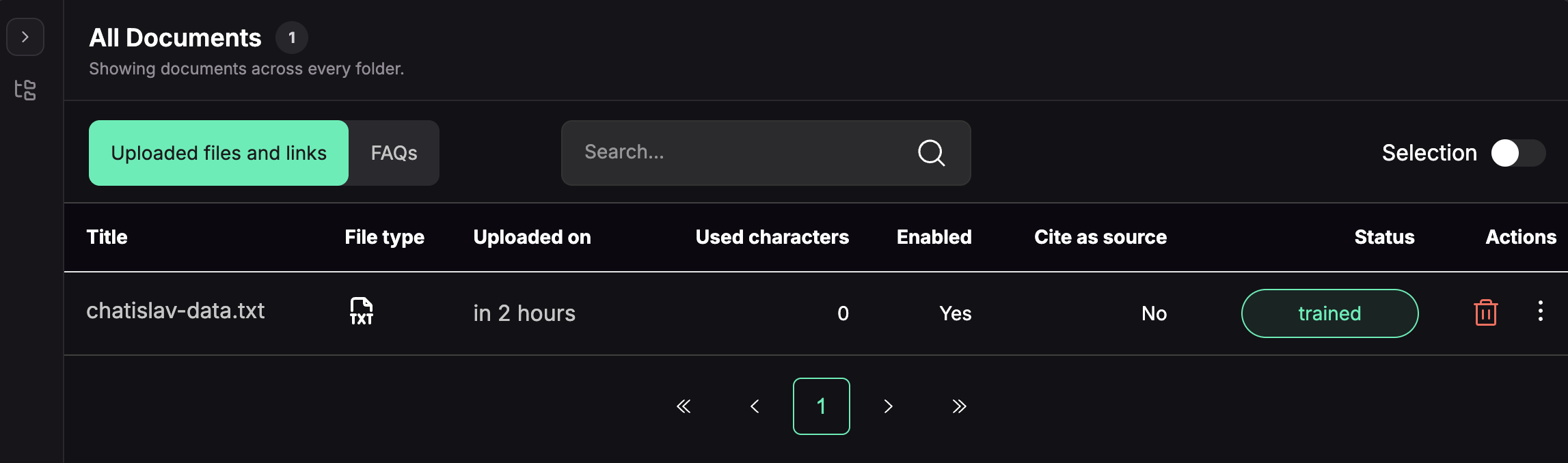
When processing finishes, the status changes to trained.
Check the Processed Data
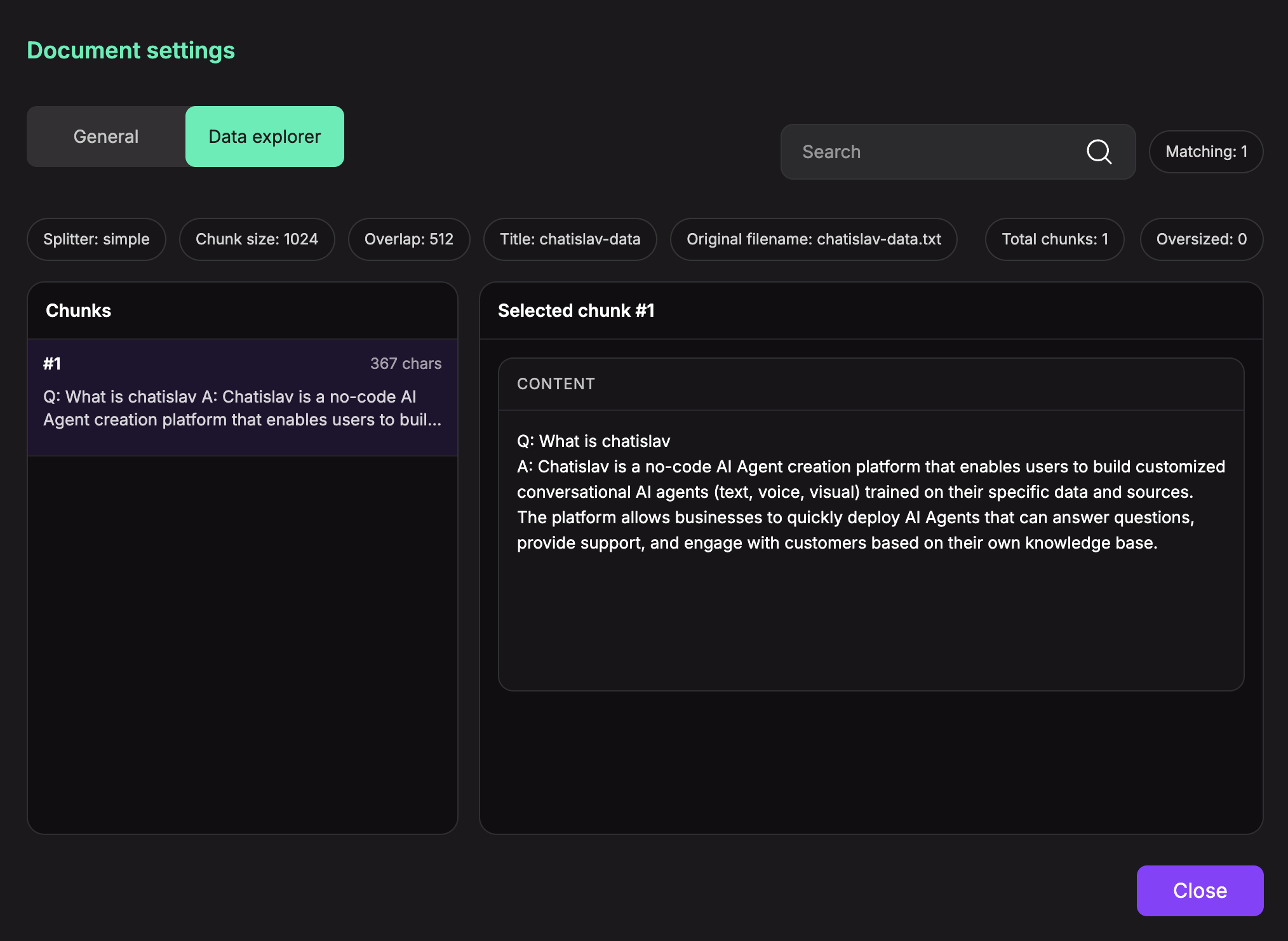
Open the document's Data explorer to inspect how Chatislav split the content into chunks. This helps confirm that the document was formatted and trained correctly.
Supported Document Formats
Chatislav supports common document formats for training:
- XLSX
- DOCX
- TXT
- CSV
- MD
Manage Documents
After a document is trained, use the document table and document settings to manage how it is used:
- Enabled controls whether the agent can use the document for answers.
- Cite as source controls whether the document can be shown as a source in responses.
- Status shows whether the document is ready, still processing, or failed.
- Delete removes a document from the agent.
For documents trained from a URL or hosted file, use Auto-resync knowledge to keep the source up to date automatically.