Team
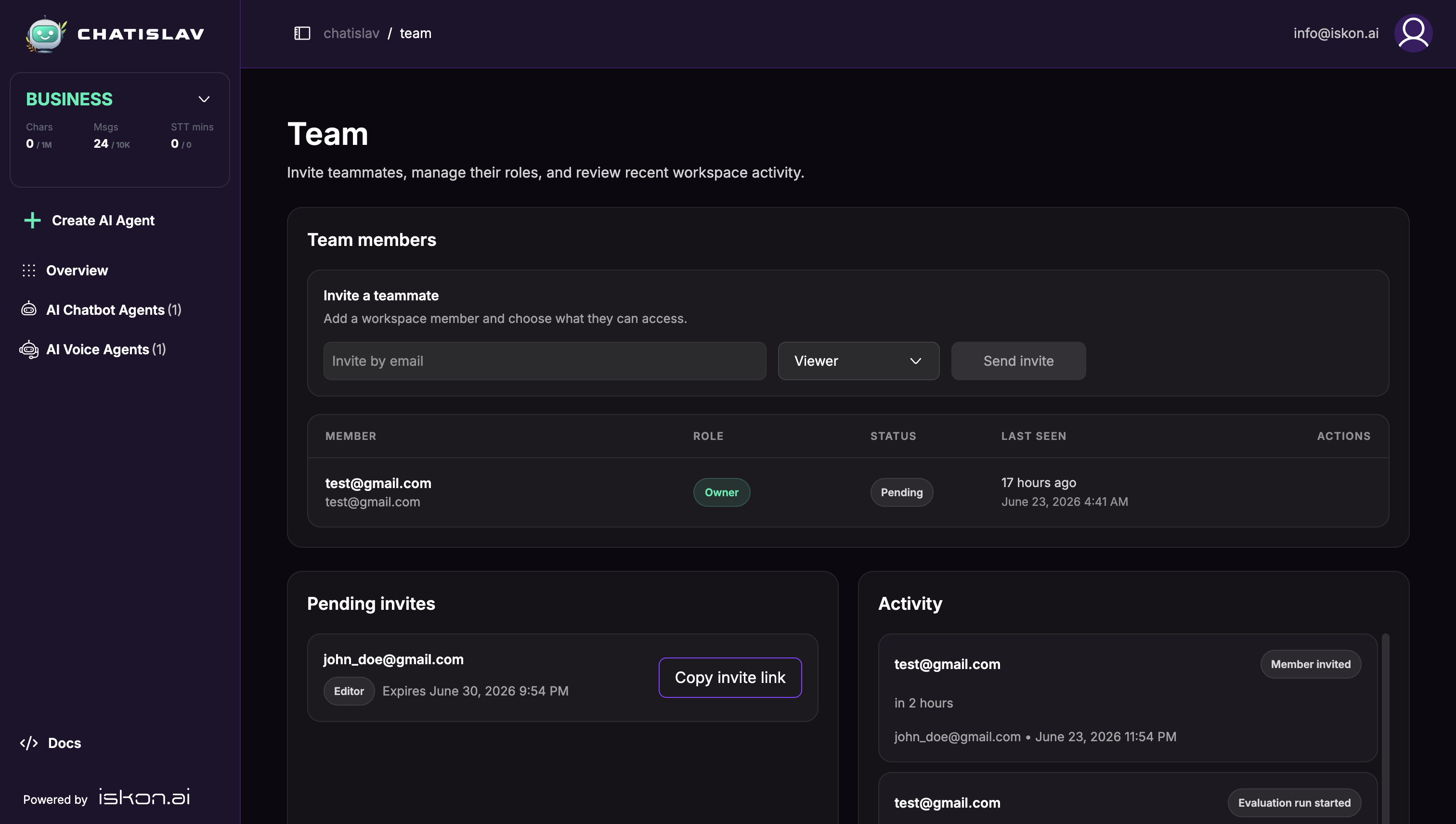
The Team page lets workspace admins invite teammates, manage member roles, copy pending invitation links, remove members, and review recent workspace activity.
Teams is available on plans/workspaces where team access is enabled. Only admins can manage team members.
Accessing Team
- Open the main sidebar.
- Select Team.
The page shows:
- Invite a teammate - invite a user by email and choose their role.
- Team members - review members, statuses, roles, last seen time, and actions.
- Pending invites - copy invitation links and see invitation expiry.
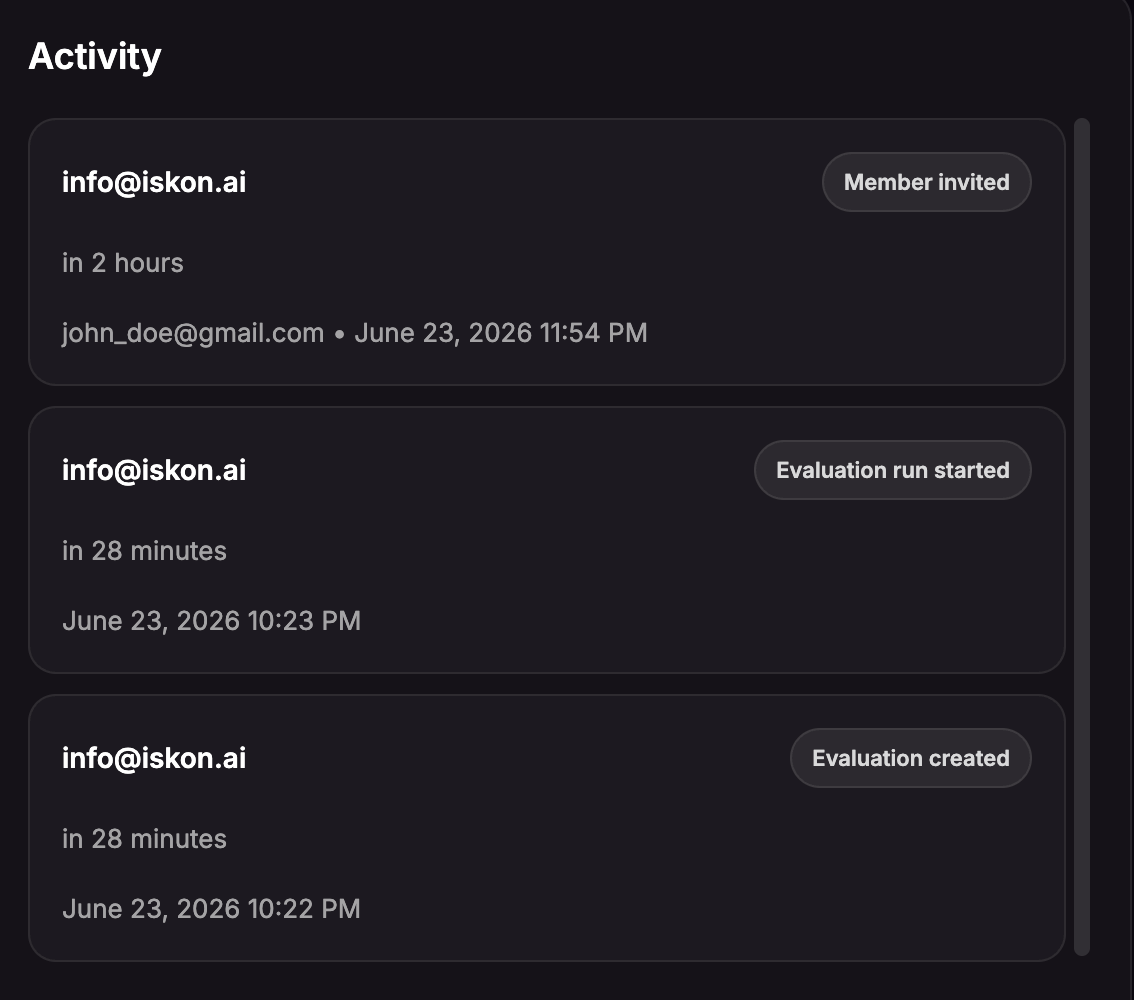
- Activity - review recent workspace activity.
Roles
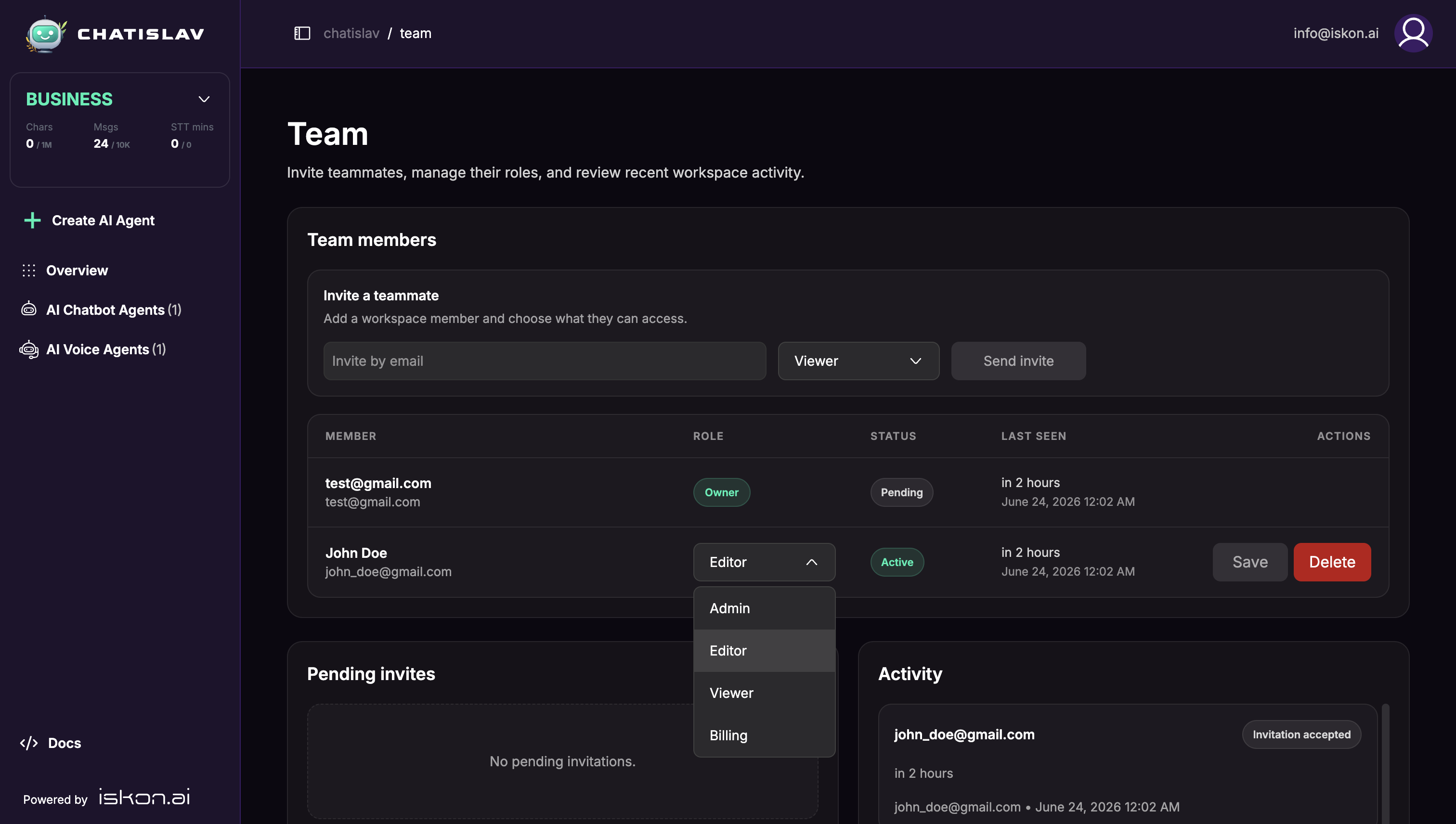
Choose a role when inviting a teammate or editing an existing member.
| Role | Use It For |
|---|---|
| Admin | Managing the workspace, team, billing, and agent configuration. |
| Editor | Creating and editing workspace content and agents without team or billing administration. |
| Viewer | Reviewing workspace content without editing it. |
| Billing | Managing billing access without normal workspace editing access. |
The owner role is shown separately and cannot be changed from the Team page.
Inviting a Teammate
- Enter the teammate's email address in Invite by email.
- Choose a role.
- Click Send invite.
Chatislav sends an invitation email. The invitation also appears under Pending invites, where you can copy the invite link and share it directly if needed.
Invitations expire after 7 days.
Pending Invites
Pending invites show the invited email address, selected role, expiry date, and Copy invite link action.
Use Copy invite link if the invited teammate did not receive the email or you want to send the link through another channel.
Accepting an Invitation
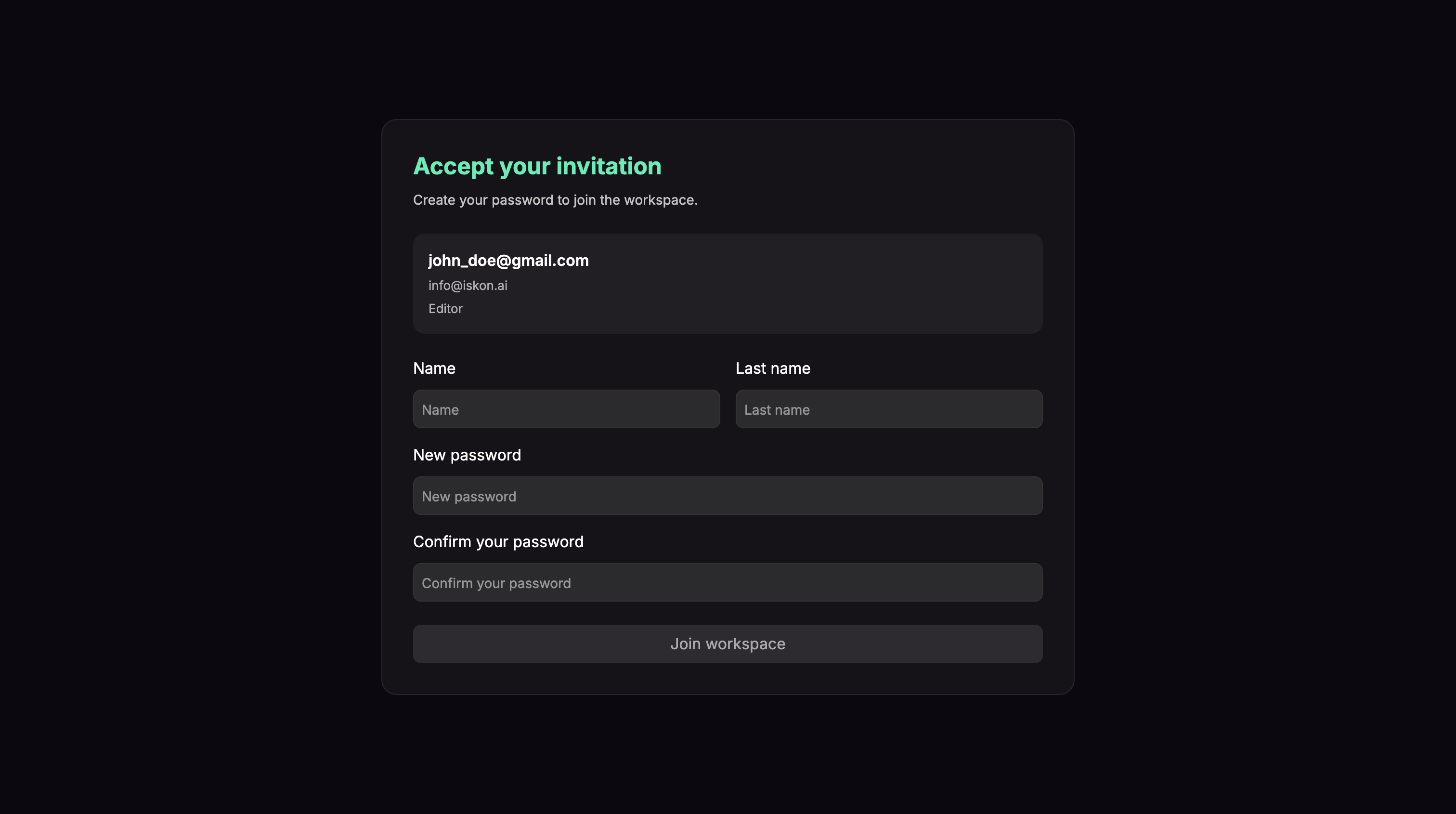
When a teammate opens an invitation link, they see the workspace invitation page.
The page shows:
- Invited email address.
- Workspace name or workspace email.
- Assigned role.
- Name fields.
- Password fields when a password is required.
- Join workspace button.
Managing Members
The members table shows each member's email, role, status, last seen time, and available actions.
Statuses
- Active - the teammate has accepted the invitation.
- Pending - the teammate exists in the workspace but has not completed activation yet.
Changing a Role
- Open the member's role dropdown.
- Choose the new role.
- Click Save.
You cannot change the owner role. Chatislav also prevents changes that would leave the workspace without an admin.
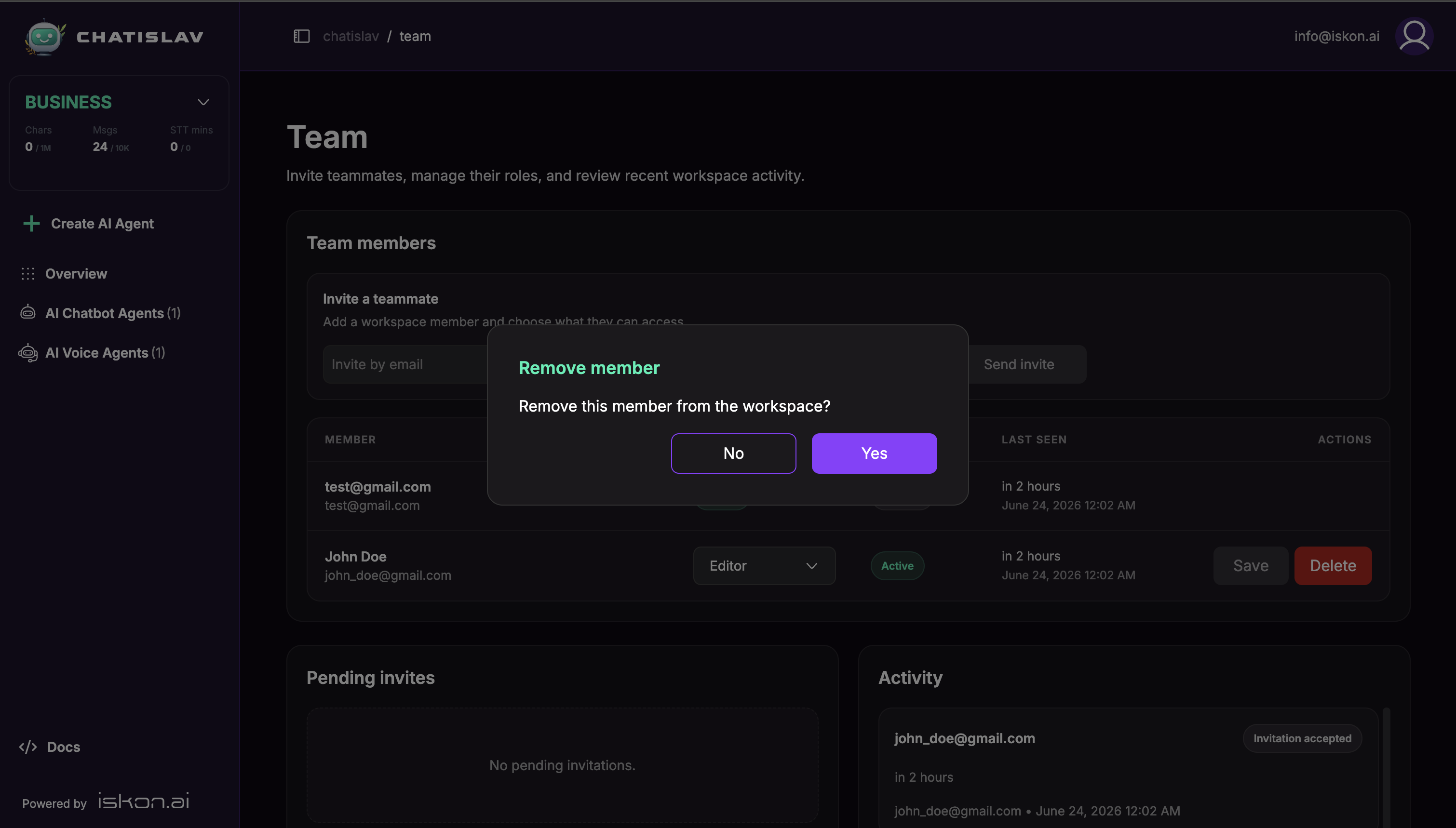
Removing a Member
- Click Delete on a non-owner member.
- Confirm the removal.
Removing a member removes their access to the workspace. It does not delete the workspace itself.
Activity
The Activity section shows recent workspace events with the actor, action, timestamp, and related email or detail when available.
Activity can include team actions such as member invites, role updates, removals, and invitation acceptance. It can also include workspace events from other features, such as evaluations or training-data changes.
Best Practices
- Keep at least two admins for business-critical workspaces.
- Use Editor for teammates who need to build and update agents.
- Use Viewer for teammates who only need to review setup or results.
- Use Billing for teammates who only need plan and billing access.
- Remove members who no longer need workspace access.